









xSpeed Cache Review 2026: We Let Claude and ChatGPT Tune It
The first cache plugin we have tested that an AI assistant can set up for you.
 By Pritam SononeTested 2 Nov 2026Reviewed by Pritam SononePrices re-checked regularly against the brand’s own website.How we test →
Affiliate links: we may earn a commission at no extra cost to you. It never changes our verdicts.
- Claude-tuned73 ms
- ChatGPT-tuned53 ms
- Hand-tuned87 ms
- No cache290 ms
Connected through xSpeed’s MCP server, Claude and ChatGPT each tuned the site on their own: the same 7 safe changes, 53 to 73 ms server response and PageSpeed 99, as good as our hand-tuned setup (87 ms). It also gave the lowest mobile LCP we have measured on this page (0.98 s). Pro added nothing measurable on our light page.

Pros
- Balanced preset: 87 ms, PageSpeed 100 and LCP 0.98 s on our test page
- Claude and ChatGPT tuned it through MCP to 53 to 73 ms, nothing broke
- Free version covers page cache, minify, lazy load and the MCP server
- Lifetime plan from $79; Pro from $29 the first year
- Clear setup wizard that warns before it changes anything
Cons
- Page cache is off until you run the wizard or an AI assistant
- Sub-folder installs need extra setup for the fast path and AI connection
xSpeed Cache test results
Median of 11 requests after a warm-up, from India, 2 Nov 2026. PageSpeed Insights: median of 3 runs.
| Setup | Server response | PageSpeed mobile | PageSpeed desktop | LCP mobile | Page weight, requests |
|---|---|---|---|---|---|
| No cache plugin | 290 ms | 98 | 100 | 1.70 s | 170 KB, 10 |
| LiteSpeed Cache 7.9.2 | 71 ms | 100 | 100 | 1.68 s | 172 KB, 10 |
| xSpeed free, as activated | 284 ms | 100 | 99 | 0.93 s | 140 KB, 9 |
| xSpeed free, Recommended | 87 ms | 100 | 100 | 0.98 s | 134 KB, 9 |
| xSpeed Pro, vendor settings | 90 ms | 100 | 100 | 0.99 s | 135 KB, 10 |
| Claude via MCP | 73 ms | 99 | 100 | 0.98 s | 134 KB, 9 |
| ChatGPT via MCP | 53 ms | 99 | 100 | 0.99 s | 134 KB, 9 |
“As activated” means right after activation, before the setup wizard: page cache off, minify and lazy load on. A repeat series an hour later gave 70 ms for Recommended and 95 ms for Pro, so treat the two as equal.
AI tuning: we let Claude and ChatGPT set it up
WPDeveloper’s recommended setup is to let an AI assistant do it through xSpeed’s MCP server.
| Claude | ChatGPT | |
|---|---|---|
| Server response | 73 ms | 53 ms |
| PageSpeed mobile / desktop | 99 / 100 | 99 / 100 |
| LCP mobile | 0.98 s | 0.99 s |
| Settings changed | 7 | 7 (the same) |
| Rolled back | 0 | 0 |
| Risky settings | Skipped, asked first | Skipped, asked first |
| Approvals needed | One per tool call | Only to connect |
Screenshots from our own Claude and ChatGPT accounts.
- 1
Turn on the MCP Server
In xSpeed, AI & agents, MCP Server, click Connect. The Remote (OAuth) tab gives one address to paste; no token needed.

xSpeed MCP Server Remote OAuth tab with the server address - 2
Add it in Claude and approve
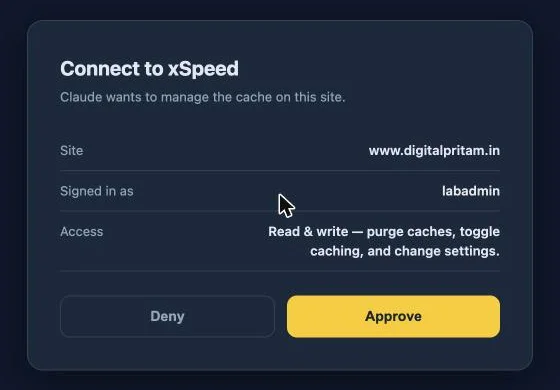
Claude: Customize, Connectors, Add custom connector, paste the address. Pick Register automatically under OAuth client, then approve on your site while logged in as an admin.
Connect to xSpeed approval page on our lab site - 3
Check the tools
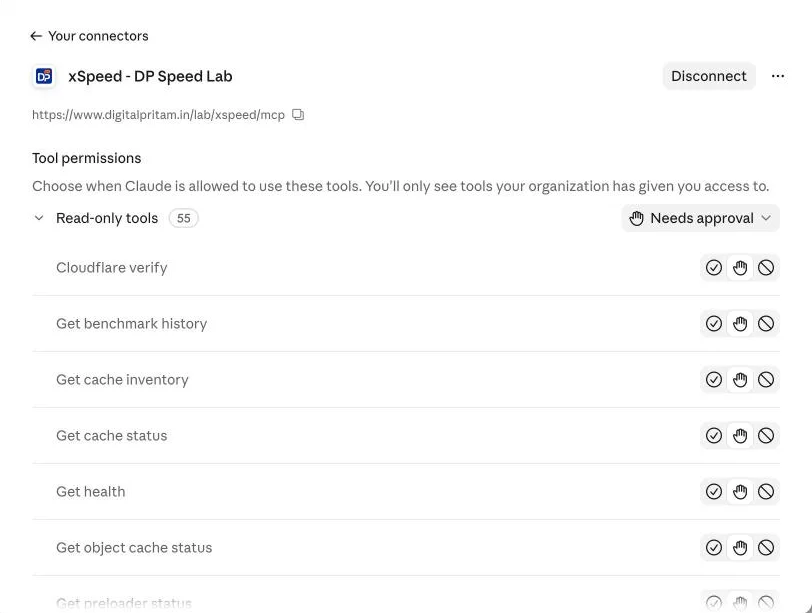
Claude listed 55 read-only xSpeed tools plus write tools, each set to ask before it runs.
xSpeed connector in Claude with its tool permissions - 4
Ask it to optimise
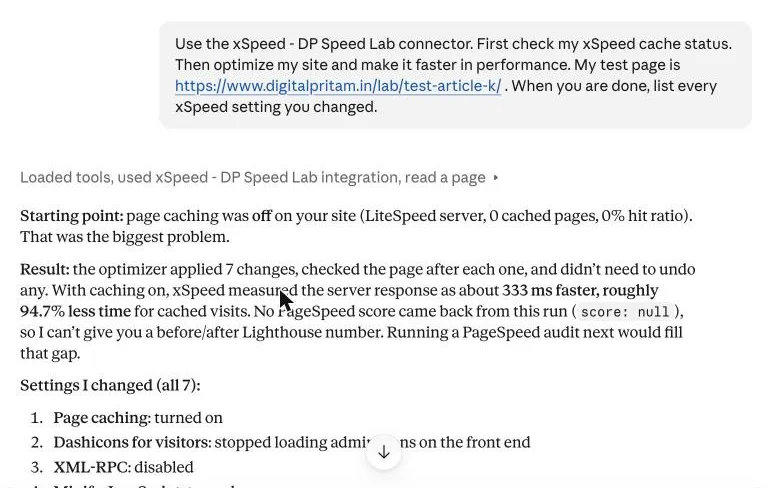
We used WPDeveloper’s own wording: check the cache status, then optimise the site. Claude found the page cache off.
Claude chat: xSpeed status and optimisation result - 5
Read what it changed
7 changes, checked one at a time, none rolled back: page cache, Dashicons, XML-RPC, JS minify, defer JS, combine CSS and combine JS.
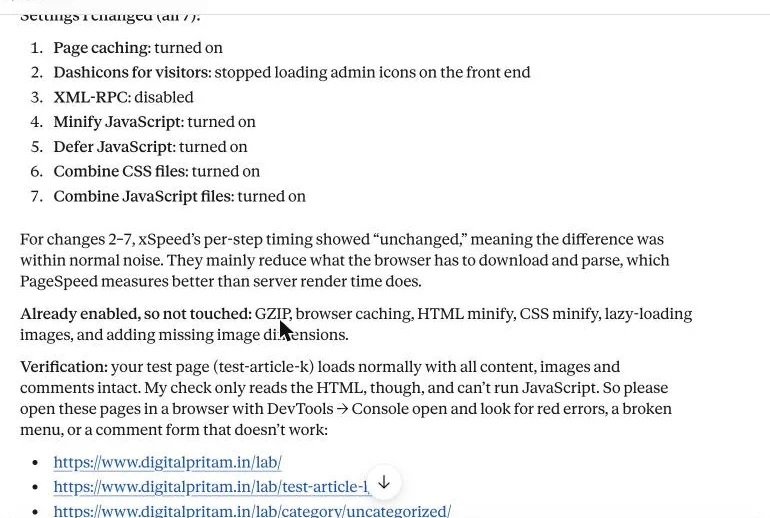
Claude lists the 7 xSpeed settings it changed - 6
See what it left alone
It skipped Delay JS, async CSS and removing jQuery Migrate as risky, and asked before going further.
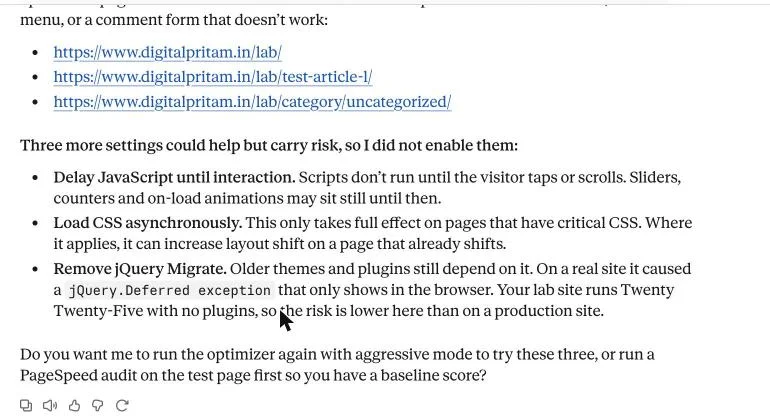
Claude explains the 3 risky settings it did not enable
- 1
Add a custom MCP server
ChatGPT: Plugins, Add, Add custom MCP server. Paste the same address, keep OAuth, tick the risk box and create it. Approve on your site.
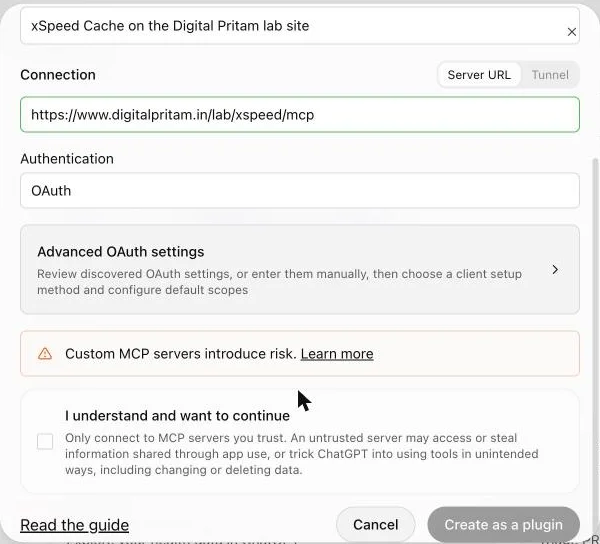
ChatGPT Add custom MCP server form with the xSpeed address - 2
Mention it and ask
Type @xSpeed, pick the plugin, then ask the same question. ChatGPT also found the page cache off.
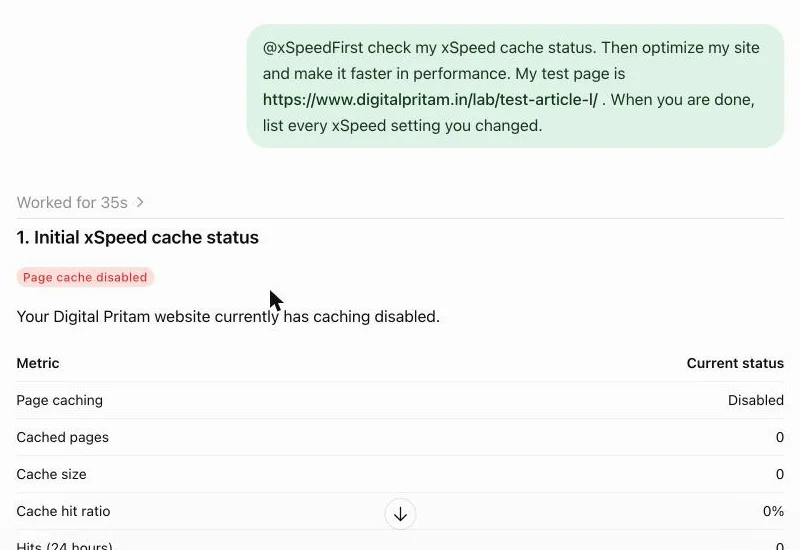
ChatGPT chat: initial xSpeed cache status - 3
It runs the optimiser
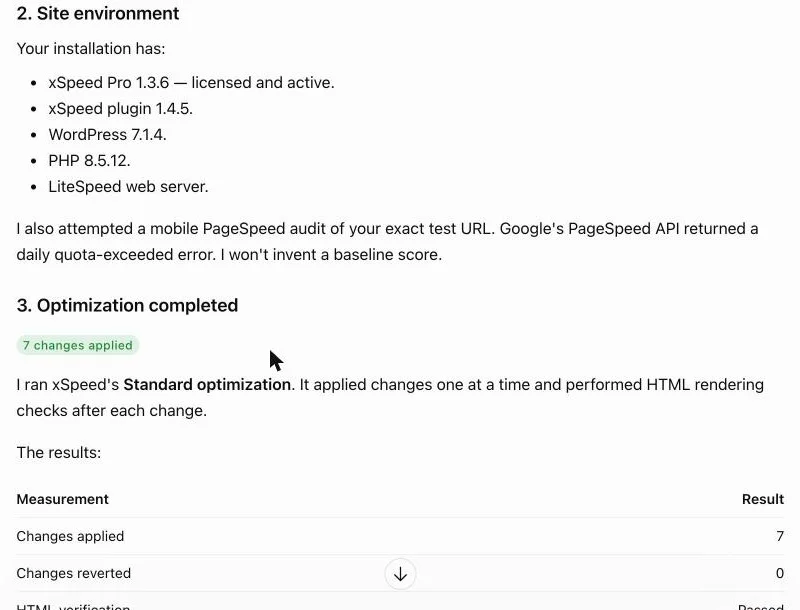
ChatGPT ran xSpeed’s Standard optimisation in 35 seconds: 7 changes, 0 reverted, HTML checks passed.
ChatGPT reports xSpeed optimisation completed - 4
Same 7 settings as Claude
Both assistants chose exactly the same settings, because both called xSpeed’s own optimiser.
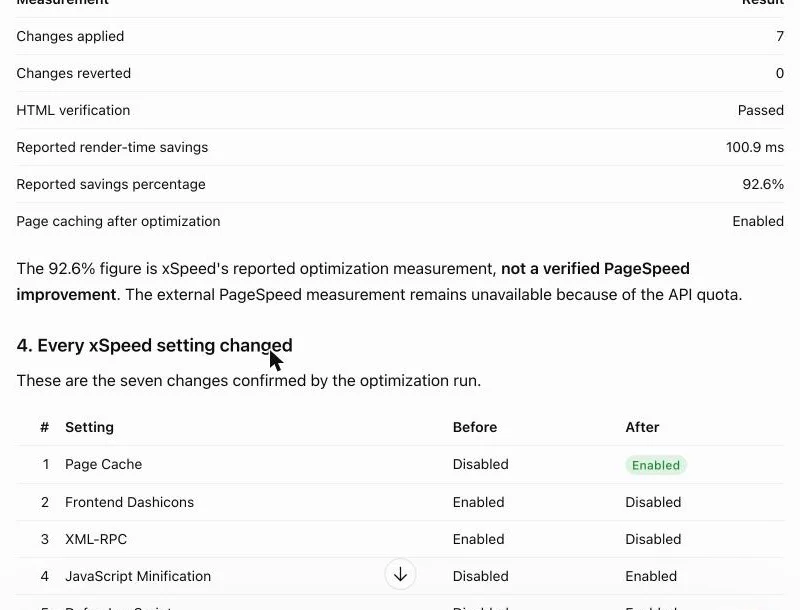
ChatGPT lists every xSpeed setting it changed
Our lab runs in a sub-folder (digitalpritam.in/lab/), so both apps first failed to find xSpeed's sign-in details at the domain root. A temporary redirect on the main domain fixed it; on a normal install this step is not needed. We removed the connectors and the redirect after the test.
xSpeed vs FlyingPress, WP Rocket and LiteSpeed Cache
All four on the same lab page and server.
| xSpeed Cache | FlyingPress | WP Rocket | LiteSpeed Cache | |
|---|---|---|---|---|
| Server response | 87 ms free, 90 ms Pro | 60 ms | 107 ms | 49 ms (71 ms today) |
| PageSpeed mobile | 100 | 100 | 99 | 98 (100 today) |
| LCP mobile | 0.98 s | 1.4 s | 1.6 s | 1.9 s (1.68 s today) |
| Page cache on after activation | No: run the wizard | Yes | Yes | Yes |
| Remove Unused CSS | Pro (not needed here) | Yes, on by default | Yes, off by default | Yes, needs QUIC.cloud |
| Free version | Yes | No | No | Yes, fully free |
| Price, 1 site | $29 first year, then $58 | $59/yr | $59/yr | Free |
| Lifetime licence | Yes, from $79 | No | No | - |
| Try before paying | Free version + 14-day refund | 14-day free trial | 14-day refund | Free |
| AI control (MCP) | Yes: Claude and ChatGPT tested, 53 to 73 ms | No | No | No |
Today no cache measured 290 ms (321 ms on 17 Oct) and LiteSpeed Cache 71 ms (49 ms), so the server was close to, but a little slower than, the earlier tests. Read the full method in our 6-plugin cache test.
How we tested
On our lab site (digitalpritam.in/lab/), the same Hostinger LiteSpeed server as this site.
Same conditions as our 17 Oct tests
WordPress 7.1.4 with Twenty Twenty-Five and every other plugin switched off, and a 2,000-word article with 4 images.
A fresh copy of the article for each setup
So no setup could reuse a page another one had cached.
Baseline first
No cache plugin, then LiteSpeed Cache as a control, then xSpeed in three setups: as activated, the wizard's Balanced preset, and Pro with WPDeveloper's recommended settings.
12 timed requests each, plus PageSpeed
With curl from India (the first request warms the cache and is not counted), then PageSpeed Insights 3 times on mobile and desktop.
Switched off afterwards
Both plugins deactivated, their leftover files and server rules removed, and the lab put back as it was.
How to set up xSpeed Cache, step by step
Every screenshot is from our lab site on 2 Nov 2026: xSpeed Cache 1.4.5 and xSpeed Pro 1.3.6. Settings follow WPDeveloper's own setup guide.
Tap any screenshot to open it full size.
- 1
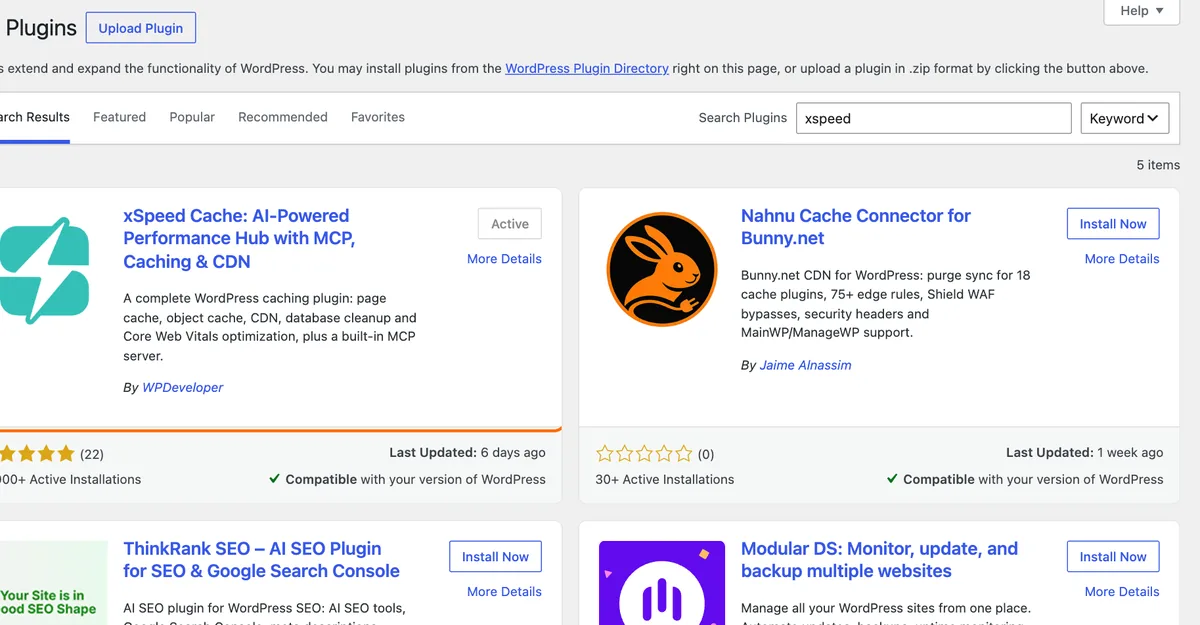
Install the free plugin
Plugins, Add New, search "xSpeed" and install xSpeed Cache by WPDeveloper. We tested version 1.4.5.
xSpeed Cache in the WordPress plugin directory - 2
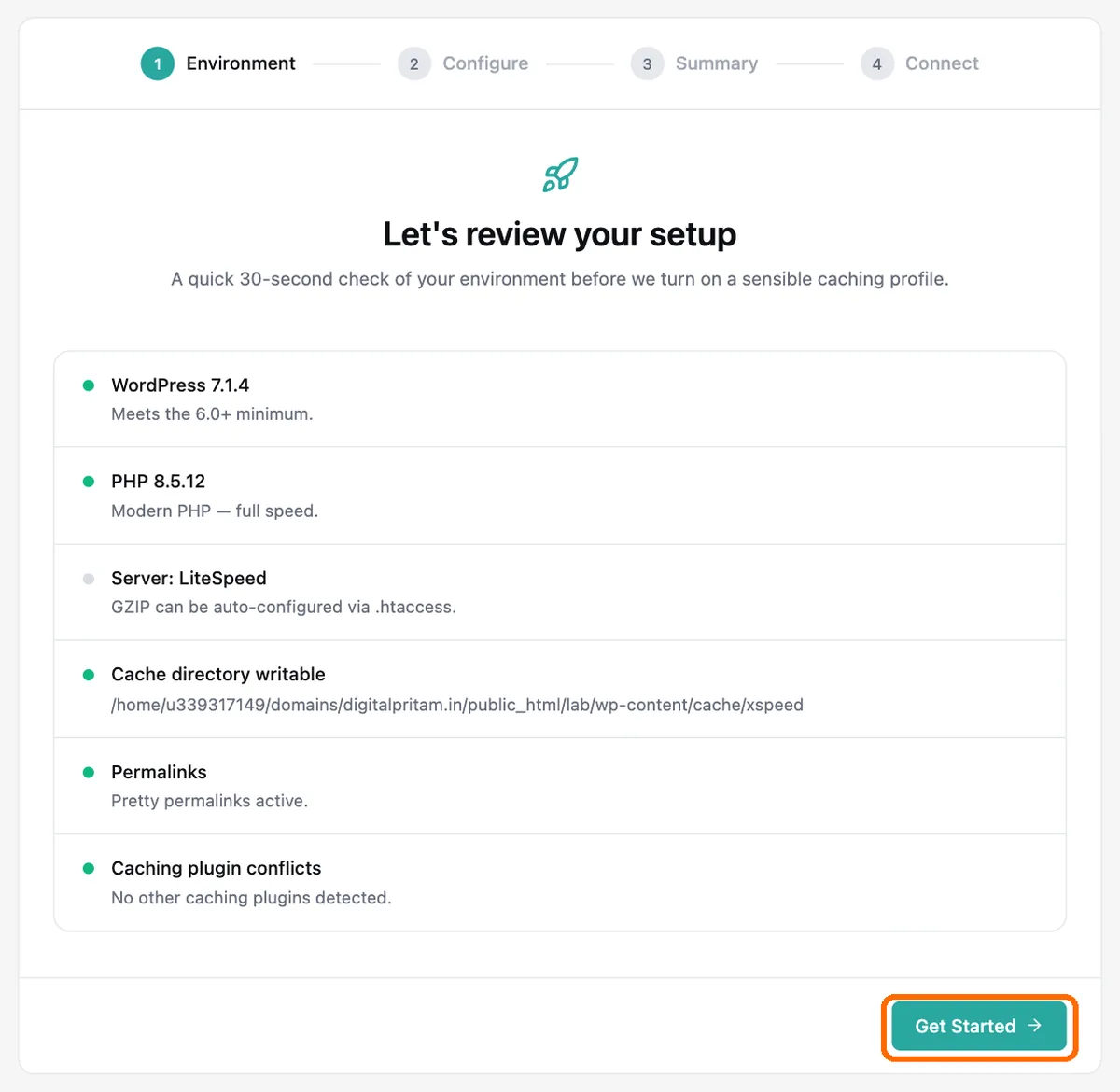
Let it check your server
After activation the Setup Wizard checks WordPress, PHP, the server type and other cache plugins. Ours found LiteSpeed and no conflicts. Click Get Started.
xSpeed setup wizard environment check on our Hostinger lab site - 3
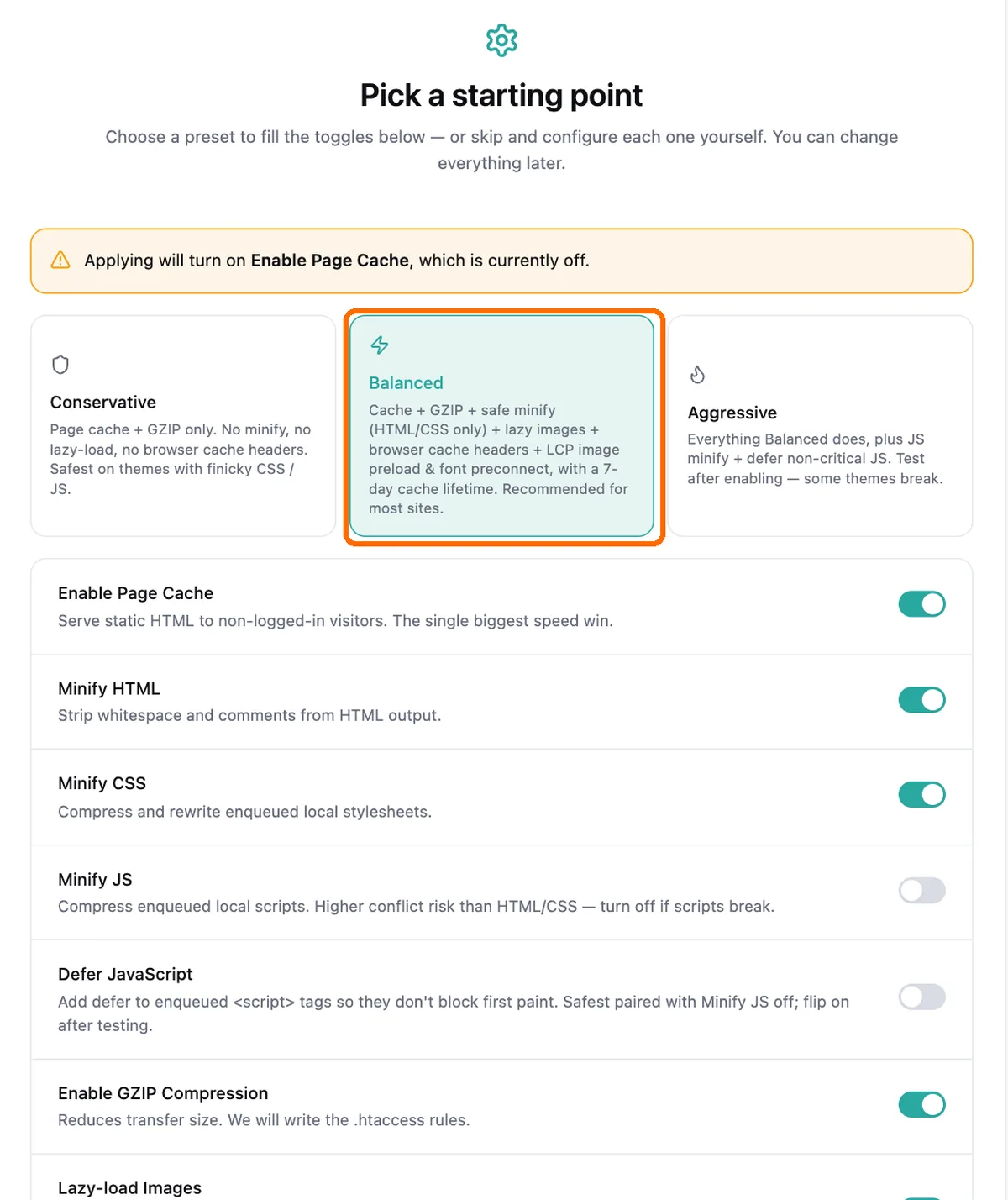
Pick the Balanced preset
Choose Conservative, Balanced or Aggressive. Balanced is marked Recommended and turns on the page cache, which is off until you do this.
xSpeed wizard presets with Balanced selected - 4
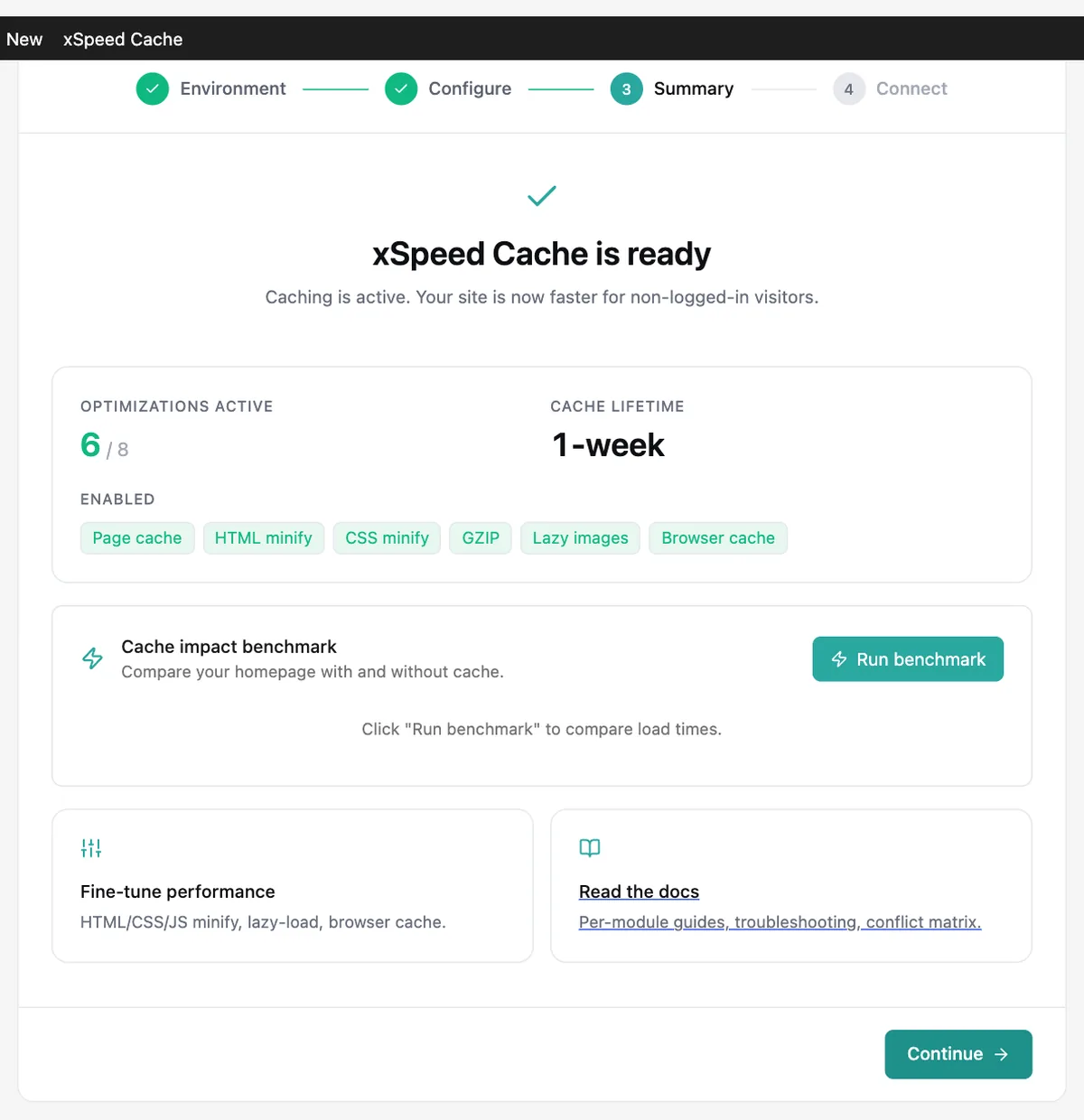
Apply and check the summary
Apply & Continue switched on 6 of 8 options: page cache, HTML and CSS minify, GZIP, lazy images and browser cache.
xSpeed Cache is ready summary screen - 5
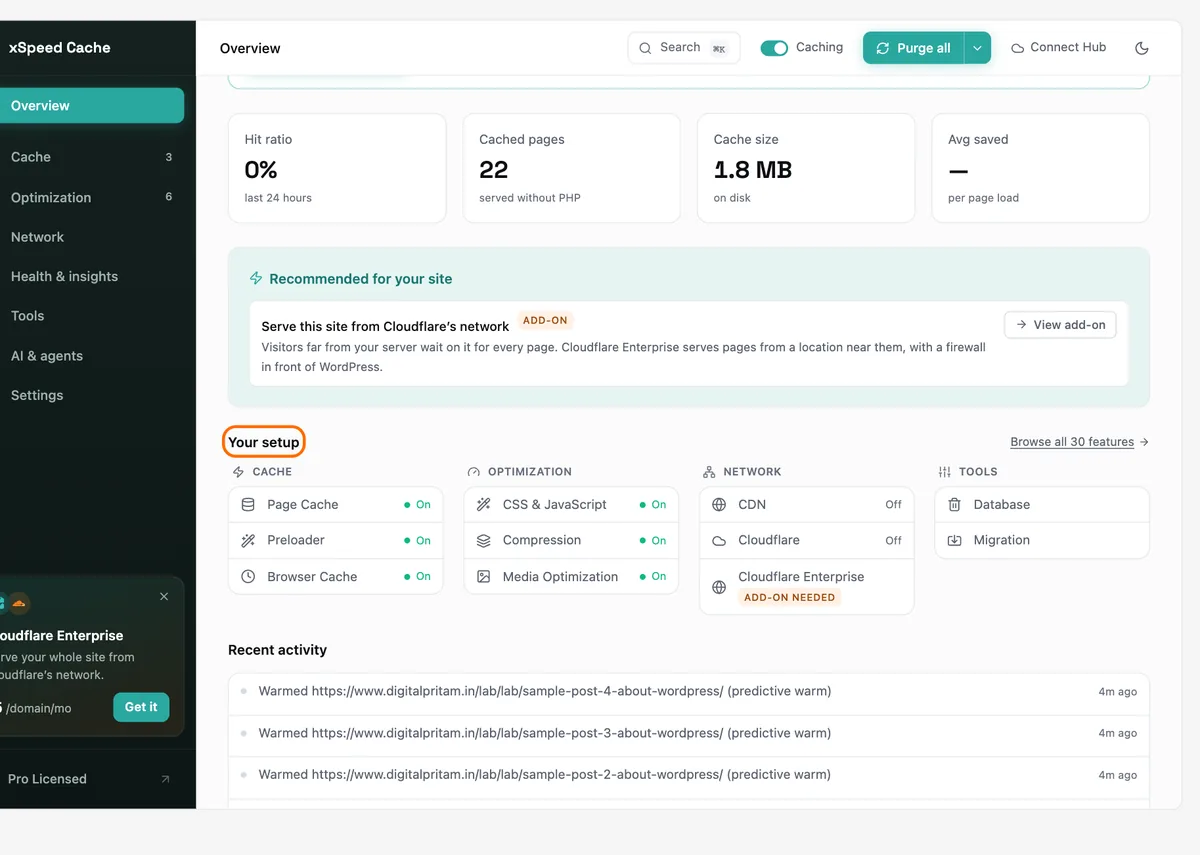
Read the Overview
The dashboard shows what is on, cached pages and cache size. Your setup lists every feature with its state.
xSpeed Cache Overview dashboard - 6
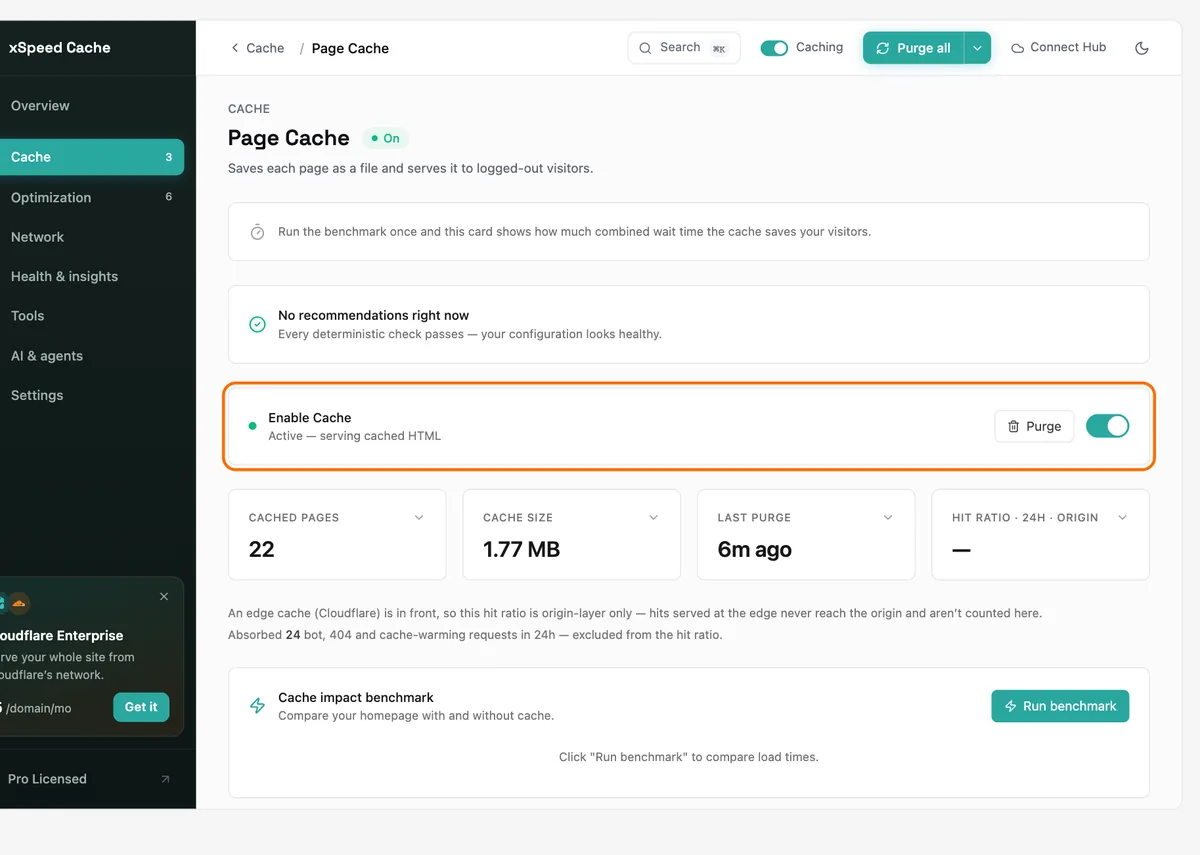
Confirm the page cache is on
Cache, Page Cache: Enable Cache should read Active. This is the switch that took our page from 284 ms to under 90 ms.
xSpeed Page Cache settings with Enable Cache on - 7
Turn on the preloader
WPDeveloper's setup guide adds the preloader, which visits your sitemap so pages are cached before a visitor arrives.
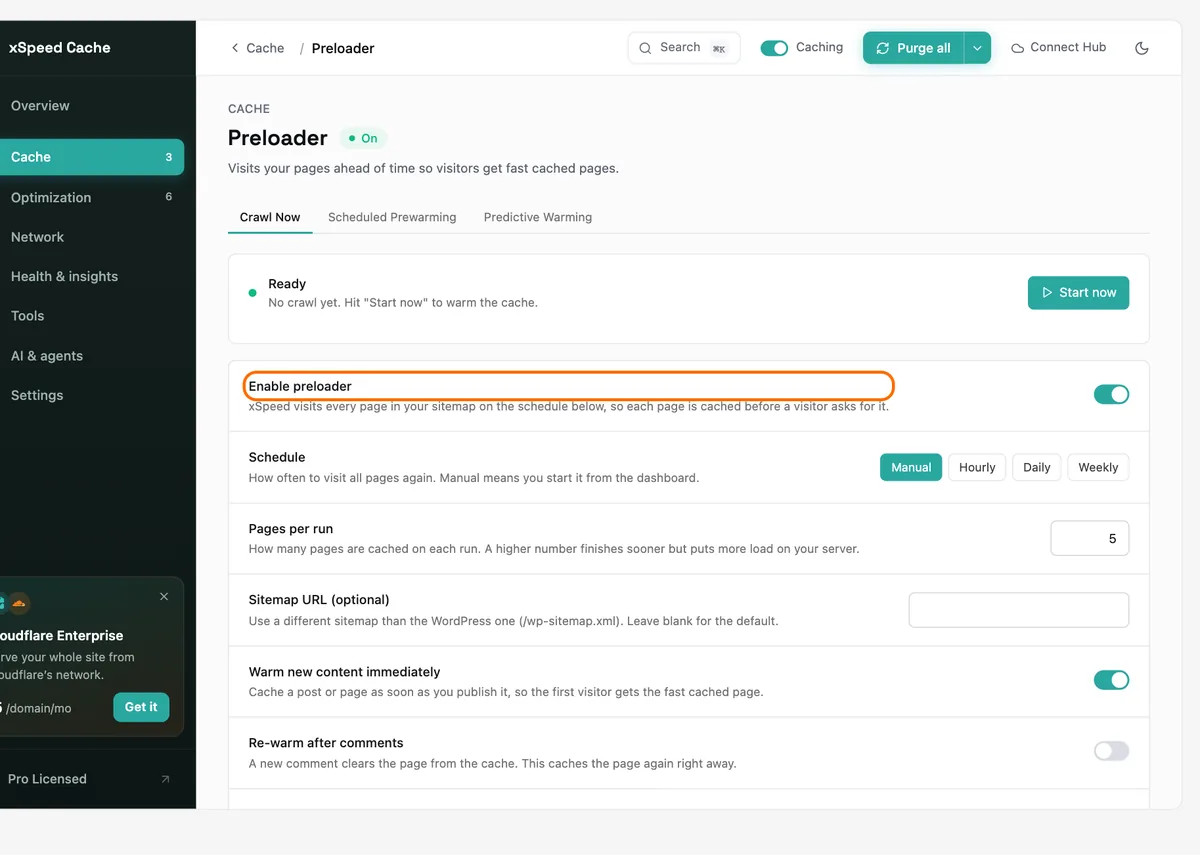
xSpeed Preloader settings - 8
Keep HTML and CSS minify on
These were on in our tests. Minify, defer and delay JavaScript stay off unless you test them, because they can break menus and sliders.
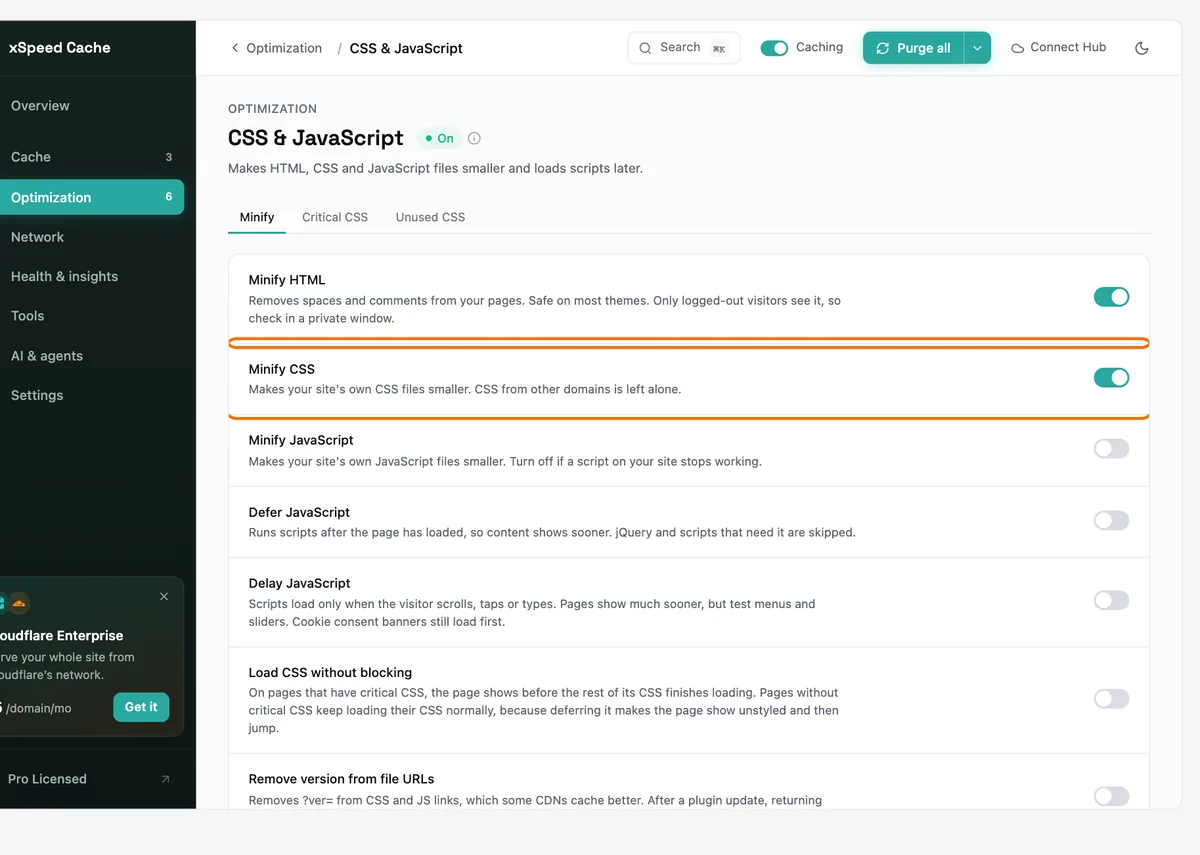
xSpeed CSS and JavaScript minify settings - 9
Leave lazy loading on
Images below the fold load on scroll. On our page this skipped a 35 KB image on first load.
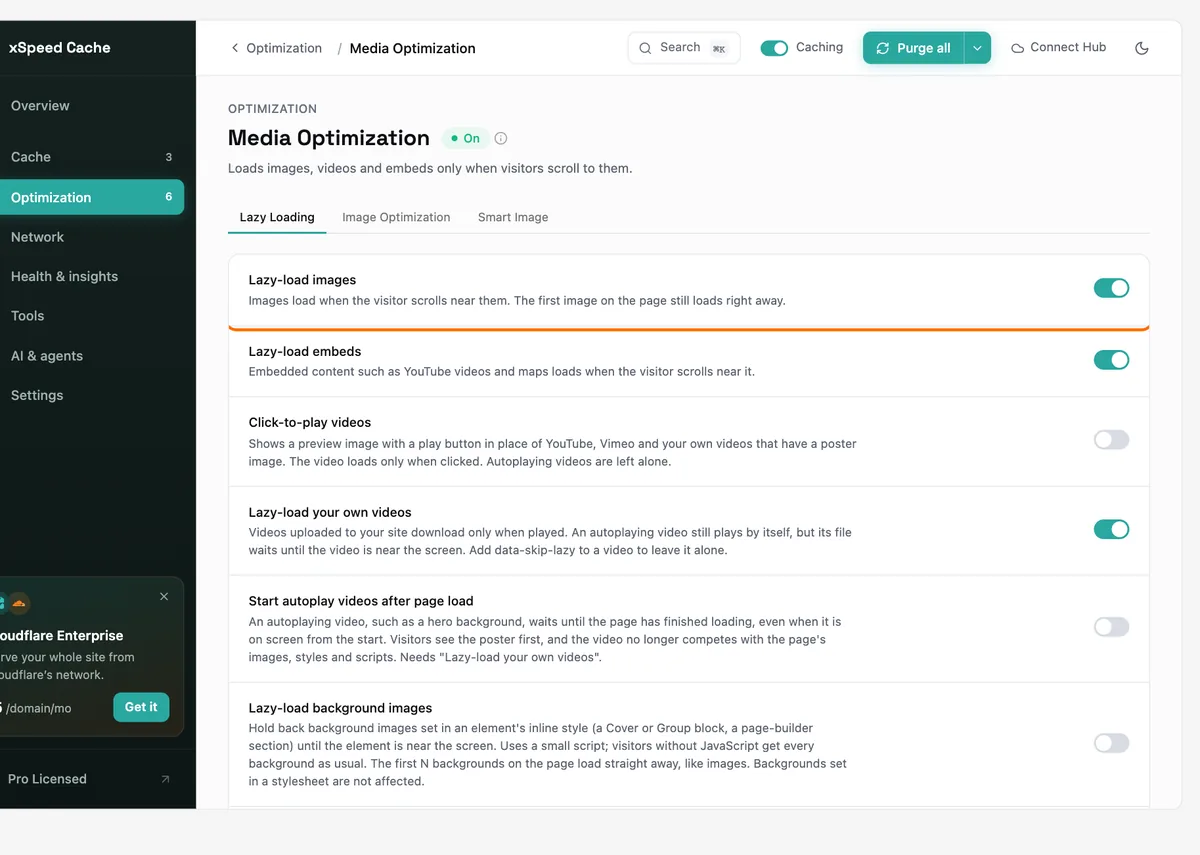
xSpeed Media Optimization lazy loading settings - 10
Turn on Turbo Render
Part of WPDeveloper's recommended free set: lower sections of the page render as visitors scroll.
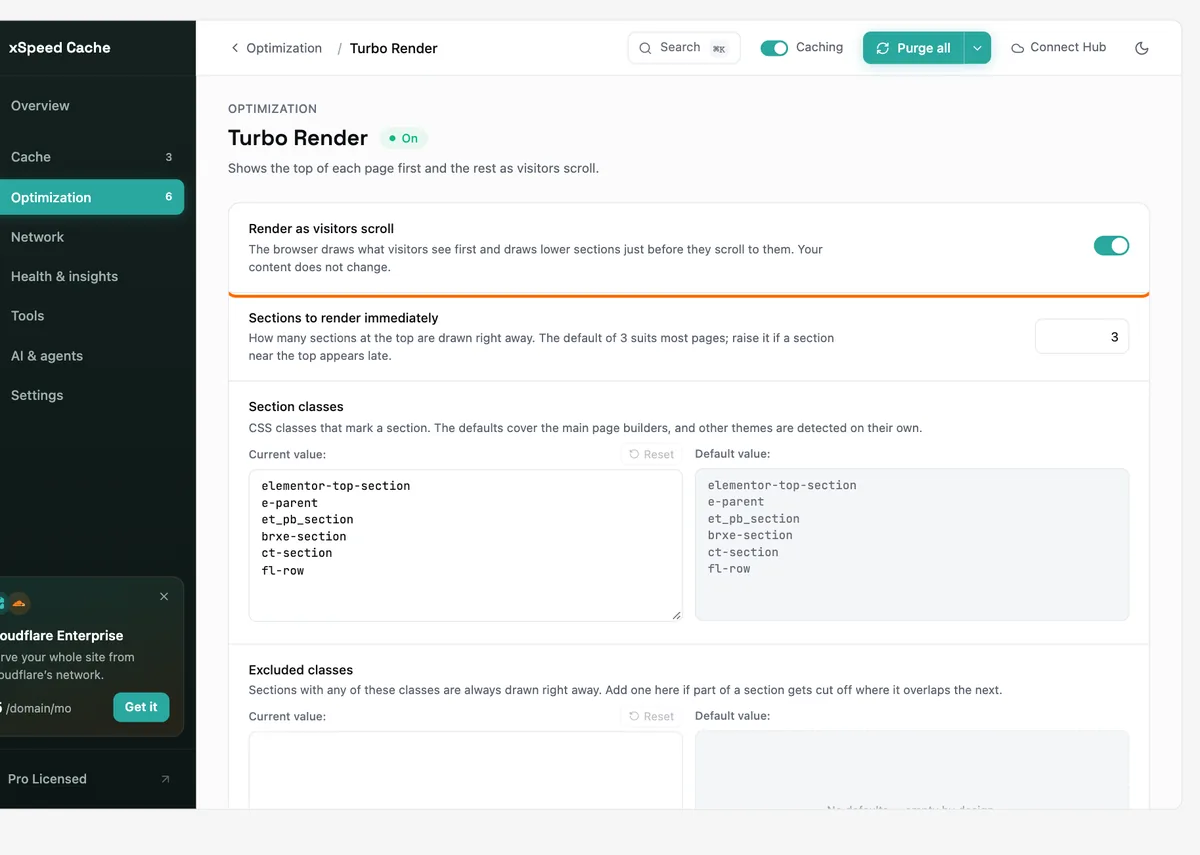
xSpeed Turbo Render settings - 11
Optional: LiteSpeed static fast path
On LiteSpeed, xSpeed serves cached pages through PHP so it can count hits. This advanced switch serves the file directly. It did not work on our lab, which lives in a sub-folder.
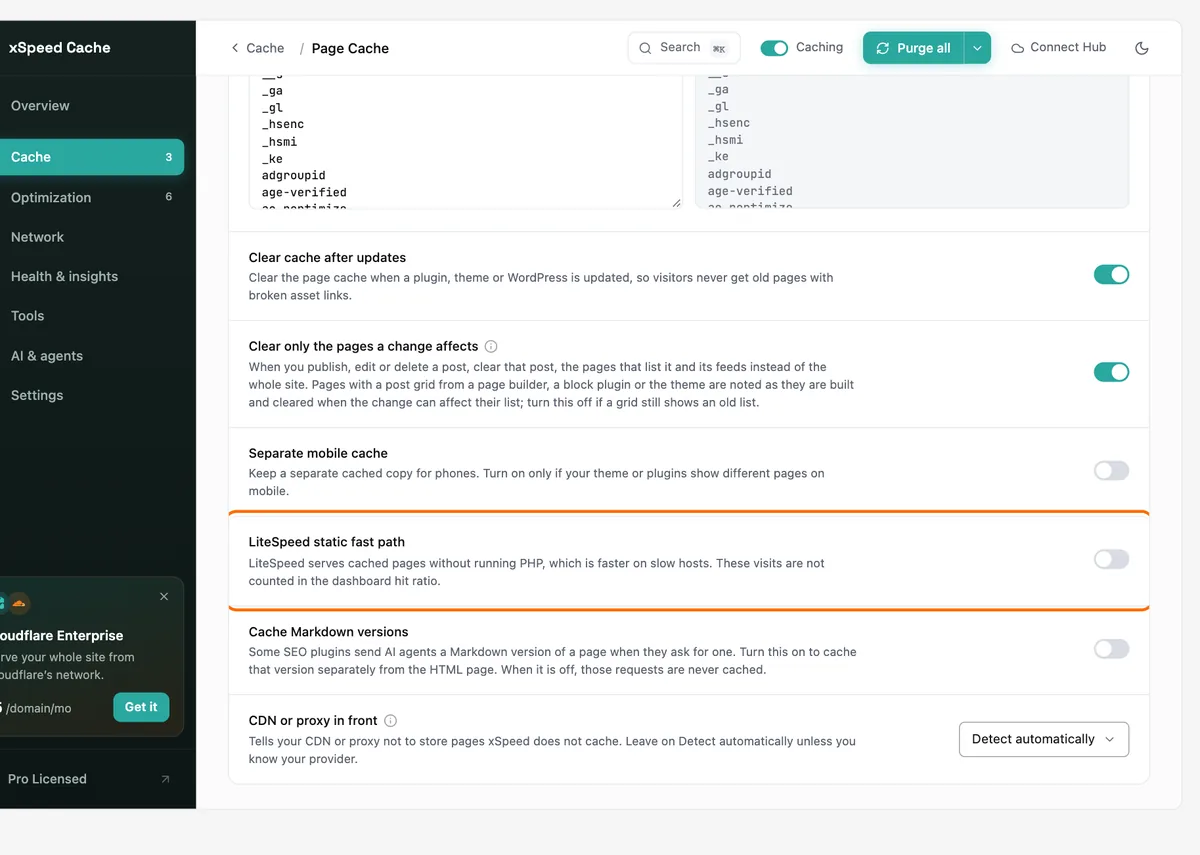
xSpeed LiteSpeed static fast path option under Page Cache advanced settings
- 1
Install Pro and activate the licence
Upload xspeed-pro.zip, activate it, then paste your key under Settings, License. It shows Active and the expiry date.
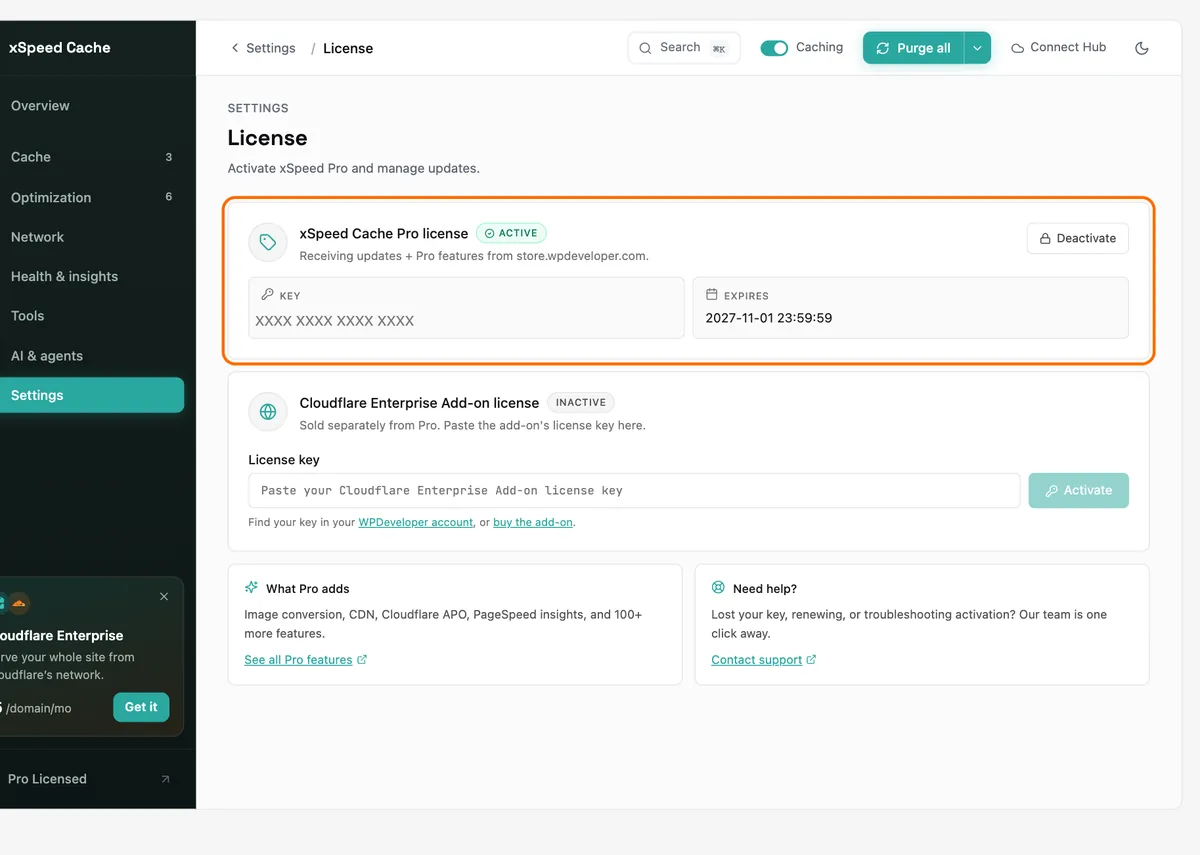
xSpeed Cache Pro licence active, key hidden - 2
Turn on Brotli
Smaller files than GZIP for browsers that support it. Our pages came back with content-encoding br.
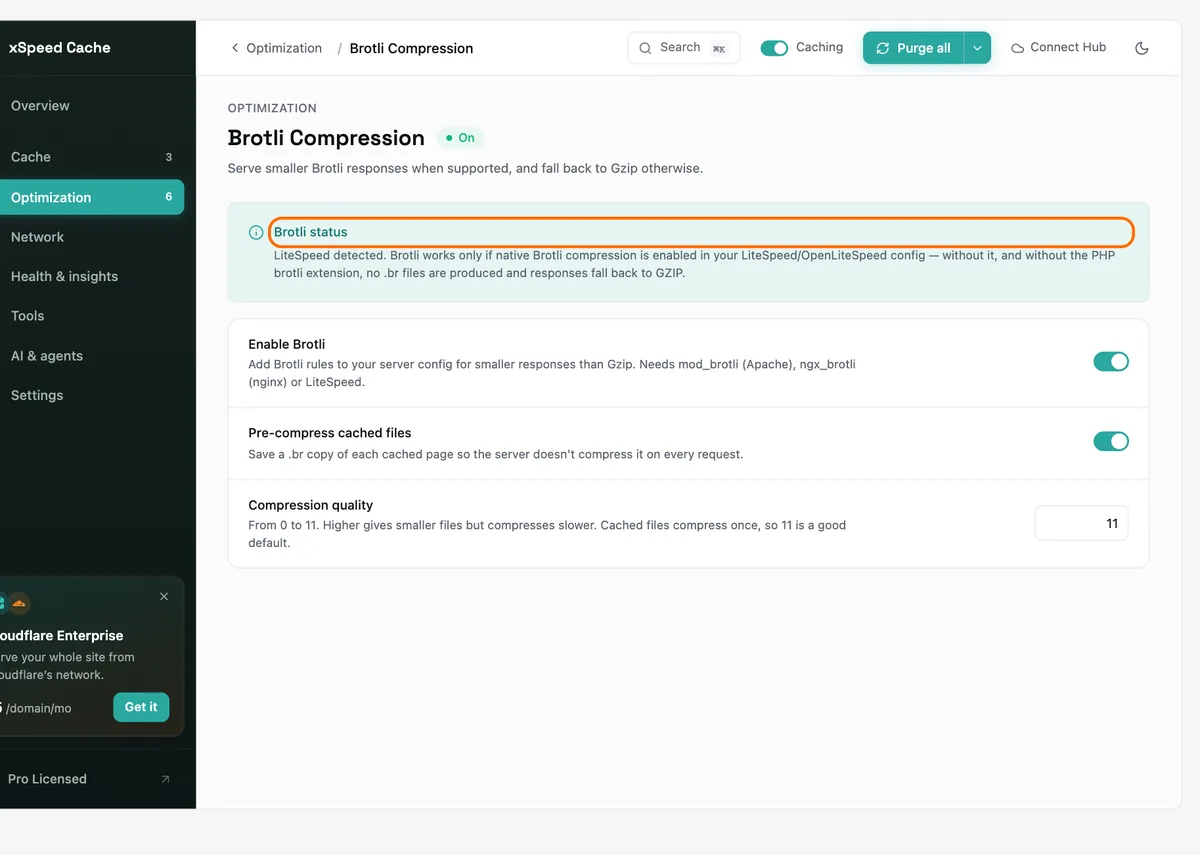
xSpeed Brotli Compression settings - 3
Keep WebP conversion at 82
New JPEG and PNG uploads get a WebP copy. Existing images need Convert library.
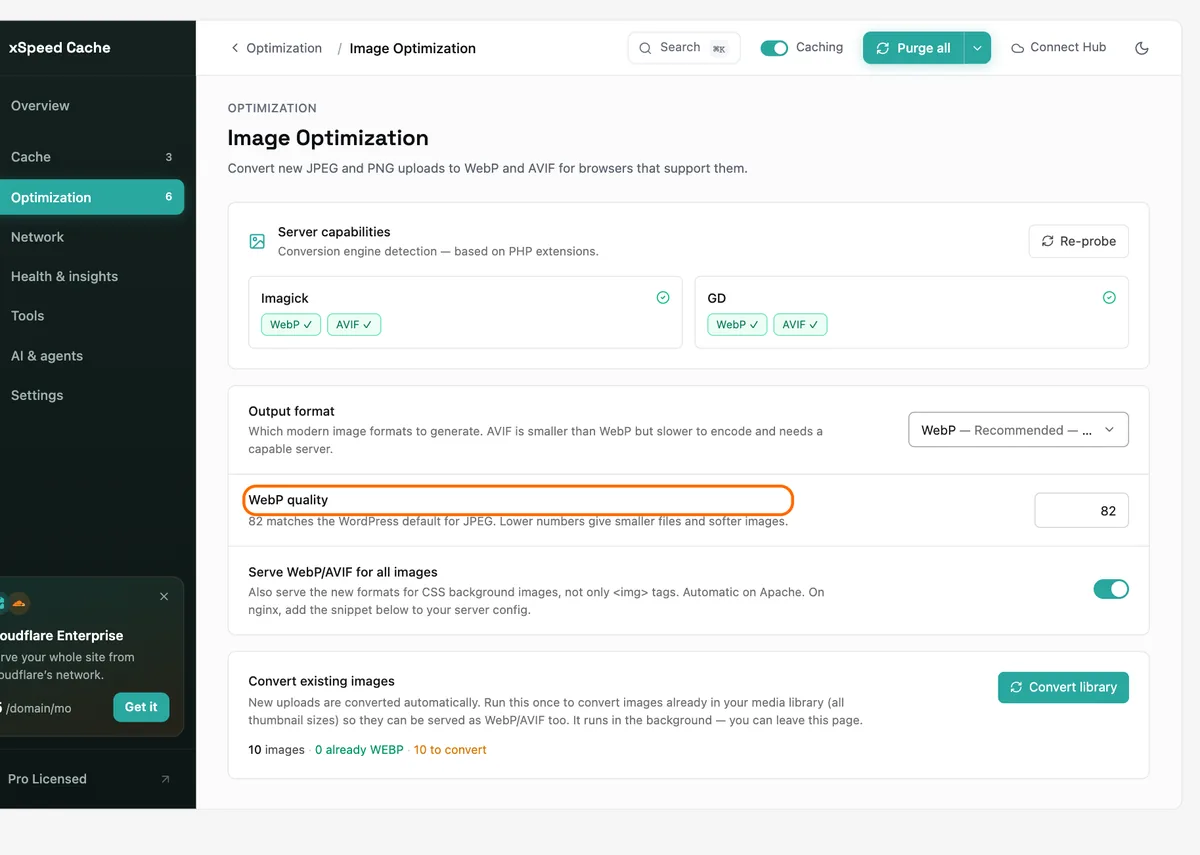
xSpeed Image Optimization with WebP quality 82 - 4
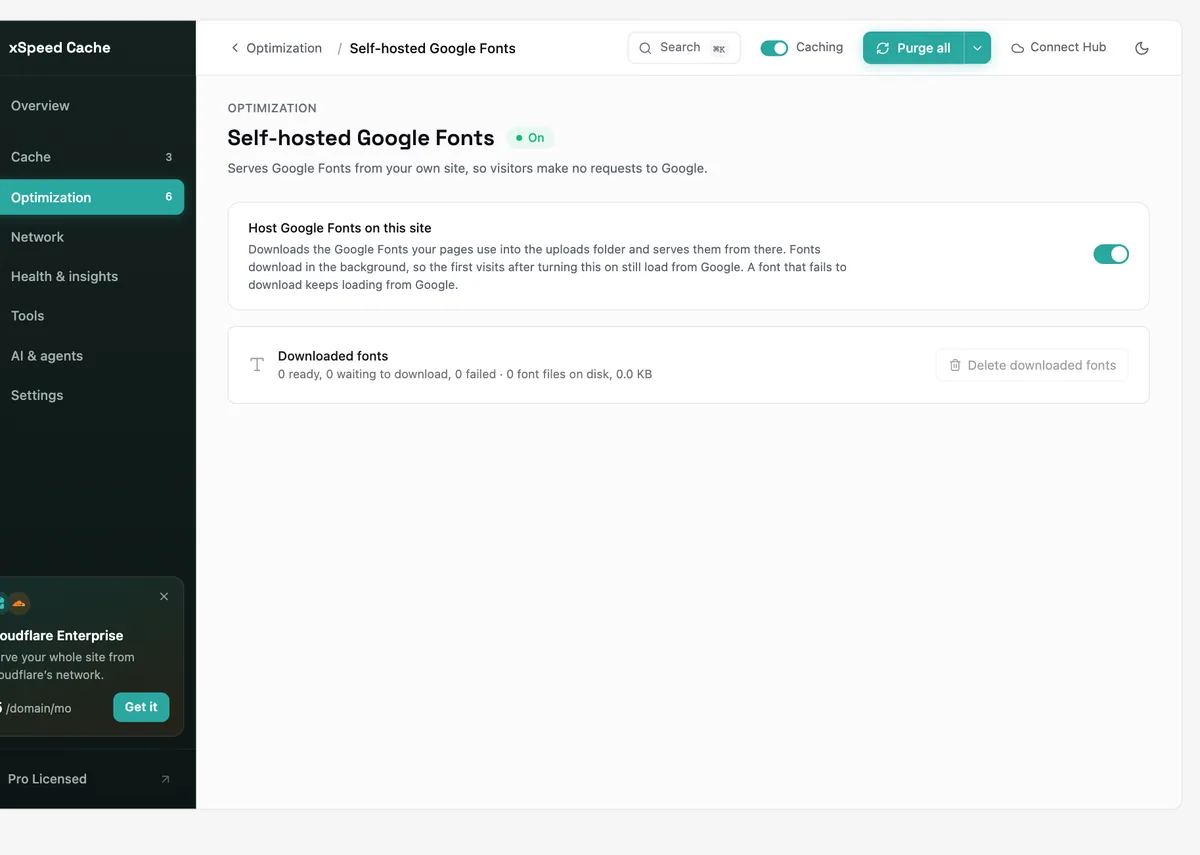
Self-host Google Fonts
Fonts load from your own domain, so visitors make no requests to Google.
xSpeed Self-hosted Google Fonts setting - 5
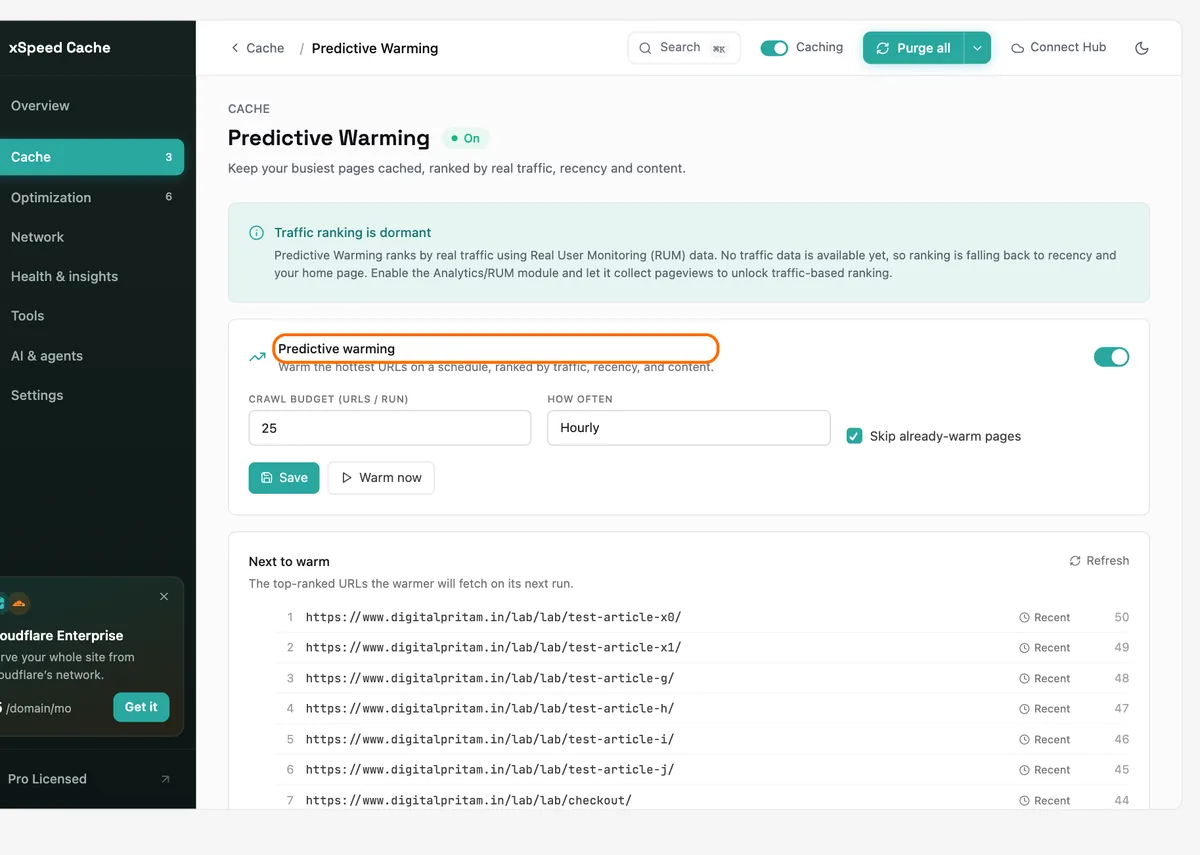
Turn on Predictive Warming
Keeps your busiest pages cached. Without traffic data it falls back to recent posts, as it did on our lab.
xSpeed Predictive Warming settings and next URLs to warm - 6
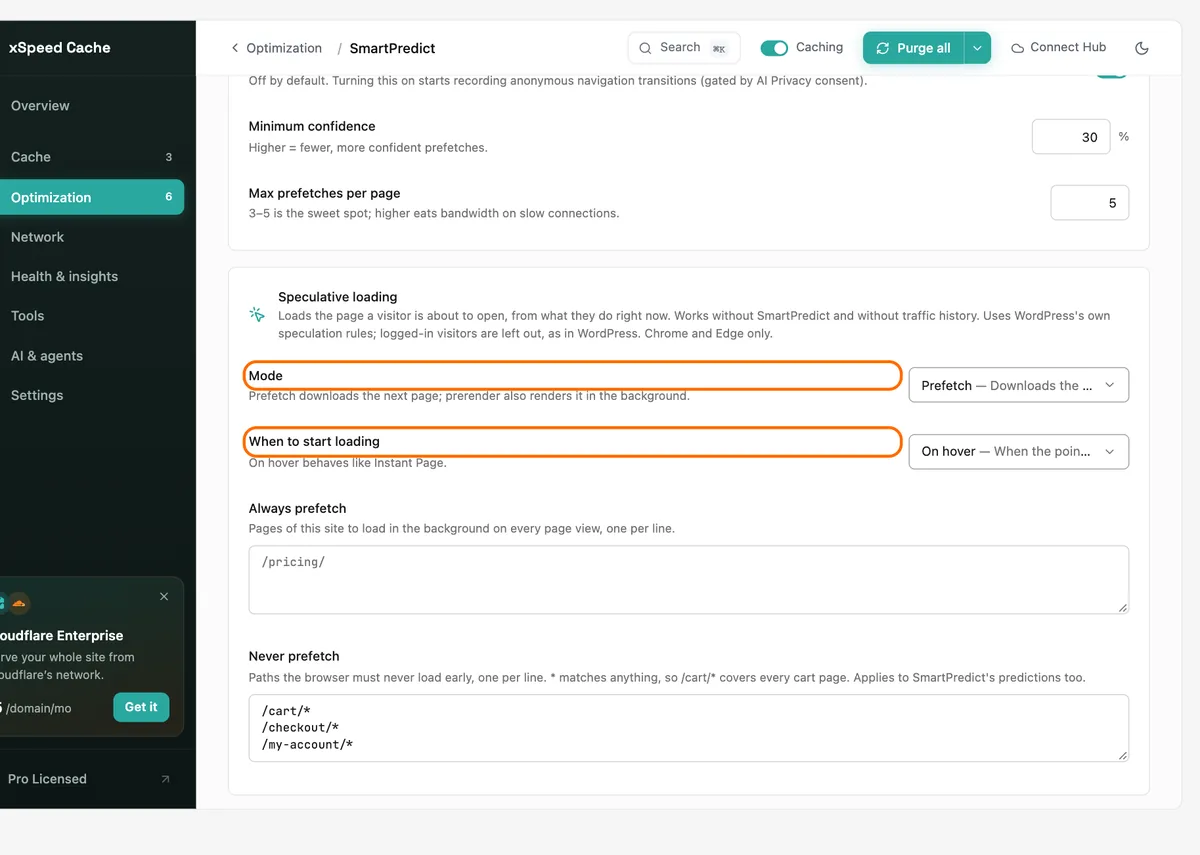
Set SmartPredict to prefetch on hover
WPDeveloper's safe setting: Prefetch, On hover, and never prefetch cart, checkout or account pages.
xSpeed SmartPredict with Prefetch on hover - 7
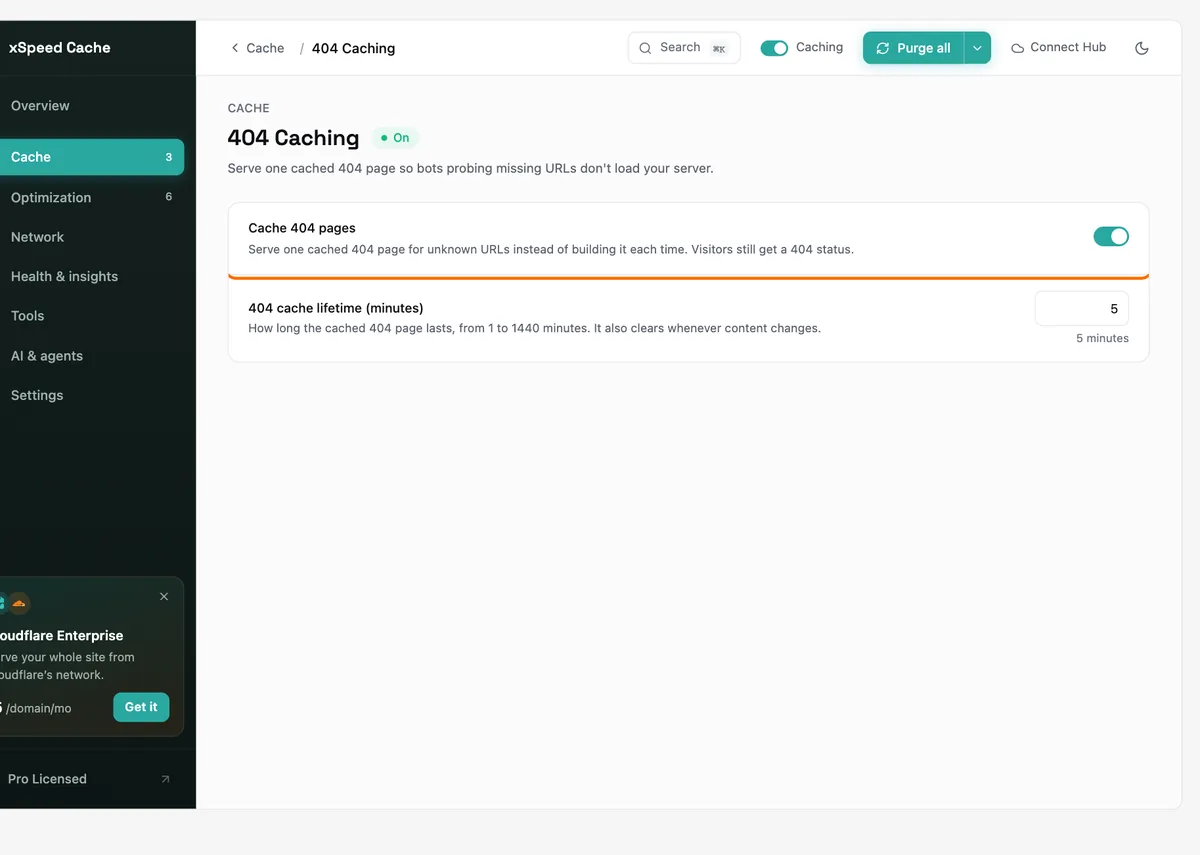
Cache 404 pages
One cached 404 page, so bots probing missing URLs do not load your server.
xSpeed 404 Caching setting - 8
Cache search results
Repeated searches skip the database for logged-out visitors.
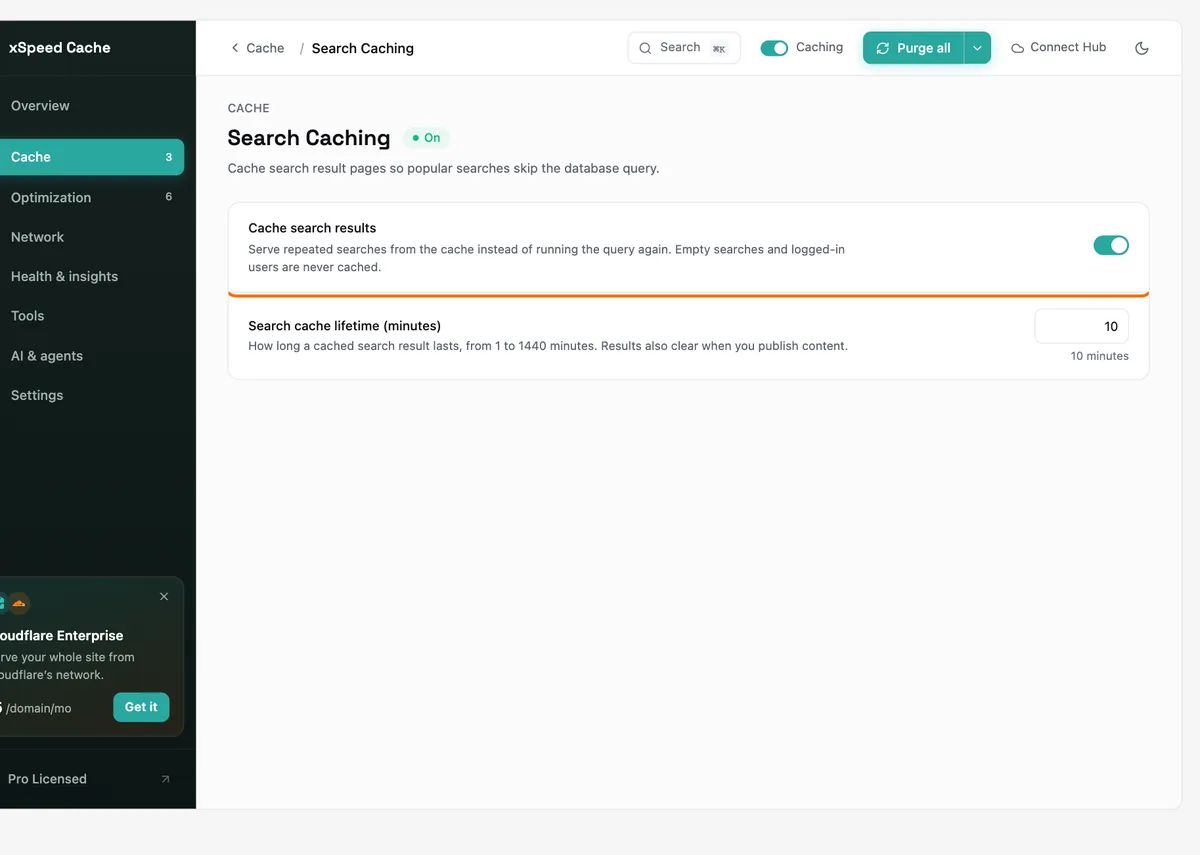
xSpeed Search Caching setting - 9
Or let Claude or ChatGPT tune it
AI & agents, MCP Server connects Claude, ChatGPT or another AI assistant. We tested both; see the AI tuning section below.
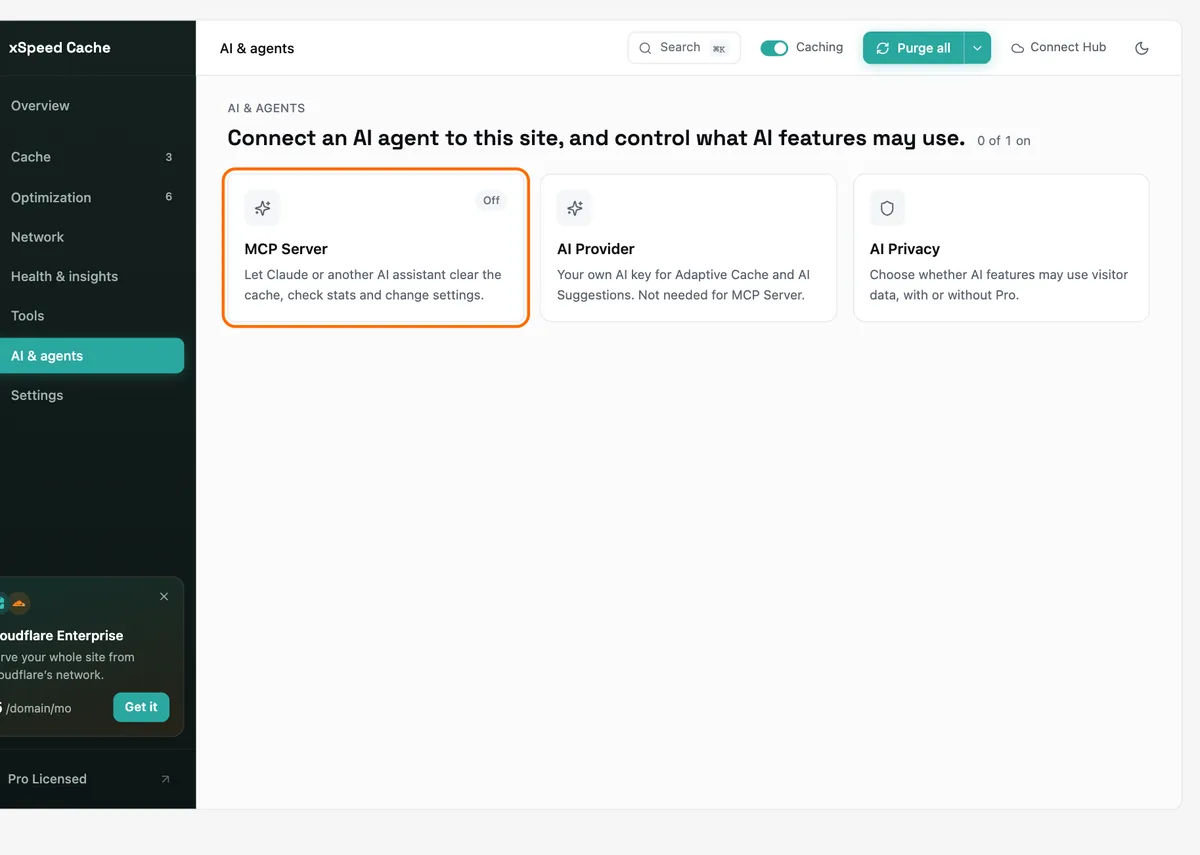
xSpeed AI and agents screen with the MCP Server card
What we found
What worked
- Balanced preset: 87 ms server response, down from 290 ms
- PageSpeed 100 on mobile and desktop, mobile LCP 0.98 s
- Page weight down from 170 KB to 134 KB, mostly from lazy loading
- Clear wizard that warns before it changes anything
- Nothing broke on our page with the recommended or AI-chosen settings
- Claude and ChatGPT tuned it through MCP: 53 to 73 ms, PageSpeed 99
- Lifetime plan and a full free version
Good to know
- The page cache is off until you run the wizard or an AI assistant: as activated we measured 284 ms
- On a sub-folder install, the LiteSpeed fast path and the AI connection need extra setup
xSpeed Cache price
From xspeedcache.com/pricing, 2 Nov 2026. Rupees at US$1 = ₹94.96 (16 Oct 2026) with 18% GST.
| Plan | Sites | First year (launch) | Then yearly | Lifetime (launch) | First year in India |
|---|---|---|---|---|---|
| Personal | 1 | $29/yr | $58/yr | $79 once | ₹3,250 |
| Business | 5 | $49/yr | $98/yr | $149 once | ₹5,491 |
| Agency | 25 | $99/yr | $198/yr | $249 once | ₹11,093 |
| Enterprise | Unlimited | $199/yr | $398/yr | $399 once | ₹22,299 |

The free version has no time limit. Every paid plan has a 14-day money-back guarantee, and the launch prices are marked as limited.
Who should use xSpeed Cache?
Use xSpeed if
- You want a free cache plugin with good front-end defaults on Apache or Nginx hosting
- You want a lifetime licence instead of yearly renewals
- You want to tune your site from Claude or ChatGPT through MCP
Pick something else if
- You are on Hostinger and happy with free LiteSpeed Cache
- You want a plugin with years of track record: xSpeed launched in 2026
Want it done for you? Our Speed + SEO Fix (₹9,999, one site) sets up caching with the same tests you see here and gives you a before and after report. More speed guides: WordPress speed hub.
Raw data
Every timed request after the warm-up, in milliseconds (time to first byte).
| Setup | 11 requests (ms) |
|---|---|
| No cache plugin | 367 · 306 · 274 · 252 · 261 · 436 · 415 · 297 · 232 · 290 · 283 |
| LiteSpeed Cache 7.9.2 | 72 · 71 · 71 · 64 · 75 · 59 · 129 · 54 · 47 · 136 · 51 |
| xSpeed free, as activated | 324 · 391 · 360 · 371 · 270 · 278 · 270 · 280 · 335 · 284 · 274 |
| xSpeed free, Recommended | 90 · 64 · 126 · 70 · 87 · 81 · 75 · 78 · 169 · 100 · 158 |
| xSpeed Pro, vendor settings | 75126 · 90 · 82 · 74 · 83 · 212 · 86 · 91 · 95 · 162 · 87 |
| Claude via MCP | 93 · 78 · 67 · 65 · 63 · 128 · 129 · 68 · 73 · 104 · 64 |
| ChatGPT via MCP | 55 · 50 · 133 · 128 · 53 · 53 · 49 · 51 · 59 · 52 · 49 |
| xSpeed free, Recommended (repeat) | 139 · 87 · 117 · 68 · 52 · 70 · 62 · 58 · 161 · 79 · 66 |
| xSpeed Pro, vendor settings (repeat) | 136 · 67 · 107 · 115 · 60 · 101 · 147 · 68 · 95 · 74 · 54 |
| xSpeed free, LiteSpeed fast path on | 131 · 171 · 65 · 70 · 80 · 79 · 84 · 167 · 76 · 79 · 398 |
The 75,126 ms request in the first Pro run is real and left in; the median is not affected. Free to reuse with a link (CC BY 4.0).
Pick a free checklist. Get the best deals too.
Plus an email when each big hosting, WordPress and AI tool sale opens, with the price checked by us.
Sent to your inbox instantly. Unsubscribe in one click. Privacy policy
xSpeed Cache review: FAQ
Is xSpeed Cache good?
Yes, on our test it was. With the Recommended preset the free version answered in a median 87 ms against 290 ms with no cache, scored PageSpeed 100 on mobile and desktop, and cut mobile LCP from 1.70 s to 0.98 s. The catch: the page cache is off until you run the setup wizard.
xSpeed Cache vs FlyingPress: which is faster?
At the server, FlyingPress: 60 ms against 87 ms for xSpeed. On PageSpeed both scored 100 on mobile, and xSpeed had the lower LCP (0.98 s against 1.4 s). xSpeed also has a free version and a lifetime plan; FlyingPress has neither.
xSpeed Cache vs LiteSpeed Cache on Hostinger?
Close. On the same day LiteSpeed Cache measured 71 ms, xSpeed's Balanced preset 87 ms and the AI-tuned xSpeed setups 53 to 73 ms. xSpeed gave the lower LCP (0.98 s against 1.68 s). On Hostinger, the free LiteSpeed Cache is still the simplest choice; xSpeed is the better pick if you want front-end optimisation and AI control too.
Is xSpeed Cache free?
Yes. The free version on WordPress.org includes page cache, preloader, minify, lazy loading, GZIP, browser cache, Turbo Render, Cloudflare and the MCP server. Pro adds Brotli, WebP and AVIF, Critical and Unused CSS, predictive warming, SmartPredict and 404 and search caching.
Is xSpeed Pro worth it?
Not for speed on a light page like ours: Pro with WPDeveloper's recommended settings measured 90 ms and PageSpeed 100, the same as the free version within normal variation. Pro makes more sense on image-heavy or busy sites, where WebP, Brotli and cache warming have more to work on.
How much does xSpeed Cache Pro cost?
During the launch offer, Personal (1 site) is $29 for the first year, then $58 a year; Business (5 sites) $49, Agency (25) $99 and Enterprise (unlimited) $199. Lifetime starts at $79. In India that is about ₹3,250 for Personal with 18% GST. Prices read on xspeedcache.com on 2 Nov 2026.
Does xSpeed Cache clean up when you deactivate it?
Partly. After deactivation it stopped serving cached pages straight away, but its advanced-cache.php file, a WP_CACHE line in wp-config.php and some .htaccess rules stayed. Delete the plugin, or remove them by hand, if you switch to another cache plugin.
Can Claude or ChatGPT set up xSpeed Cache?
Yes. We connected both to xSpeed's MCP server on our lab site and asked them to optimise it. Each made the same 7 changes with nothing rolled back, and the page measured 73 ms (Claude) and 53 ms (ChatGPT) with PageSpeed 99 on mobile, as good as our hand-tuned setup. If WordPress lives in a sub-folder, the connection needs one extra redirect on the main domain.
Which xSpeed settings should I use?
Run the setup wizard and pick Balanced, then add the preloader and Turbo Render. Keep JavaScript minify, defer and delay off until you have tested your menus and forms. If you have Pro, add Brotli, WebP, self-hosted fonts and 404 and search caching.
Affiliate links: we may earn a commission at no extra cost to you. WPDeveloper also gave us a free xSpeed Cache Pro licence for this test. They did not see this review before it went live, and our test method is the same for every plugin.