









Do You Need a Backup Plugin on Hostinger? It Depends on Your Plan
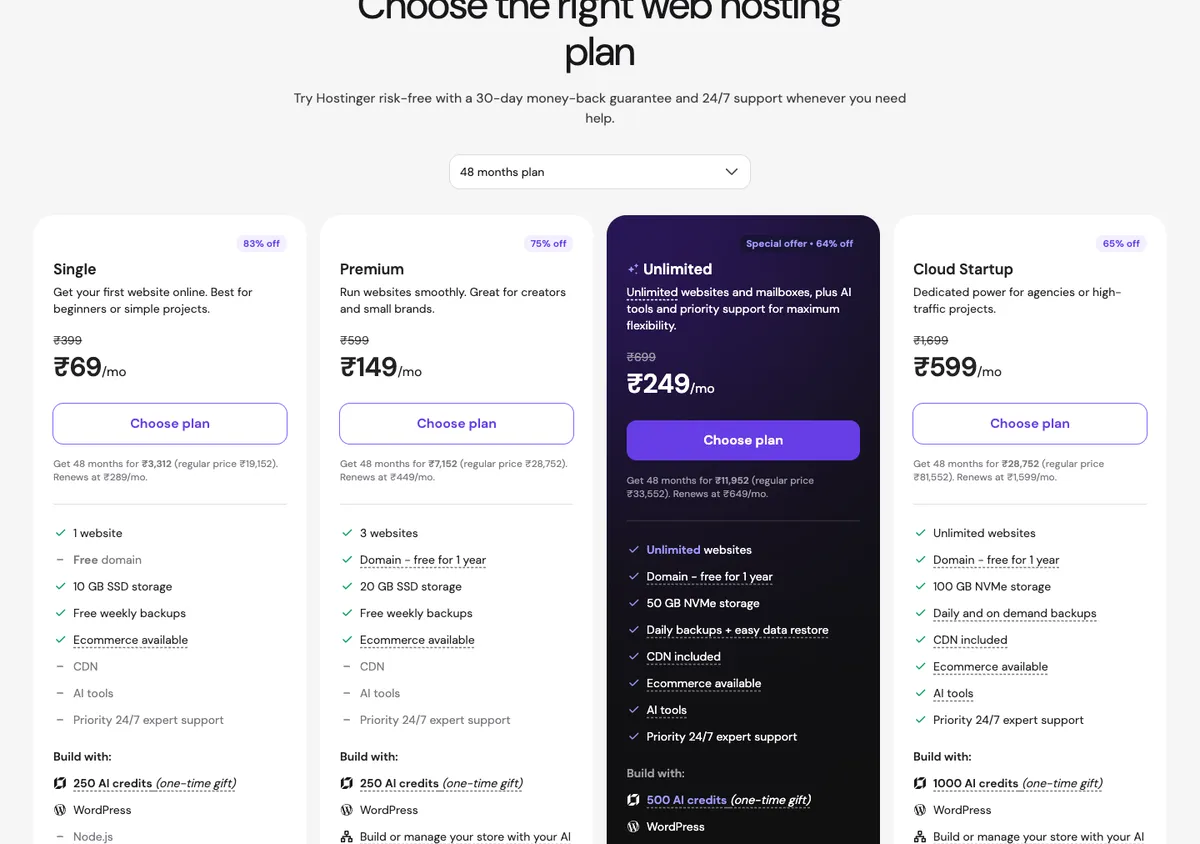
Hostinger backs up weekly on its two cheapest plans and daily on the rest.
 By Pritam SononeUpdated 24 Oct 2026Reviewed by Pritam SononePrices re-checked regularly against the brand’s own website.How we test →
Affiliate links: we may earn a commission at no extra cost to you. It never changes our verdicts.
On Hostinger Single or Premium, yes: backups run weekly, so add the free UpdraftPlus plugin with Google Drive for daily database copies. On Unlimited or Cloud, Hostinger backs up daily; a plugin is optional but gives you a copy stored off Hostinger.
Security note, 24 Oct 2026
- TeamUpdraft (UpdraftPlus) was breached in October 2026. The attacker used a compromised key and the UpdraftCentral connection to create admin accounts and install malicious plugins on some sites. UpdraftPlus 1.26.13 and 2.26.13 (released 19 Oct) revoke the UpdraftCentral keys. Update, then check for users you did not add (TeamUpdraft mentions unexpected editor accounts) and plugins you did not install. TeamUpdraft’s notice.
None of our own sites use UpdraftPlus or UpdraftCentral right now; our test results below are unchanged. Hostinger’s own backups were not part of this incident. Need help cleaning a hacked site? Malware cleanup, Rs 4,999.
Hostinger backups by plan
From Hostinger India’s plan list on 17 Oct 2026: daily backups are kept 7 days, weekly backups 7 weeks.
| Plan | Price | Backups | Kept for | Need a plugin? |
|---|---|---|---|---|
| Single | ₹69/mo | Weekly | 7 weeks | Yes, add a plugin or manual copies |
| Premium | ₹139/mo | Weekly | 7 weeks | Yes, add a plugin or manual copies |
| Unlimited | ₹199/mo | Daily | 7 days | Optional, for off-site copies |
| Cloud Startup | ₹599/mo | Daily + on demand | 7 days | Optional, for off-site copies |
When a backup plugin is worth it
Add a plugin if
- You are on Single or Premium (weekly backups)
- You run WooCommerce or post daily
- You want a copy outside Hostinger, in case the account is locked or suspended
You can skip it if
- You are on Unlimited or Cloud (daily backups)
- The site rarely changes
- You download a manual copy before every big change
Set up off-site backups in 5 steps
Free, with UpdraftPlus and Google Drive.
Check your plan’s backups
In hPanel, open Files, Backups and note how often backups run.
Install UpdraftPlus
Add the free plugin from Plugins, Add New.
Connect remote storage
Choose Google Drive or Dropbox under Settings, Remote storage.
Set the schedule
Files weekly, database daily for an active blog; keep 4 or more copies.
Test a restore
Restore on a staging copy once, so you know it works before you need it.
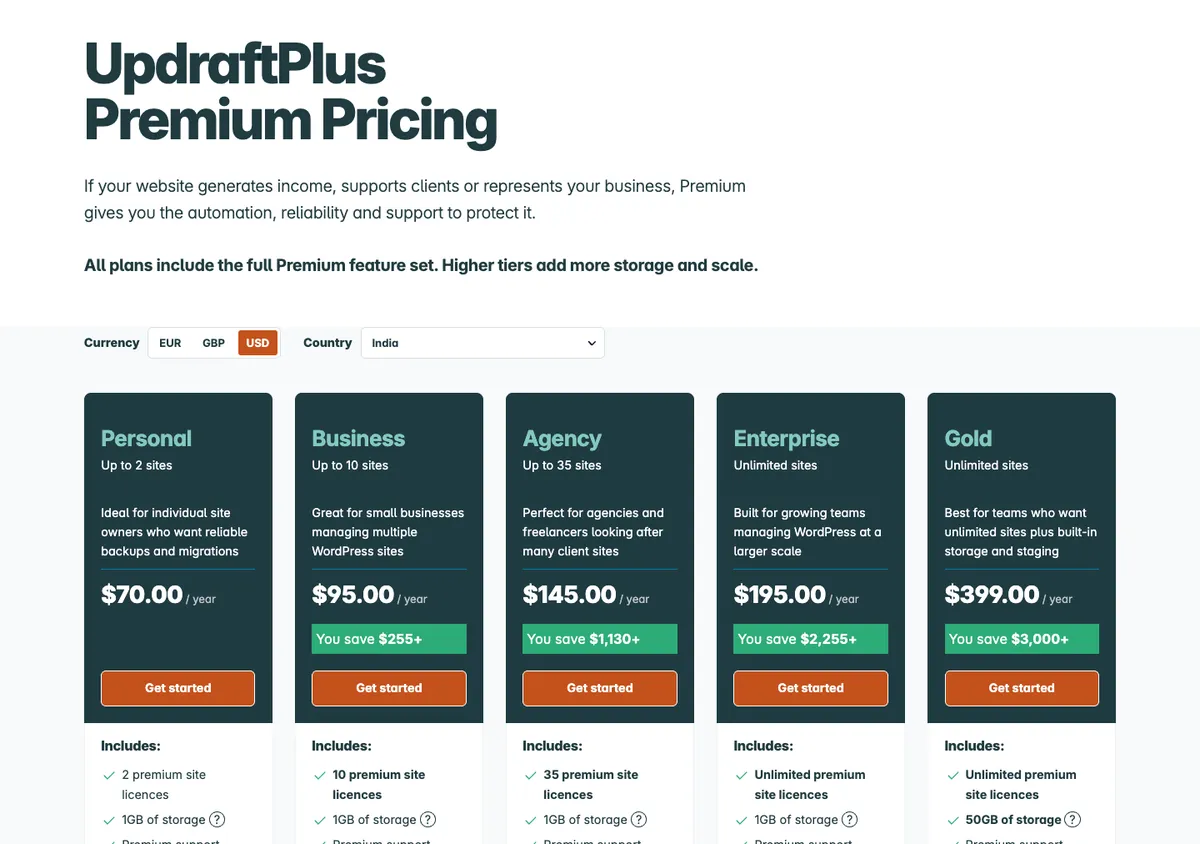
Backup plugin prices
From WordPress.org and each official pricing page, 17 Oct 2026.
| Plugin | Free version | Paid from | Installs, rating |
|---|---|---|---|
| UpdraftPlus | Yes, with Google Drive and Dropbox | $70/yr for 2 sites | 4M+, 4.8/5 |
| WPvivid | Yes, with staging | See WPvivid pricing | 900k+, 4.9/5 |
| Kadence Backups | No | In the Kadence bundle, from $350 | Bundle only |
How to back up and restore WordPress with a free plugin, step by step
Both plugins installed fresh on our Hostinger lab site, with a real backup and restore.
Tap any screenshot to open it full size. Screenshots from our UpdraftPlus vs WPvivid test on the lab site.
- 1
Install UpdraftPlus
In wp-admin go to Plugins > Add Plugin, search UpdraftPlus and click Install Now on the card by Team Updraft.
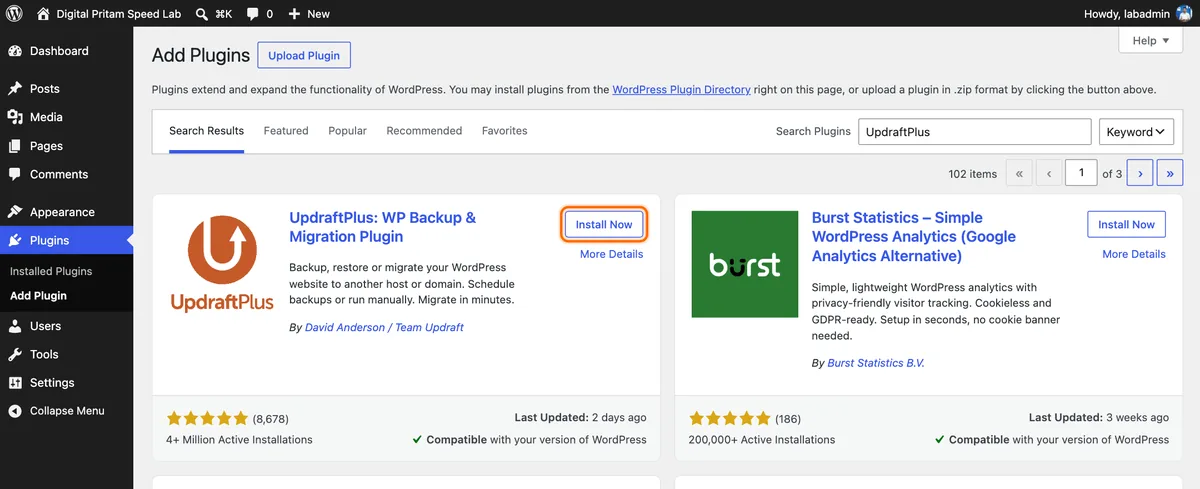
UpdraftPlus in the WordPress plugin search, 4M+ installs - 2
Activate it
The same button turns into Activate. Click it; an UpdraftPlus item appears in the left menu.
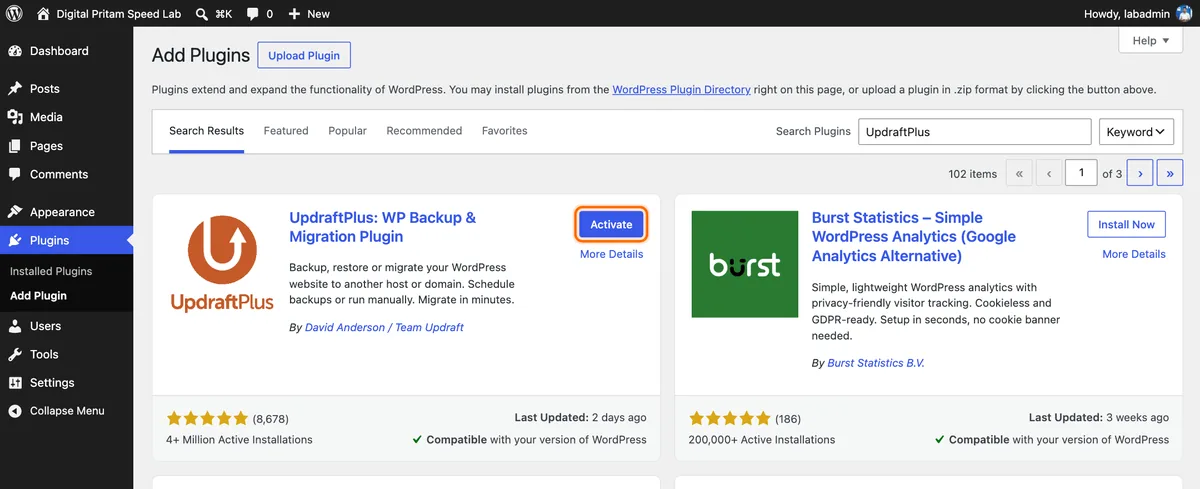
Activate button after install - 3
Set the schedule in the setup wizard
Opening UpdraftPlus starts a 6-step wizard. Pick Daily and keep 2 backups.
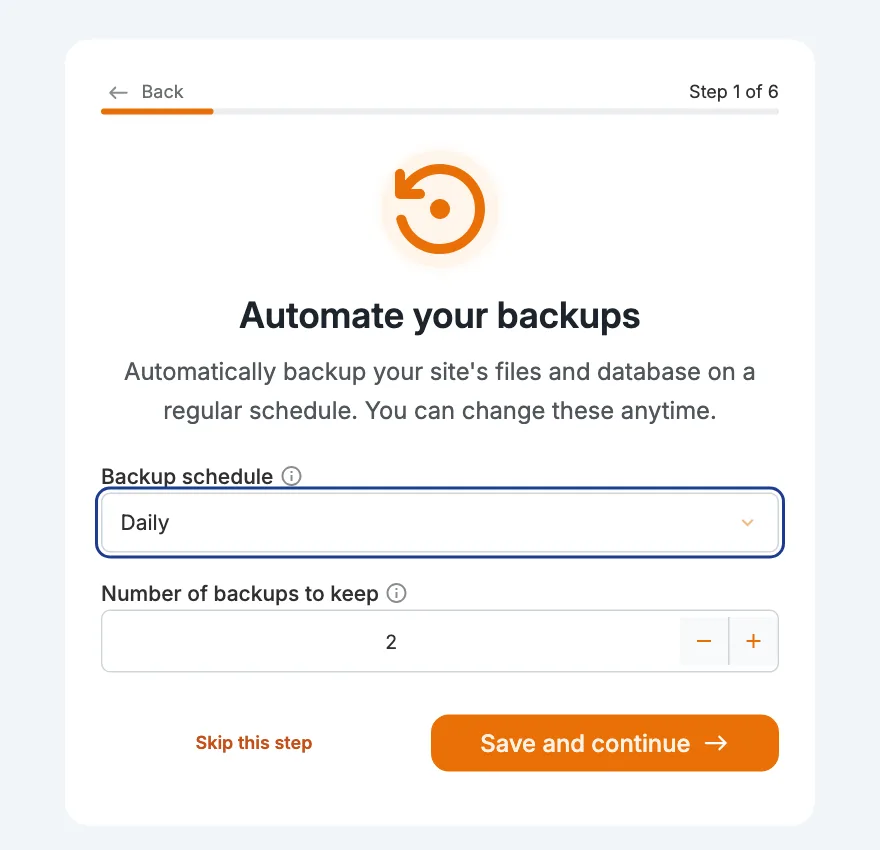
Wizard step 1: Daily schedule, keep 2 backups - 4
Skip the extra plugins
Step 4 ticks three more plugins by default. Untick them or click Skip this step; we skipped the newsletter and Premium steps too.
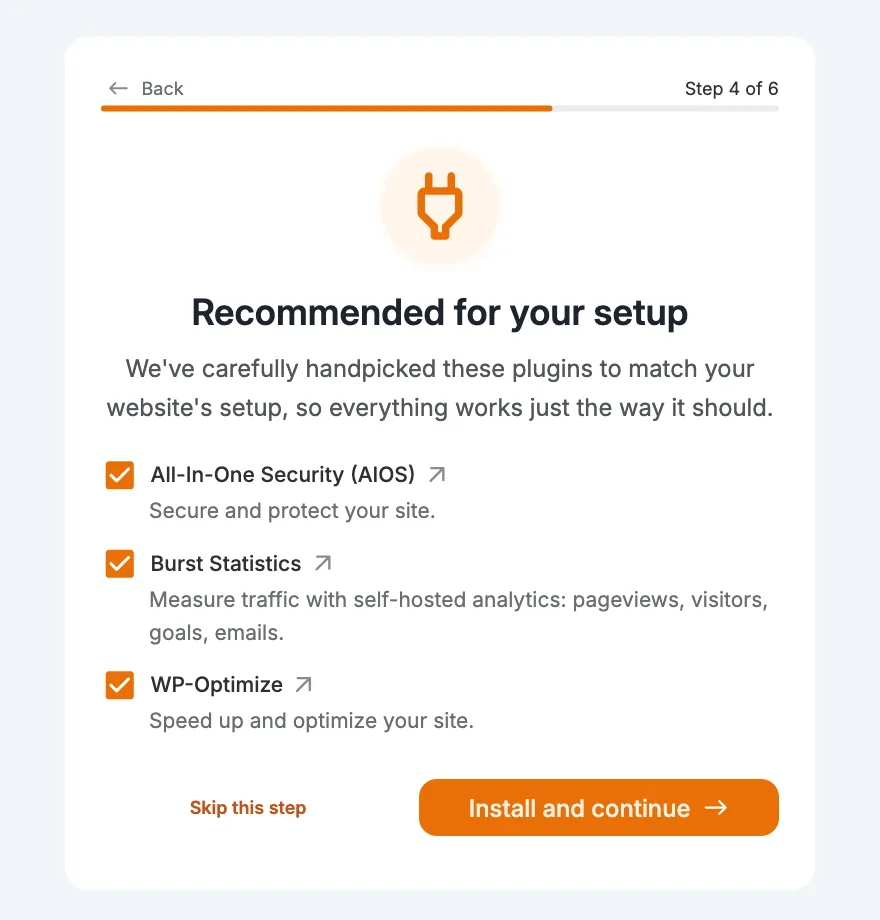
Wizard step 4: three extra plugins are ticked by default - 5
Take your first backup
Click Backup Now, keep database and files ticked, and confirm.
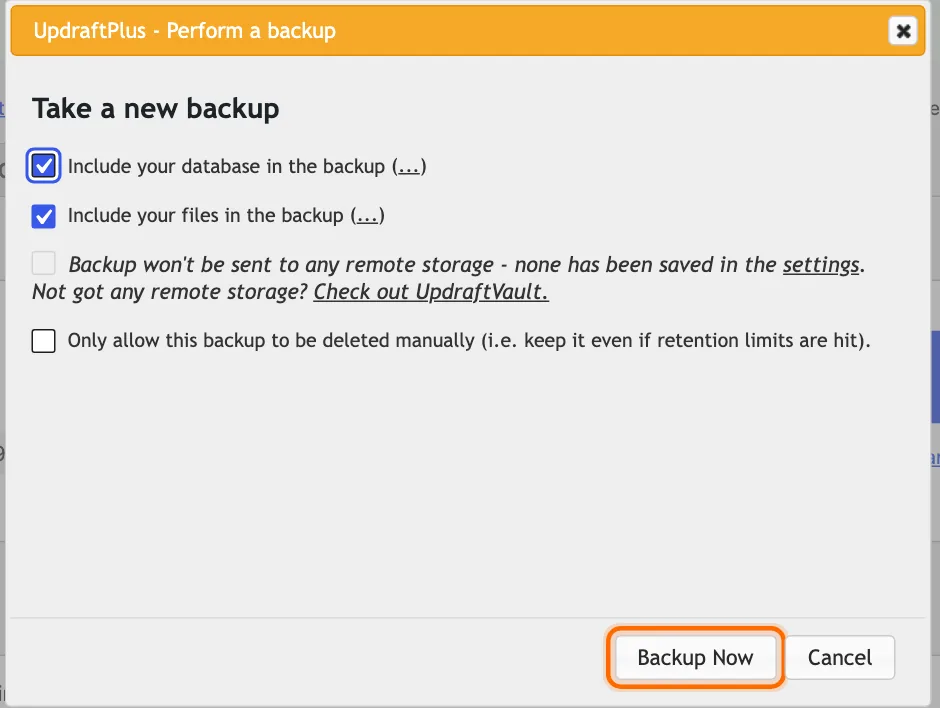
Backup Now dialog with database and files ticked - 6
Wait for it to finish
A progress bar shows each part. Our lab backup (108.8 MB in 5 files) finished in 3.9 s.
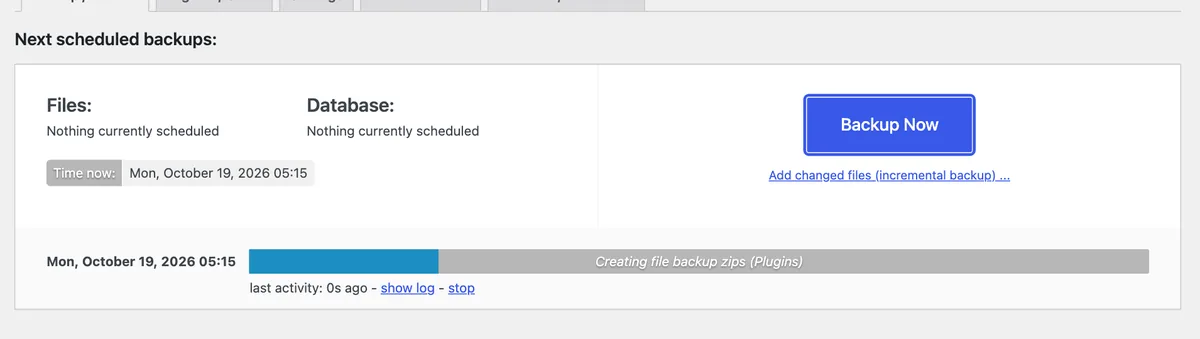
Backup in progress on our lab site, 19 Oct 2026 - 7
Restore: pick only what you need
Under Existing backups click Restore, then tick the parts. We restored Uploads only; the free version lets you pick.
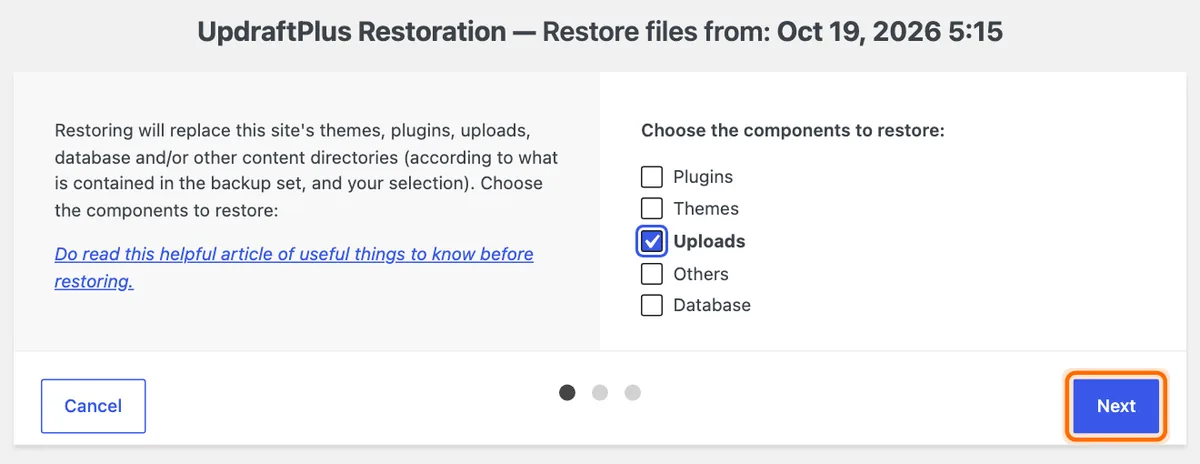
Choose components: we ticked Uploads only - 8
Press Restore twice
UpdraftPlus checks the files first, then asks you to press Restore again.
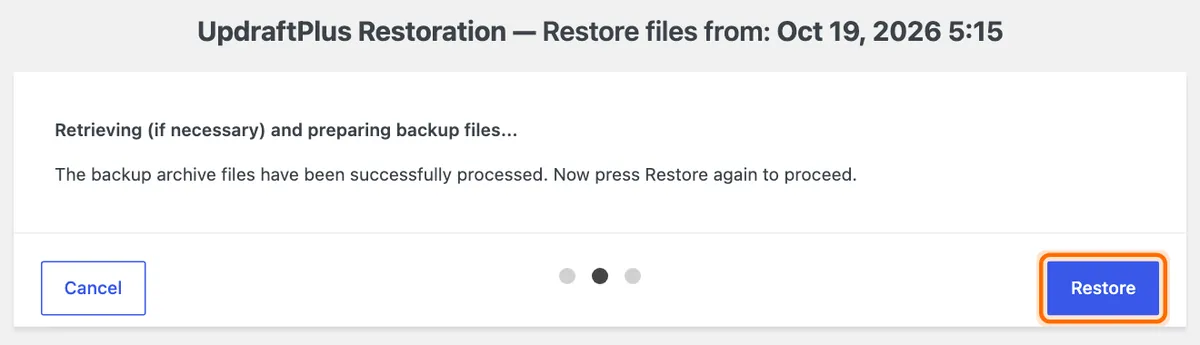
Files checked, press Restore again - 9
Check the result
Restore successful! All 330 files in the uploads backup were put back.
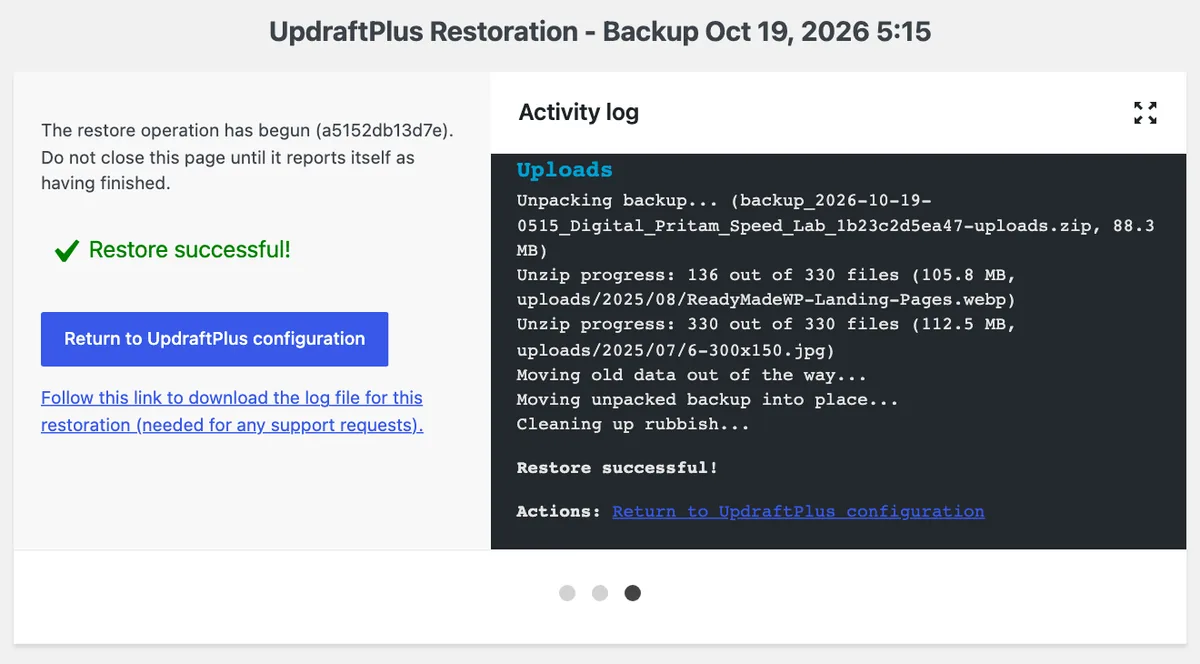
Restore successful, with the activity log - 10
Delete the old folders
After a restore, UpdraftPlus keeps the replaced files as -old folders. Click Delete old folders once the site looks right.

Delete old folders notice after a restore - 11
Check the schedule in Settings
Open the Settings tab. Files and database should both say Daily.
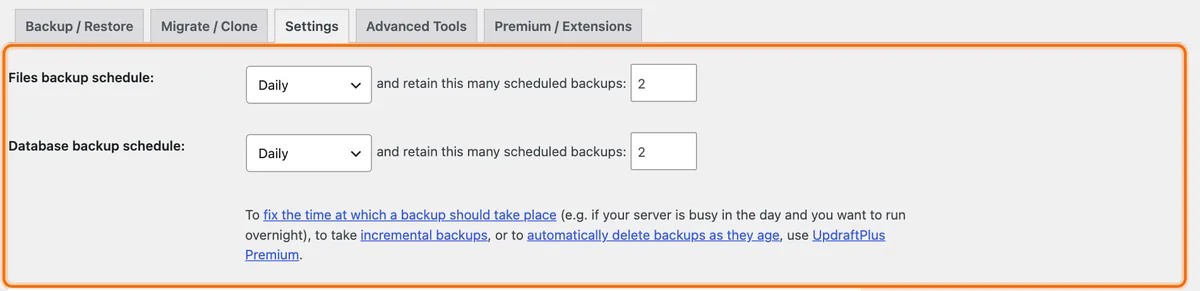
Settings tab: daily files and database schedule - 12
Add Google Drive
Tap Google Drive, click Save Changes, then follow the sign-in link it shows. We did not connect a Google account on our lab.

Remote storage: Google Drive selected - 13
Confirm the next backup time
Back on Backup / Restore, both lines now show a date. Our test: the wizard saved Daily but nothing was scheduled until we clicked Save Changes.

Next scheduled backups now show a date
- 1
Install WPvivid
Go to Plugins > Add Plugin, search WPvivid and click Install Now on WPvivid Backup, Migration & Staging.
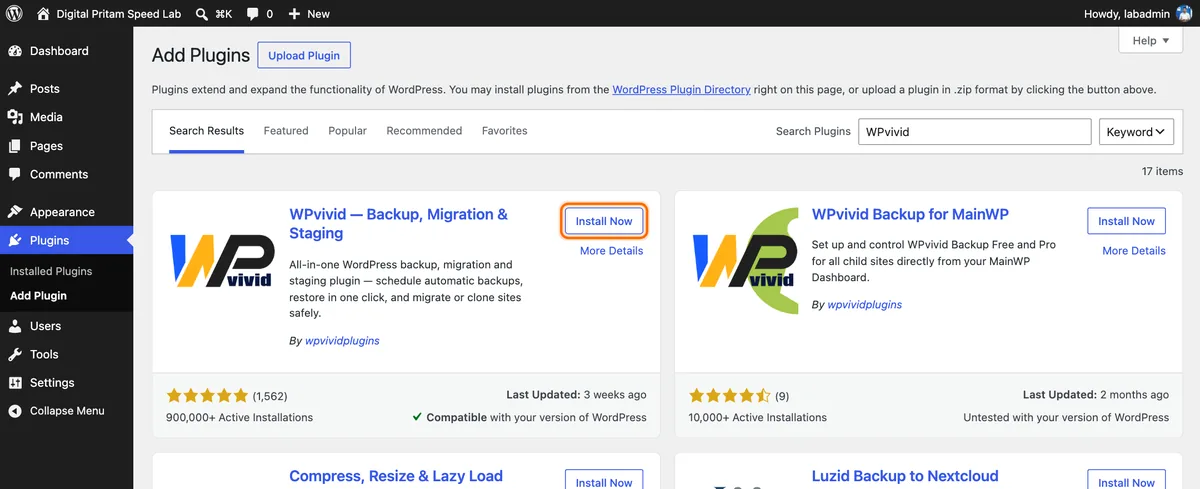
WPvivid in the WordPress plugin search, 900k+ installs - 2
Activate it
Click Activate. WPvivid opens its own page, with a WPvivid Backup menu in the sidebar. No setup wizard.
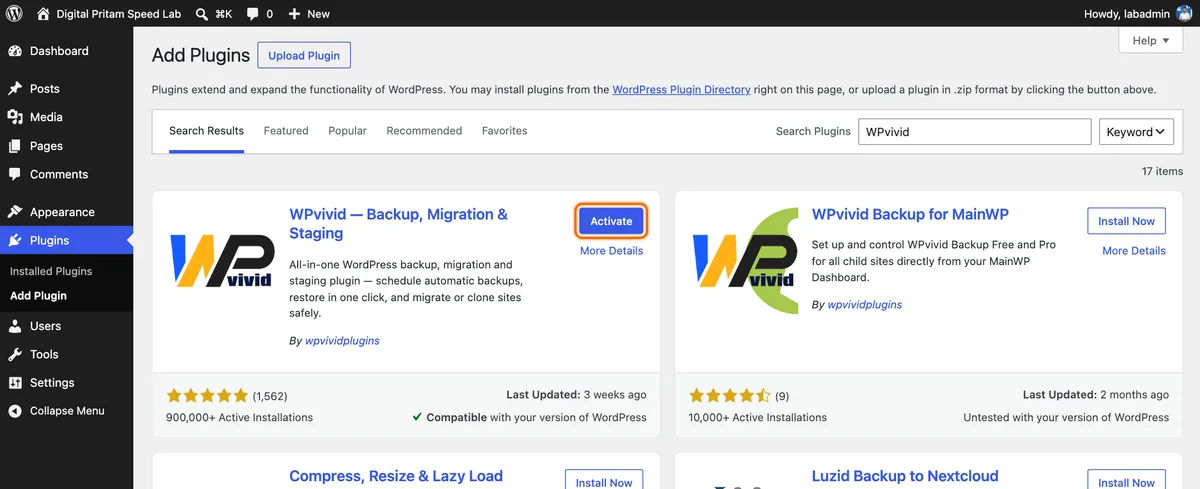
Activate button after install - 3
Back up
Keep Database + Files and Save Backups to Local, then click Backup Now.
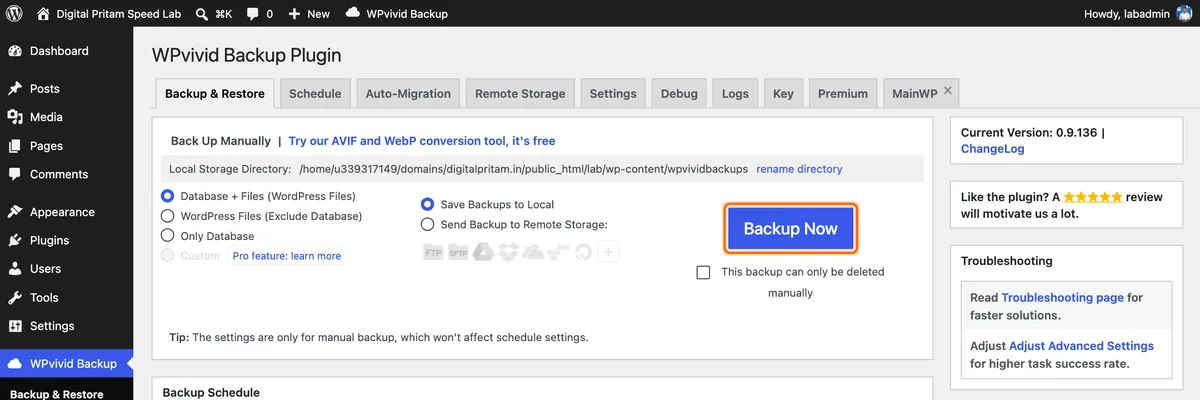
WPvivid Backup Now panel - 4
Find the backup
It took 16 s on our lab and made one 121.3 MB zip, WordPress core included. Click Restore next to it.

Backups list with the Restore link - 5
Start the restore
Click Restore and confirm the Are you sure prompt. The free version restores the whole backup.
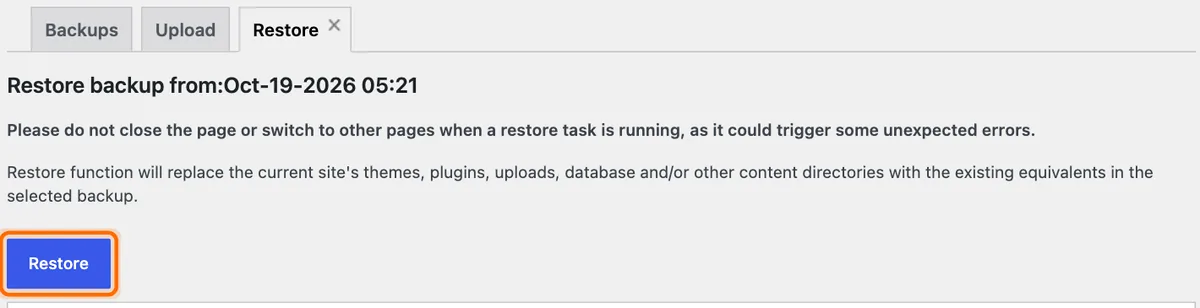
Restore screen before starting - 6
Keep the page open
A progress bar and log show each part. Ours finished in 15 s with the message Restore completed successfully.
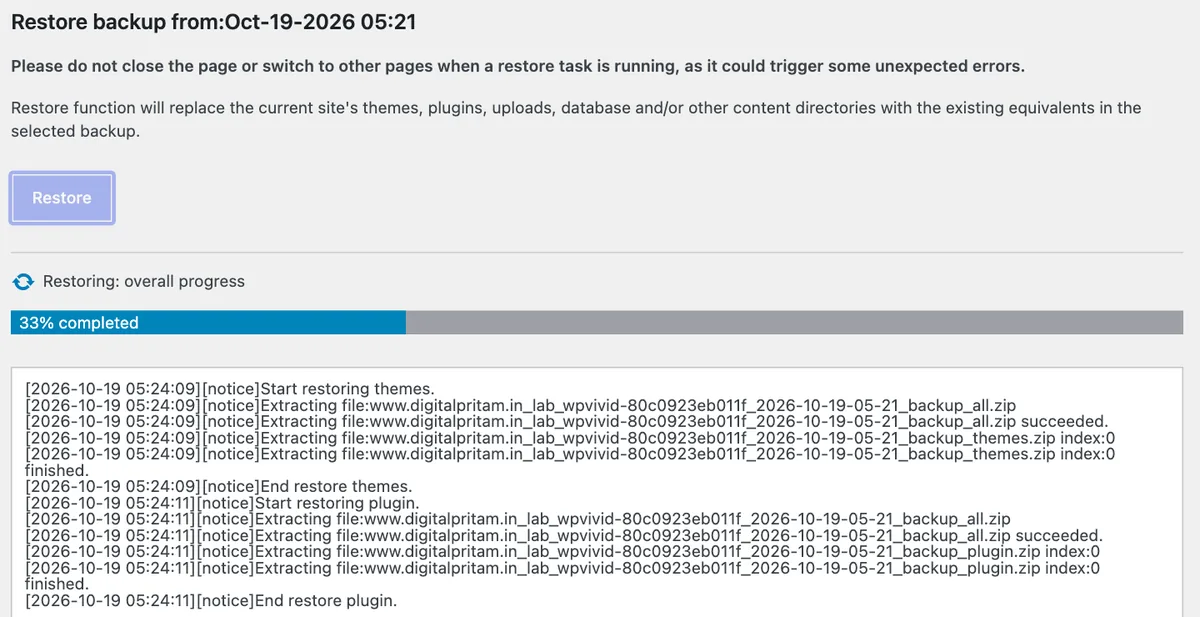
Restore at 33% with the live log - 7
Turn on the schedule
Open Schedule, tick Enable backup schedule, choose Daily and Database + Files, then save. It runs only when the site gets a visit.
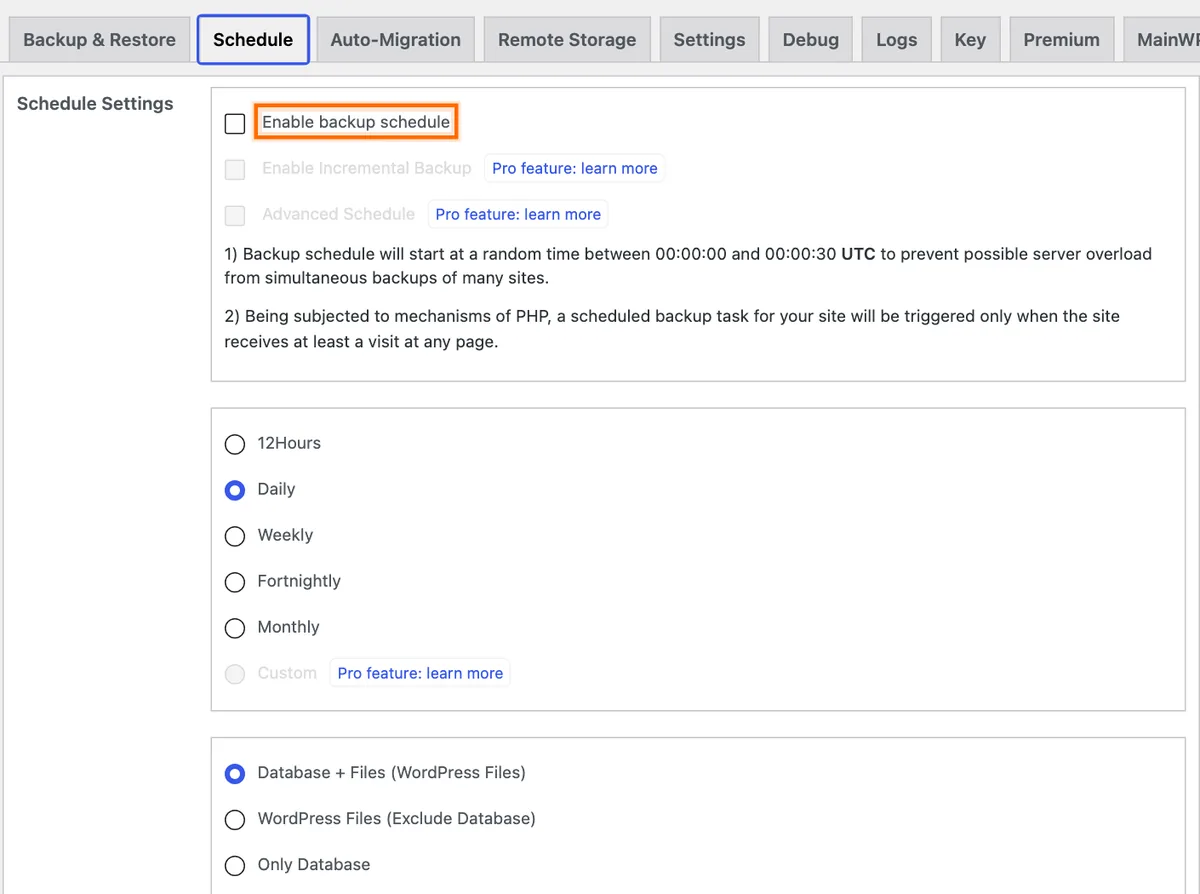
Schedule tab: tick Enable backup schedule first - 8
Add Google Drive
Remote Storage > Google Drive > Authenticate with Google Drive, sign in, then save. Not connected on our lab.
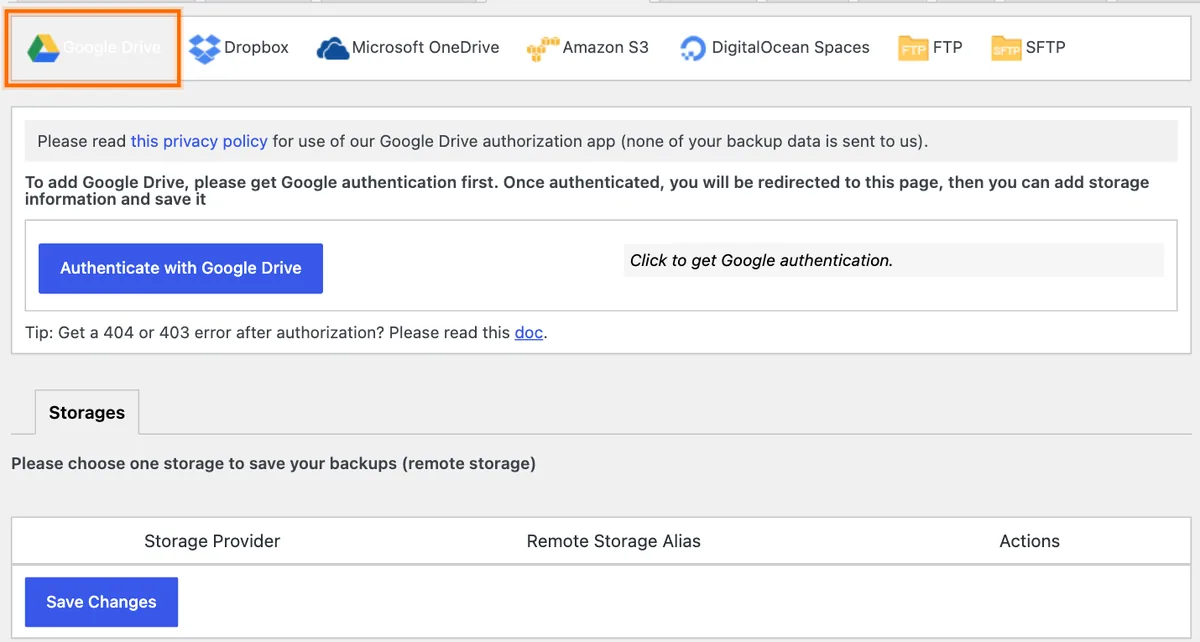
Remote storage: Authenticate with Google Drive - 9
Optional: staging site
WPvivid Backup > Staging > Create A Staging Site copies the site to a folder for testing changes. We did not run it, because our lab shares a database with this site.
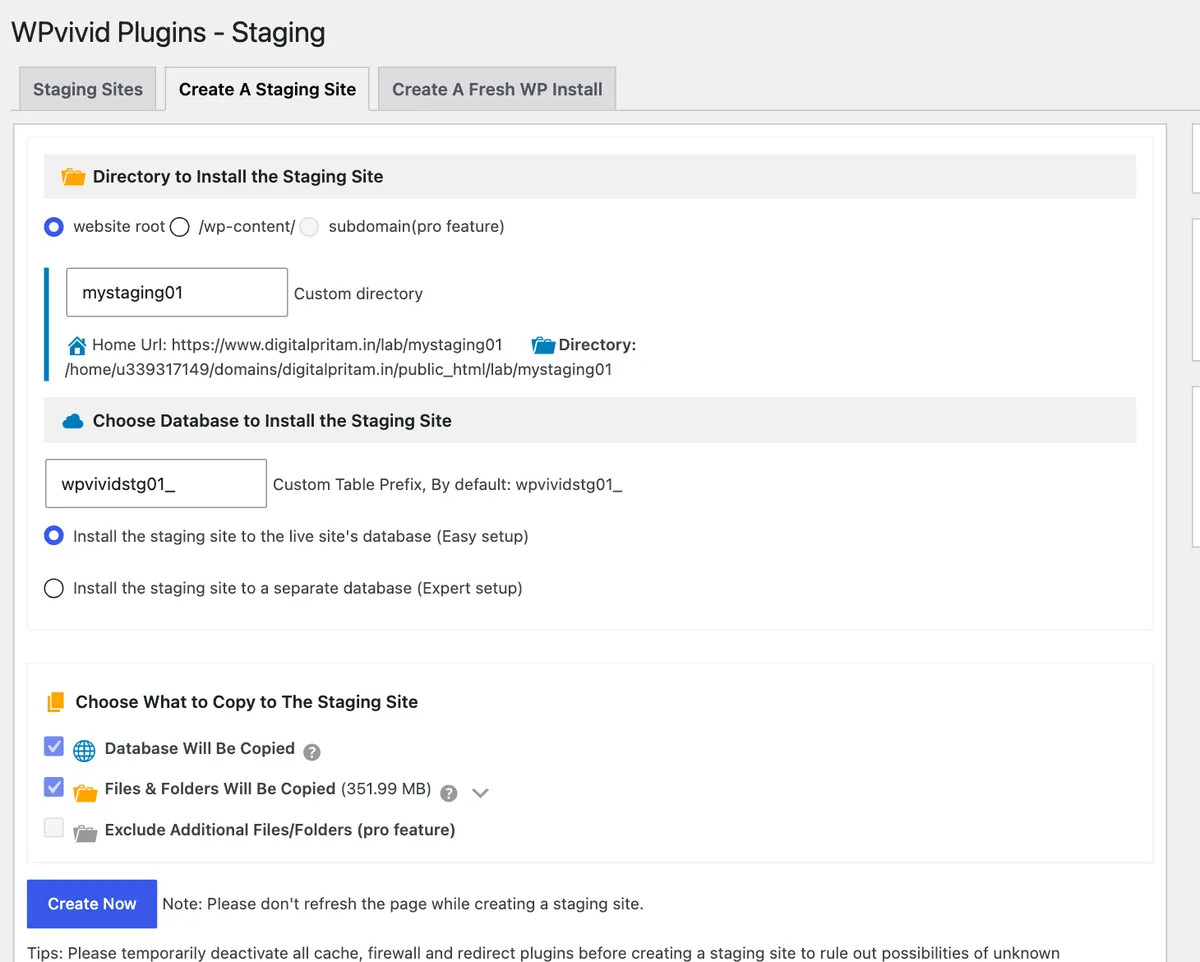
Free staging: choose folder, database and what to copy
Pick a free checklist. Get the best deals too.
Plus an email when each big hosting, WordPress and AI tool sale opens, with the price checked by us.
Sent to your inbox instantly. Unsubscribe in one click. Privacy policy
Backup plugin on Hostinger: FAQ
Do I need a backup plugin on Hostinger?
On Single or Premium, yes: those plans back up weekly, so you could lose up to 7 days of posts and orders. On Unlimited or Cloud, Hostinger backs up daily; a plugin is still worth it for a copy stored off Hostinger.
How often does Hostinger back up my site?
Weekly on Single and Premium, daily on Unlimited, and daily plus on demand on Cloud plans, per Hostinger India's plan list on 17 Oct 2026. Daily backups are kept for 7 days and weekly backups for 7 weeks.
How do I restore a Hostinger backup?
In hPanel, open your website, go to Files, Backups, choose the date and restore files or the database.
What is the best free backup plugin?
UpdraftPlus: 4 million+ installs, rated 4.8 out of 5, and it can send backups to Google Drive or Dropbox for free. WPvivid (900,000+ installs) is a good alternative with staging.
What do you use?
Neither of our sites runs a backup plugin today. Both rely on Hostinger's backups, and we take a manual copy of every page before we change it (more than a dozen on 17 Oct 2026 alone). For a store or a site that changes daily, we would add UpdraftPlus.
Is UpdraftPlus Premium worth it?
Only if you need incremental backups, more storage destinations or migration tools. It starts at $70 a year for 2 sites.
About this page
Pritam Sonone
Founder of Digital Pritam. WordPress developer and designer, WordCamp Kolhapur 2025 speaker. Builds WordPress sites for clients.
How we checked
- Backup frequency per plan read on Hostinger India's plan list on 17 Oct 2026
- Our setup read from both of our Hostinger servers the same day
- Plugin data from the WordPress.org API and official pricing pages
Sources: Hostinger India plans · UpdraftPlus pricing · UpdraftPlus on WordPress.org
Related guides
 Hostinger review 2026Tested on our own sites
 UpdraftPlus vs WPvividWe broke a site and restored it
 WordPress security and backupWhat we actually run
 Hostinger vs MilesWebPrice, renewal and daily backups
 Hostinger price in IndiaEvery plan in rupees, 1-year and 4-year cost
 Hostinger coupon code IndiaDIGITALPRITAM10 tested in the cart
Affiliate links: we may earn a commission at no extra cost to you. It never changes our verdicts.