









Best WordPress Security and Backup Plugins 2026: What We Actually Run
Security plugins compared with WordPress.org data and prices, plus how to back up the site you cannot afford to lose.
 By Pritam SononeUpdated 24 Oct 2026Reviewed by Pritam SononePrices re-checked regularly against the brand’s own website.How we test →
Affiliate links: we may earn a commission at no extra cost to you. It never changes our verdicts.
Use Wordfence free for security and UpdraftPlus free for off-site backups; both cost nothing. Check your host first: Hostinger already backs up weekly or daily and filters attacks at server level. Pay only if you need cleanup help or daily backups your host does not give.
Security note, 24 Oct 2026
- Rank Math PRO 3.0.123 shipped malware through official downloads and updates during 15 to 16 October 2026. Rank Math says 3.0.124 is the clean build. If you activated 3.0.123, treat the site as compromised: restore a backup made before 16 Oct 01:32 IST, run a malware scan and change every password and API key. The free plugin was not part of this incident. Rank Math’s notice.
- TeamUpdraft (UpdraftPlus) was breached in October 2026. The attacker used a compromised key and the UpdraftCentral connection to create admin accounts and install malicious plugins on some sites. UpdraftPlus 1.26.13 and 2.26.13 (released 19 Oct) revoke the UpdraftCentral keys. Update, then check for users you did not add (TeamUpdraft mentions unexpected editor accounts) and plugins you did not install. TeamUpdraft’s notice.
- PHP2Shell: two critical PHP flaws were patched in October 2026. Updating WordPress does not fix them: your host has to update PHP. The fixed releases are PHP 8.2.35, 8.3.36, 8.4.27 and 8.5.12 (21 Oct 2026). Check yours free with our Hosting Checker or in hPanel or cPanel. Until your host updates, php.net lists
session.upload_progress.enabled = 0as a mitigation.
On digitalpritam.in we run the free Rank Math (not PRO), so we were not affected. None of our own sites use UpdraftPlus or UpdraftCentral right now; our test results below are unchanged. Need help cleaning a hacked site? Malware cleanup, Rs 4,999.
What is it?A WordPress security plugin blocks attacks and scans for malware, while a backup plugin keeps a copy you can restore.
Best WordPress security plugins
Installs and ratings from the WordPress.org API, prices from each official page, 17 Oct 2026.
| Plugin | Installs | Rating | Price | Best for |
|---|---|---|---|---|
| Wordfence | 5M+ | 4.7/5 | Free; Premium $149/yr | Best free scanner + firewall. We run it on investmarathi.com |
| Kadence Security (Solid) | 700k+ | 4.6/5 | Free; paid in the Kadence bundle from $350 | Light login and file-change protection |
| All-In-One Security (AIOS) | 1M+ | 4.7/5 | Free; Premium available | Many hardening options in one screen |
| MalCare | 100k+ | 4.4/5 | Free scanner; cleanup paid | Scans on its own servers, so lighter on yours |
Best WordPress backup options
| Option | Installs | Rating | Price | Best for |
|---|---|---|---|---|
| UpdraftPlus | 4M+ | 4.8/5 | Free; Premium $70/yr | Best free backup to Google Drive or Dropbox |
| WPvivid | 900k+ | 4.9/5 | Free; Pro available | Free staging and migration |
| Hostinger backups | Built in | – | Included | Weekly on Single/Premium, daily on Unlimited and Cloud |
What we run on our own sites
Read from the servers on 17 Oct 2026.
investmarathi.com (GeneratePress)
- Wordfence free 9.0.2: 491 scans, 30 attacks blocked in 3 weeks
- Hostinger backups, no backup plugin
- Manual copy before big changes
digitalpritam.in (Kadence)
- No security plugin: Hostinger’s server firewall and malware scanner
- Hostinger backups, no backup plugin
- A saved copy of every page before each rewrite
Security and backup guides
 Wordfence vs Solid SecuritySolid is now Kadence Security
 Backup plugin on Hostinger?Backups by plan, and when to add one
 Best WordPress hosting in India8 hosts compared
 Hostinger vs MilesWebMilesWeb backs up daily on every plan
 UpdraftPlus vs WPvividWe broke a site and restored it
 Speed Lab: cache pluginsTested on our Hostinger lab site
How to set up free backups, step by step
Security starts with a backup you can restore.
Tap any screenshot to open it full size. Screenshots from our UpdraftPlus vs WPvivid test on the lab site.
- 1
Install UpdraftPlus
In wp-admin go to Plugins > Add Plugin, search UpdraftPlus and click Install Now on the card by Team Updraft.
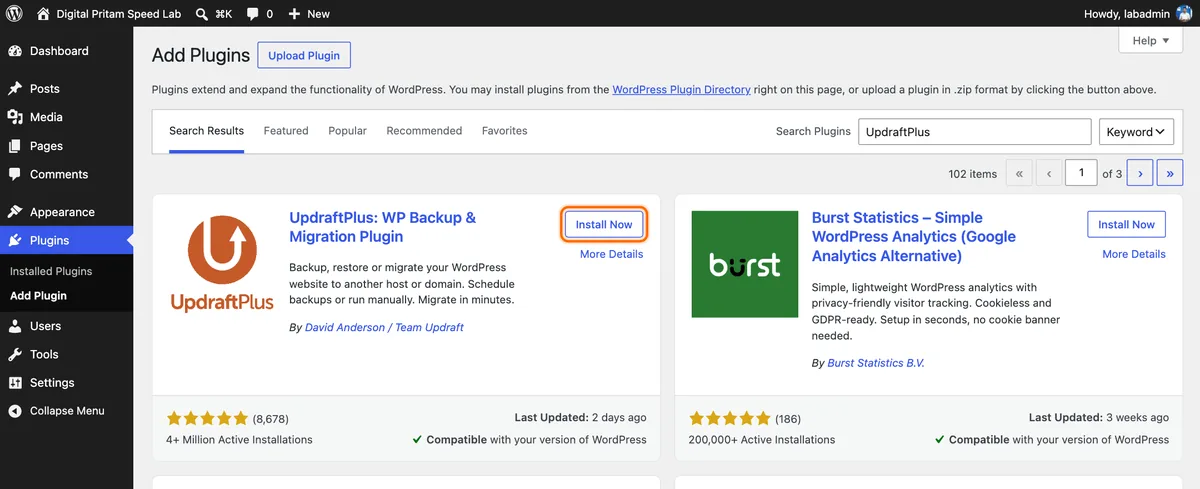
UpdraftPlus in the WordPress plugin search, 4M+ installs - 2
Activate it
The same button turns into Activate. Click it; an UpdraftPlus item appears in the left menu.
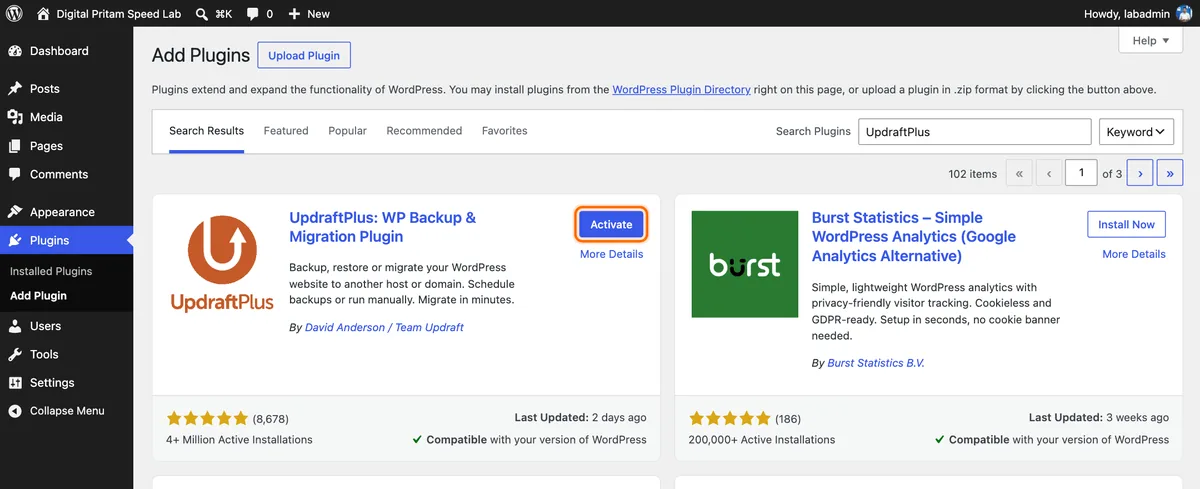
Activate button after install - 3
Set the schedule in the setup wizard
Opening UpdraftPlus starts a 6-step wizard. Pick Daily and keep 2 backups.
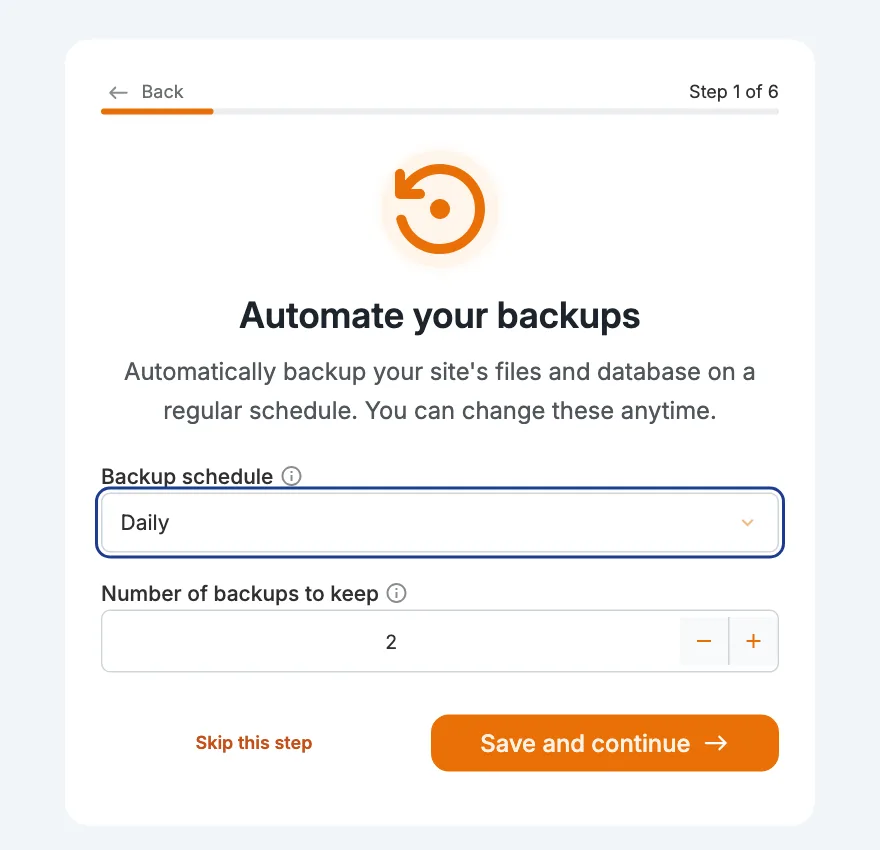
Wizard step 1: Daily schedule, keep 2 backups - 4
Skip the extra plugins
Step 4 ticks three more plugins by default. Untick them or click Skip this step; we skipped the newsletter and Premium steps too.
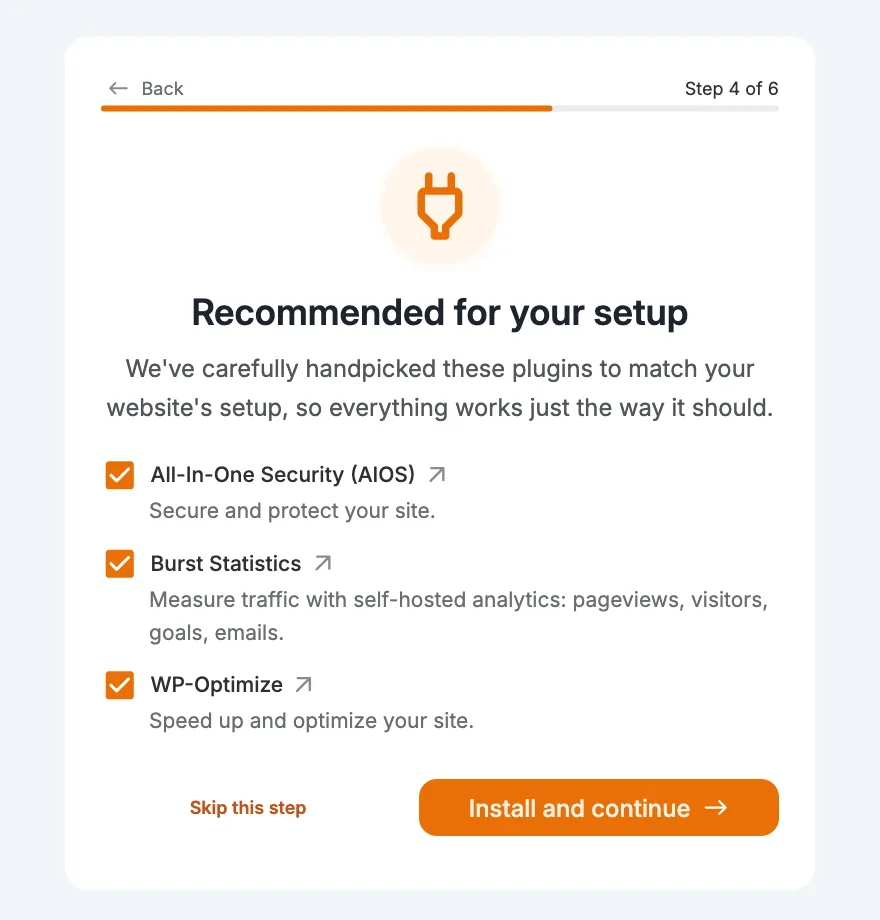
Wizard step 4: three extra plugins are ticked by default - 5
Take your first backup
Click Backup Now, keep database and files ticked, and confirm.
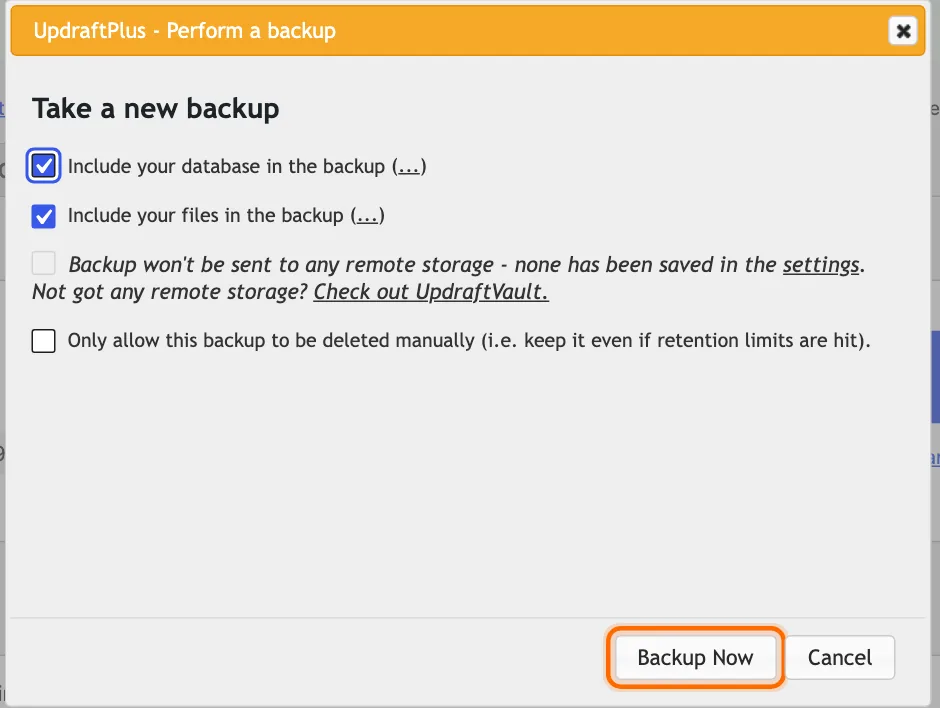
Backup Now dialog with database and files ticked - 6
Wait for it to finish
A progress bar shows each part. Our lab backup (108.8 MB in 5 files) finished in 3.9 s.
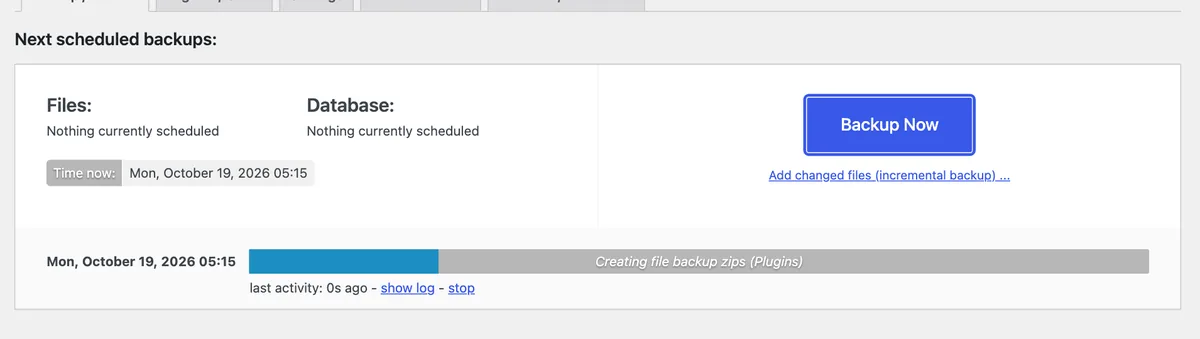
Backup in progress on our lab site, 19 Oct 2026 - 7
Restore: pick only what you need
Under Existing backups click Restore, then tick the parts. We restored Uploads only; the free version lets you pick.
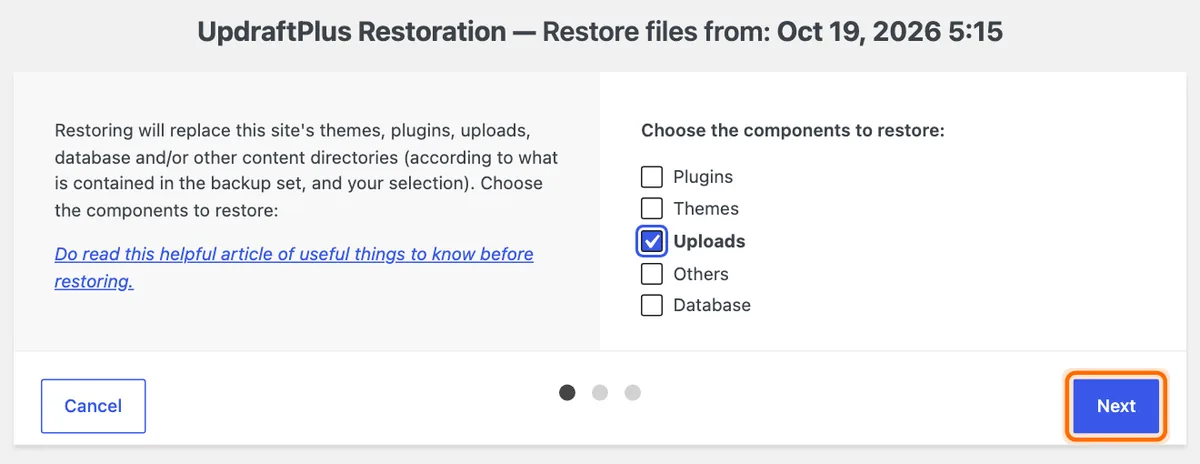
Choose components: we ticked Uploads only - 8
Press Restore twice
UpdraftPlus checks the files first, then asks you to press Restore again.
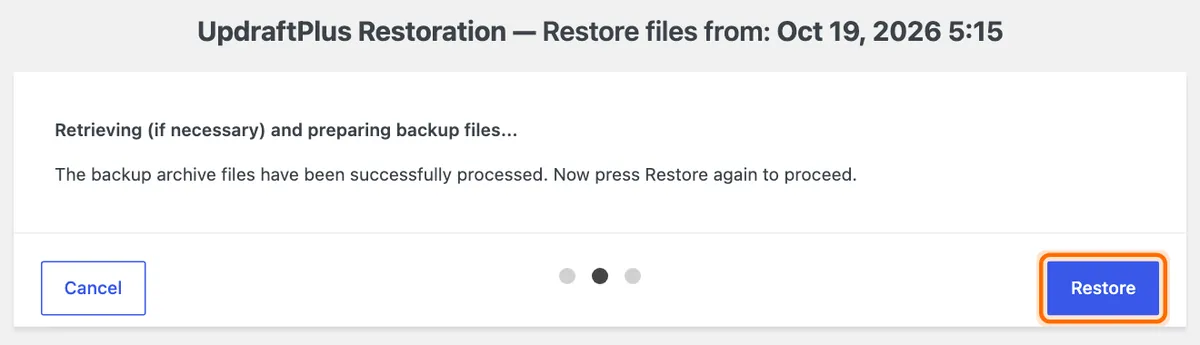
Files checked, press Restore again - 9
Check the result
Restore successful! All 330 files in the uploads backup were put back.
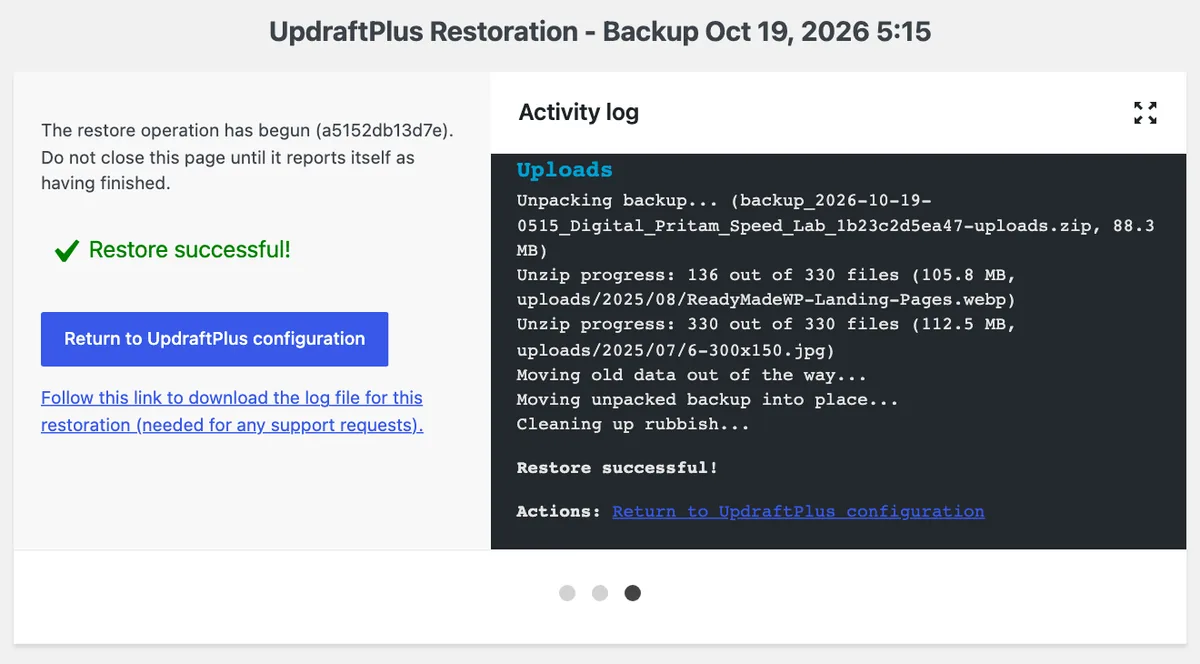
Restore successful, with the activity log - 10
Delete the old folders
After a restore, UpdraftPlus keeps the replaced files as -old folders. Click Delete old folders once the site looks right.

Delete old folders notice after a restore - 11
Check the schedule in Settings
Open the Settings tab. Files and database should both say Daily.
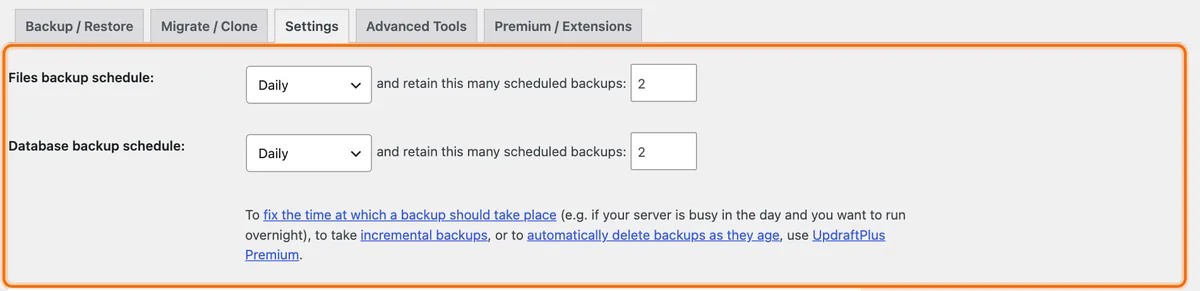
Settings tab: daily files and database schedule - 12
Add Google Drive
Tap Google Drive, click Save Changes, then follow the sign-in link it shows. We did not connect a Google account on our lab.

Remote storage: Google Drive selected - 13
Confirm the next backup time
Back on Backup / Restore, both lines now show a date. Our test: the wizard saved Daily but nothing was scheduled until we clicked Save Changes.

Next scheduled backups now show a date
- 1
Install WPvivid
Go to Plugins > Add Plugin, search WPvivid and click Install Now on WPvivid Backup, Migration & Staging.
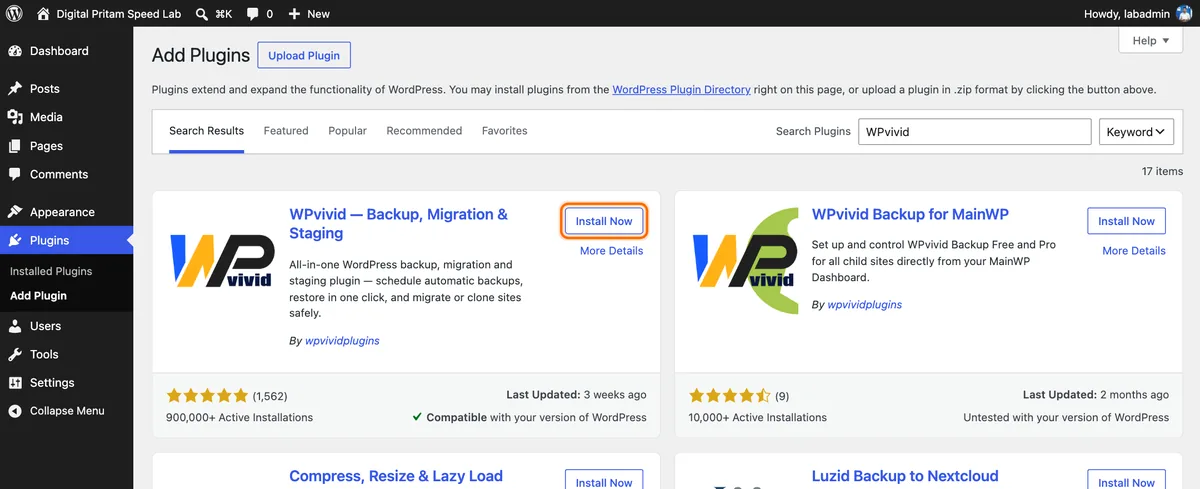
WPvivid in the WordPress plugin search, 900k+ installs - 2
Activate it
Click Activate. WPvivid opens its own page, with a WPvivid Backup menu in the sidebar. No setup wizard.
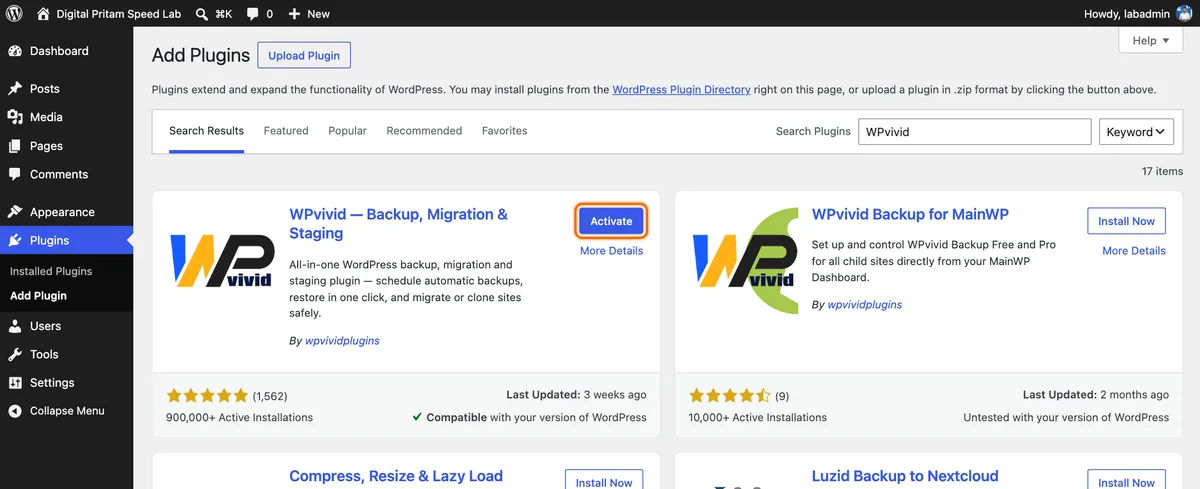
Activate button after install - 3
Back up
Keep Database + Files and Save Backups to Local, then click Backup Now.
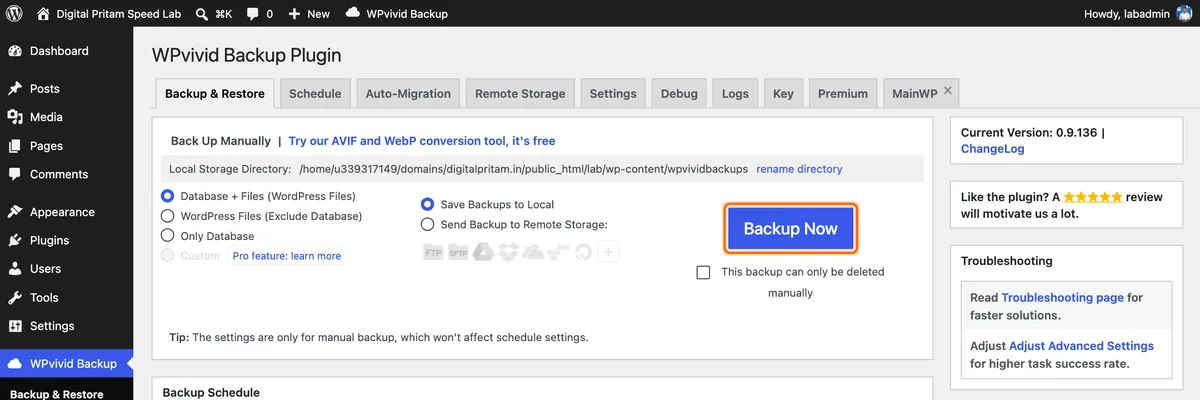
WPvivid Backup Now panel - 4
Find the backup
It took 16 s on our lab and made one 121.3 MB zip, WordPress core included. Click Restore next to it.

Backups list with the Restore link - 5
Start the restore
Click Restore and confirm the Are you sure prompt. The free version restores the whole backup.
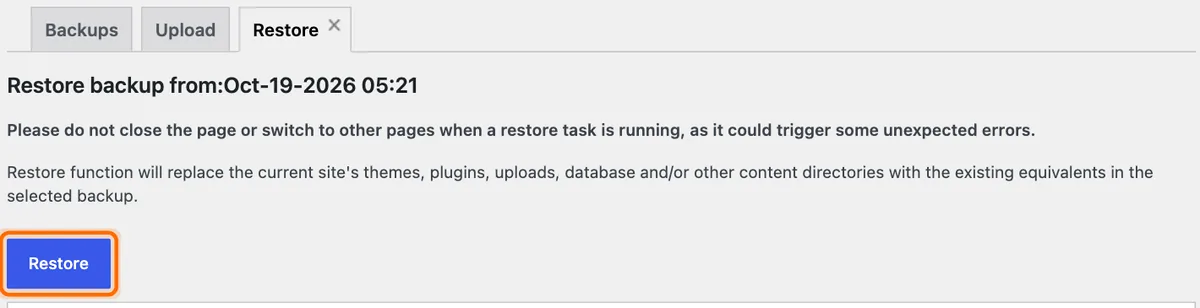
Restore screen before starting - 6
Keep the page open
A progress bar and log show each part. Ours finished in 15 s with the message Restore completed successfully.
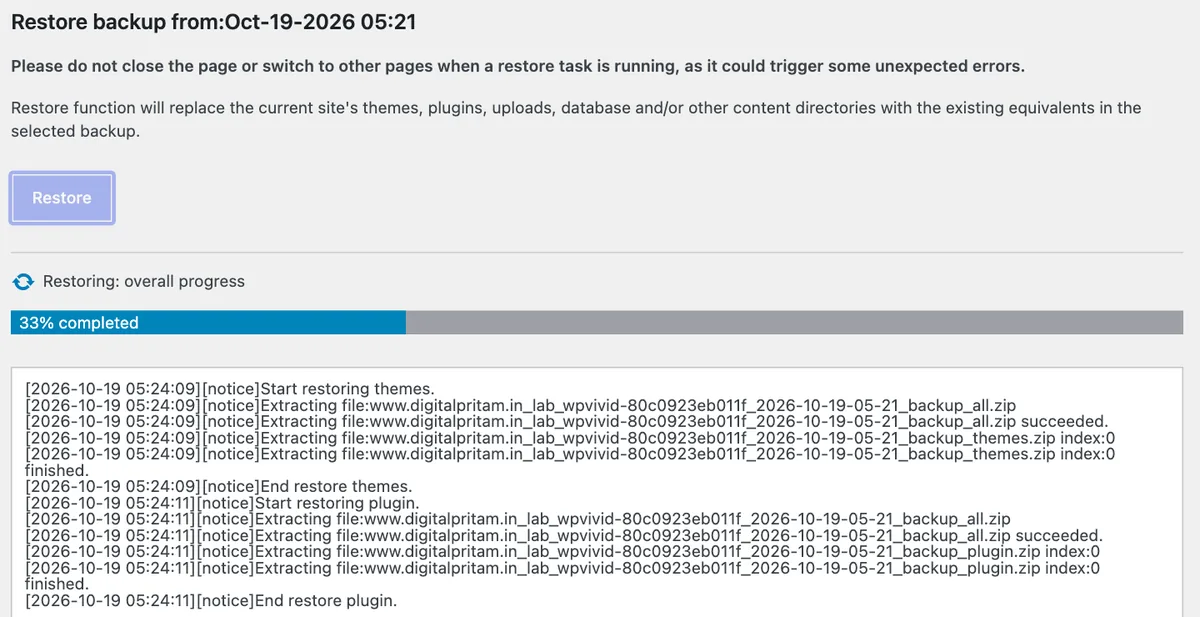
Restore at 33% with the live log - 7
Turn on the schedule
Open Schedule, tick Enable backup schedule, choose Daily and Database + Files, then save. It runs only when the site gets a visit.
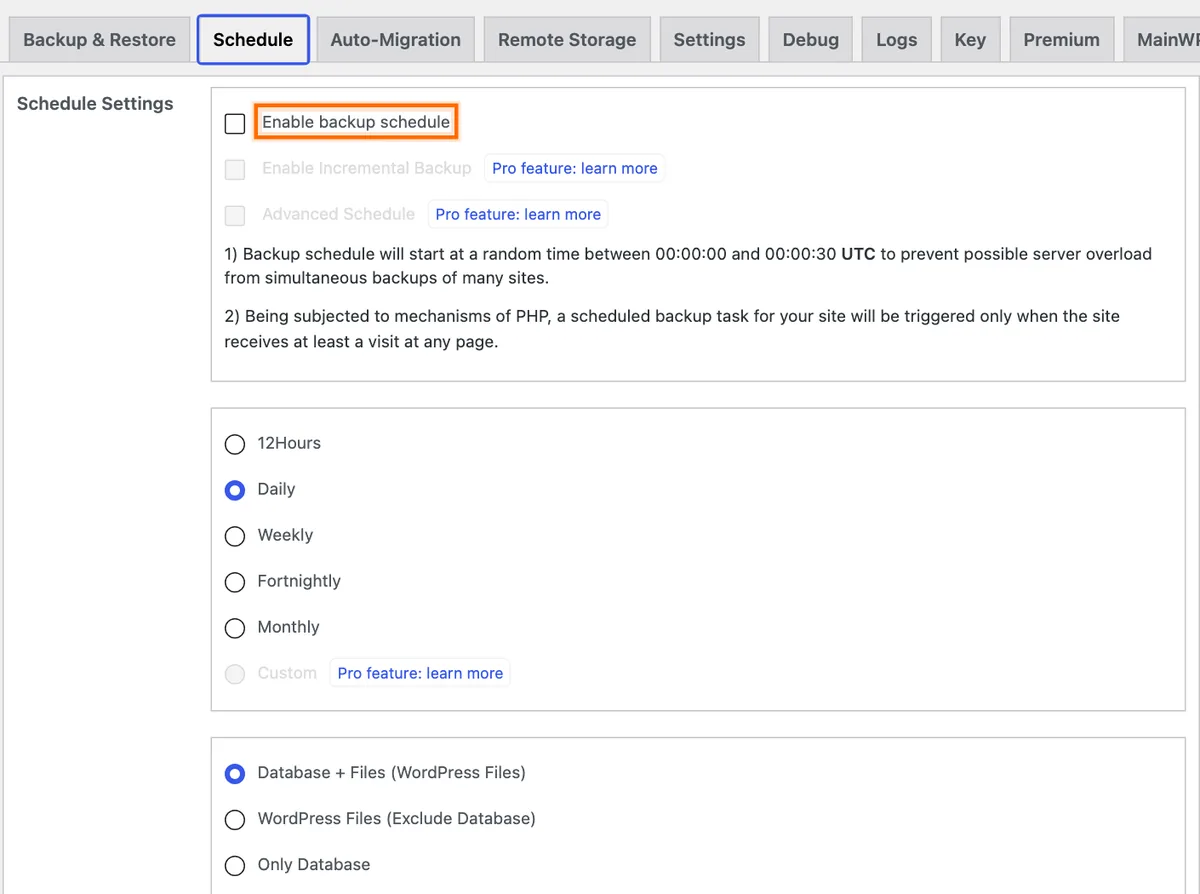
Schedule tab: tick Enable backup schedule first - 8
Add Google Drive
Remote Storage > Google Drive > Authenticate with Google Drive, sign in, then save. Not connected on our lab.
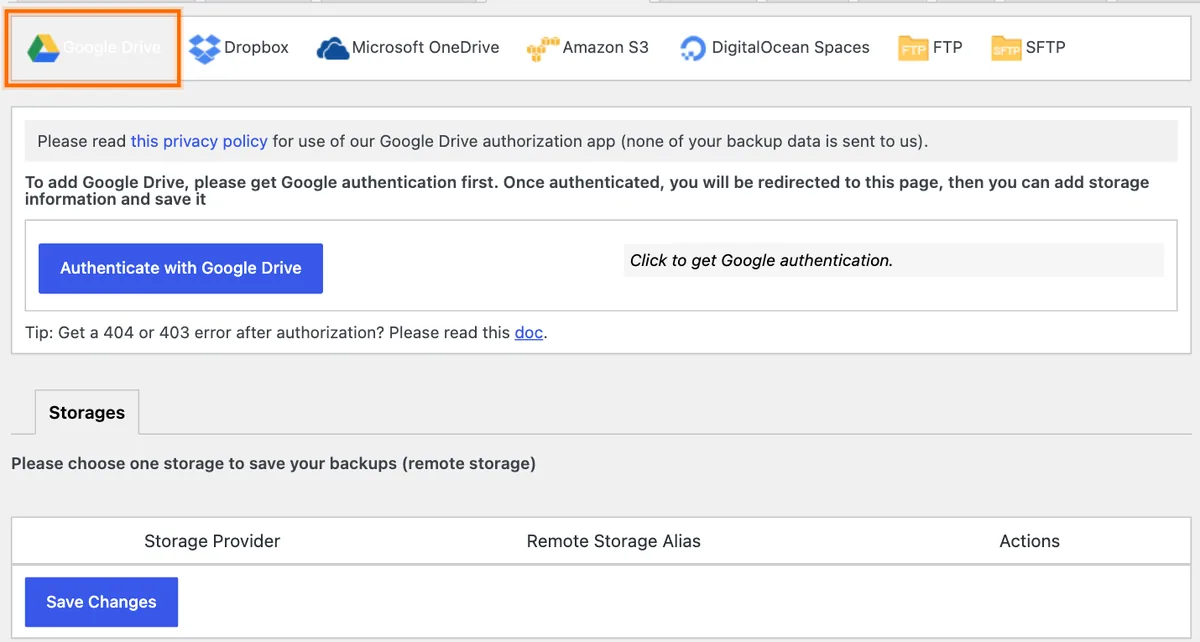
Remote storage: Authenticate with Google Drive - 9
Optional: staging site
WPvivid Backup > Staging > Create A Staging Site copies the site to a folder for testing changes. We did not run it, because our lab shares a database with this site.
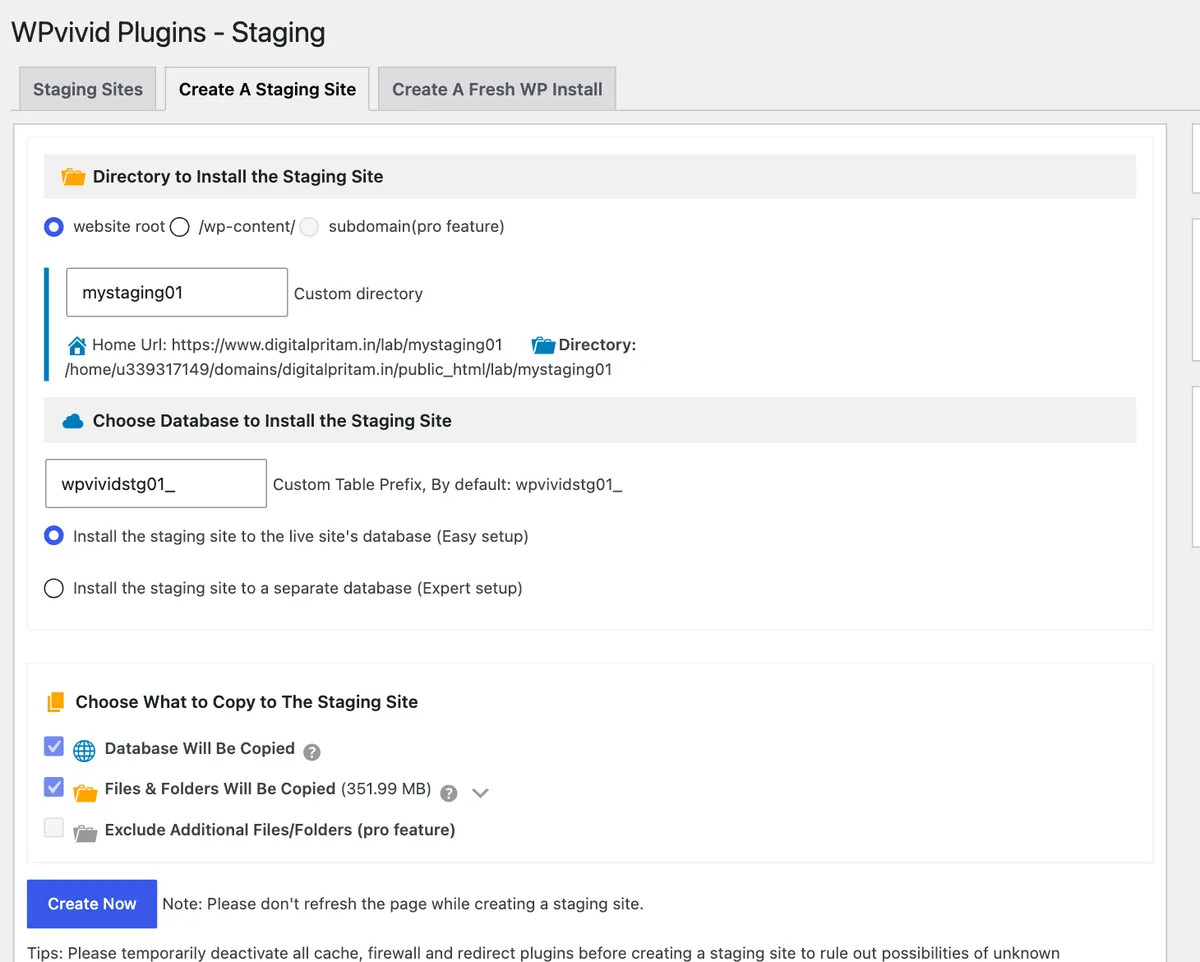
Free staging: choose folder, database and what to copy
Pick a free checklist. Get the best deals too.
Plus an email when each big hosting, WordPress and AI tool sale opens, with the price checked by us.
Sent to your inbox instantly. Unsubscribe in one click. Privacy policy
WordPress security and backup: FAQ
What is the best WordPress security plugin?
Wordfence for most sites: 5 million+ installs, a free firewall and malware scanner. On our own site it blocked 30 attacks in three weeks on the free plan.
What is the best free WordPress backup plugin?
UpdraftPlus: 4 million+ installs, rated 4.8 out of 5, with free backups to Google Drive, Dropbox and more.
Do I need both a security and a backup plugin?
You need a backup either way; security plugins reduce risk but cannot undo every mistake or hack. Many hosts, including Hostinger, back up for you, so check your plan first.
Is Solid Security still available?
Yes, renamed Kadence Security. The free plugin is on WordPress.org; its paid features are in the Kadence Pro bundle.
Does a security plugin slow WordPress down?
A little. Wordfence's firewall runs on every request. On Hostinger, which already filters traffic at server level, keep scans scheduled and leave live traffic logging off, as we do.
How do I clean a hacked WordPress site?
Restore a clean backup from before the hack, update everything, change all passwords and keys, then scan again. If there is no clean backup, a paid cleanup service such as Wordfence Care is faster.
Methodology
How this page was built, so you can check it.
| Detail | |
|---|---|
| Date | 17 Oct 2026 |
| Sources | Each product's official pricing page and, where marked, our own tests |
| Procedure | We read every price, plan and renewal term for security and backup plugins and dated the page; tested pages link to their raw data |
| Limits | Prices change. Deal prices are re-checked against the official pricing pages every morning where the site allows it, and each card shows its date. Some links are affiliate links and never change which product we rank higher |
About this page
Pritam Sonone
Founder of Digital Pritam. WordPress developer and designer, WordCamp Kolhapur 2025 speaker. Builds WordPress sites for clients.
How we checked
- Security data read from free Wordfence on our own site, investmarathi.com, on 17 Oct 2026
- Installs and ratings from the WordPress.org API the same day
- Prices from each official pricing page
Sources: Wordfence pricing · UpdraftPlus pricing · WordPress.org plugins
Related guides
UpdraftPlus vs WPvividWe broke a site and restored itWordfence vs Solid SecuritySolid is now Kadence SecurityBackup plugin on Hostinger?Backups by plan, and when to add oneBest WordPress hosting in India14 hosts compared in rupees Best WordPress Cache Plugin 2026LiteSpeed Cache, WP Rocket and more compared
 Best WordPress SEO Plugin 2026Rank Math, Yoast, AIOSEO and SEOPress
Affiliate links: we may earn a commission at no extra cost to you. It never changes our verdicts.