









WordPress has no button to rename a login. Open Users > Profile and the username box is greyed out, with a note under it that reads “Usernames cannot be changed.” That note comes straight from WordPress core, and it is why so many site owners are stuck with a login like admin or an old business name.
You can still change it, and you do not need to create a new account. This guide shows three ways, each run on a clean WordPress 7.1.3 install on our Speed Lab test site on 18 October 2026: the plugin method through the real admin screens, and the database and new-account methods with WP-CLI, the official command-line tool for WordPress. The main method uses SmartUsername 1.2.0, a free plugin I built and published on WordPress.org. Because it is my own plugin, I also list what it does not do, so you can decide with the full picture.
Key Takeaways
- WordPress core blocks username changes in the profile screen, so you need a plugin, WP-CLI with a database query, or a new account.
- SmartUsername 1.2.0 renames any user, including you, in about a minute, and keeps posts, password, email and display name.
- Your author URL keeps the old name unless you tick “Also update the author URL slug”. With that ticked, the old author URL redirects to the new one with a 301.
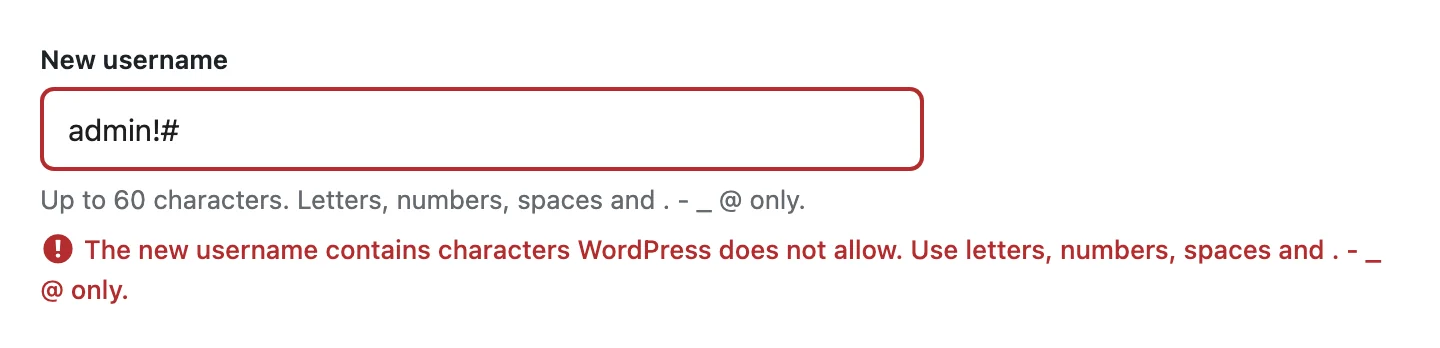
- The plugin rejects names WordPress would refuse: over 60 characters, empty, taken, or with characters such as
!and#.
On this page11 sections
What you need before you start
Changing a username touches the wp_users table, so prepare for five minutes of care, not five seconds.
- A fresh backup of the database. If you are on Hostinger, here is whether you need a backup plugin on Hostinger at all.
- Administrator access. The plugin needs the
manage_optionscapability, ormanage_network_userson multisite. - The account’s email address. Renamed users are signed out, and WordPress always accepts the email address at login, so email is your safety net.
- About 5 minutes. Difficulty: beginner for the plugin method, intermediate for WP-CLI or phpMyAdmin.
- The new username, 60 characters at most, using letters, numbers and
_ . - @. WordPress also allows spaces (WordPress Developer Resources, sanitize_user), but a space is easy to forget at the login screen, so I leave them out.
Method 1: Change any username with the SmartUsername plugin
This is the method for most people: no database, no new account, and content stays exactly where it is. Since version 1.1.0 it renames any user, not only the account you are signed in with.
Step 1: Install and activate SmartUsername
By the end of this step, a new Change Username item sits under the Users menu.
- In your dashboard, go to Plugins > Add Plugin and search for “SmartUsername”.
- Click Install Now, then Activate. You can also download it from the SmartUsername page on WordPress.org.
- Check the Plugins list: the plugin row now has a Change Username link.
If any account on your site uses a name that login attacks guess first, such as admin, administrator or your site name, a security check appears on the Dashboard and the Users screen with a one-click Rename button:

Step 2: Open the Change Username screen
By the end of this step, you are on the plugin’s screen with the right user selected. There are three ways in:
- Go to Users > Change Username.
- On the Users screen, hover over a name and click Change username.
- On a user’s profile, click the Change username button under the greyed-out Username box.

Step 3: Pick the user and type the new username
By the end of this step, the form shows a green “available” message.
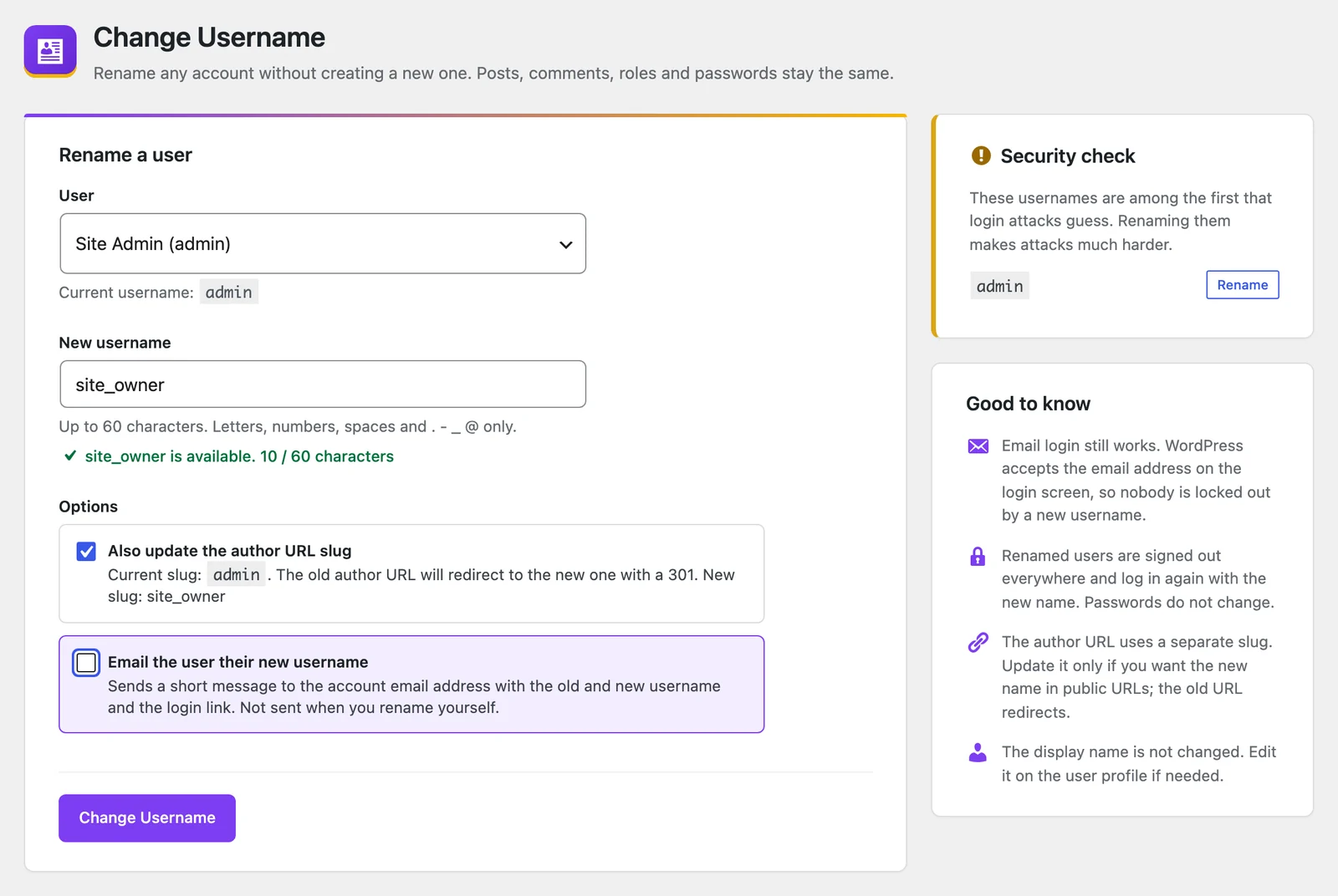
- Choose the account in the User list. The current username shows under it.
- Type the new name in New username. The plugin checks it as you type and shows the character count. In my test I renamed a subscriber called
admintosite_owner.
If the name breaks a rule, you see why before you submit, and nothing is saved:
Step 4: Choose the options
- Also update the author URL slug. Tick this if the old name must leave your public URLs. The old author URL then redirects to the new one with a 301.
- Email the user their new username. This is ticked by default when you rename someone else. It sends the old and new username and the login link. Untick it if your site cannot send email.
- I understand I will be signed out. This box appears only when you rename your own account, and the change is refused until you tick it.
Step 5: Click Change Username
By the end of this step, the account uses the new login.
Click Change Username. A green notice confirms the change and says the user’s open sessions were ended.

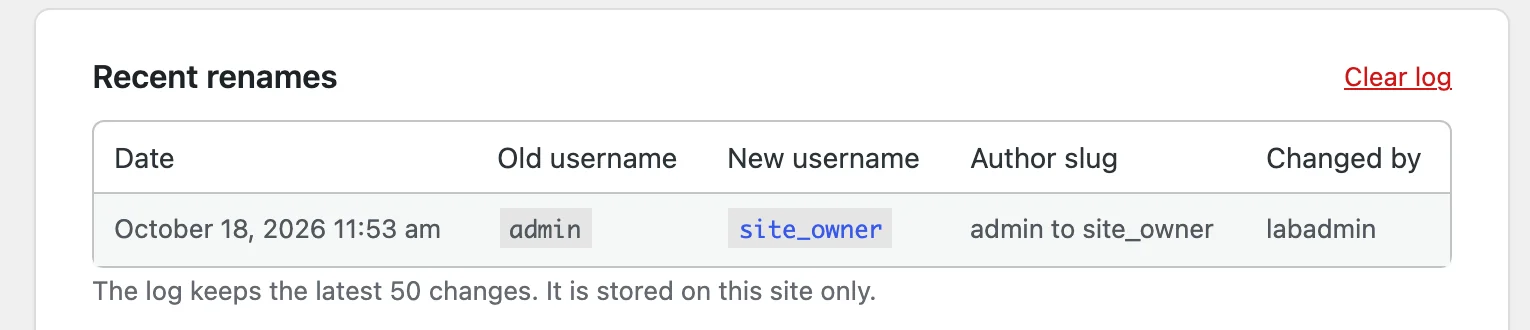
The change is added to Recent renames, which keeps the latest 50 changes with the date, old and new name, author slug and who made it.
If you renamed your own account, you land on the login screen. Sign in with the new username or your email address and your usual password.
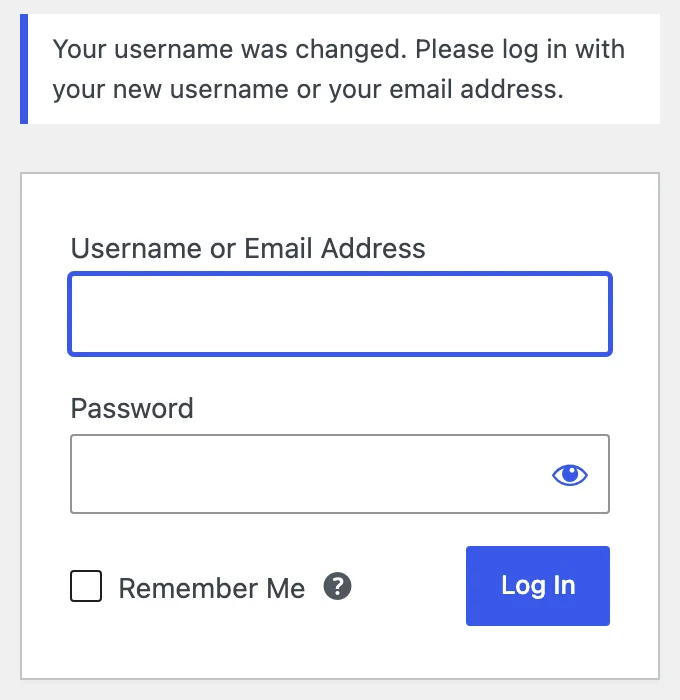
Verification: in my test, the old /author/admin/ URL returned a 301 to /author/site_owner/. The display name and email address did not change. For my own account, the plugin refused the change until I ticked the confirmation, then signed me out and showed the login message above.
What changes, and what stays the same
A WordPress account has several name fields. Here is what I checked in the database after each rename:
| Field | What it is | After the change |
|---|---|---|
user_login |
The username you sign in with | Changed |
user_nicename |
The slug in your author URL | Unchanged, unless you tick the author URL option |
| Display name | The name shown on posts | Unchanged |
| Email and password | Other login details | Unchanged |
| Posts and pages | Content linked to the user ID | Still the same author |
| Sessions | Sign-in cookies | Ended, the user signs in again |
WordPress builds author archive links from user_nicename, not from the login (WordPress Developer Resources, get_author_posts_url). When I renamed lab_writer to lab_author without the slug option, the author page stayed at /author/lab_writer/.
- Good for SEO: existing links to the author archive keep working.
- Bad if you renamed for security: anyone can still read the old login in that URL. Tick the author URL option to replace it, and the 301 keeps old links working.
To change the display name as well, open the user’s profile, edit Nickname and pick it in Display name publicly as. No plugin is needed for that.
Method 2: Change a username with WP-CLI or phpMyAdmin
Use this method when you are locked out of the dashboard or manage sites from the command line. WordPress refuses the obvious command: when I ran wp user update with a new --user_login, WP-CLI replied “Warning: User logins can’t be changed.” (WP-CLI user update).
If SmartUsername is installed, it adds its own WP-CLI commands, with the same checks as the admin screen. I renamed lab_writer this way:
wp smartusername check lab_writer lab_author
wp smartusername rename lab_writer lab_author
wp smartusername log
Add --slug to update the author URL with a redirect, and --notify to email the user. A name with ! was rejected by check with the same message as the admin screen.
Without the plugin, update the database row directly:
- Find the user ID with
wp user list --fields=ID,user_login. - Make sure the new name is free:
wp user get new_usernameshould answer “Invalid user ID, email or login”. - Update the login and clear the cache. The command below reads your table prefix with
wp db prefix, so it works whether your prefix iswp_or something else.
wp db query "UPDATE $(wp db prefix)users SET user_login = 'new_username' WHERE ID = 2"
wp cache flush
In my test the old login was rejected, the new one worked, and a sign-in cookie created before the change stopped working. Posts stayed with the same user ID and the author slug did not change.
Prefer phpMyAdmin? It makes the same edit through a form: open the wp_users table (or your own prefix plus users), click Edit on the user’s row, change user_login, and save. If your host runs an object cache, purge it afterwards. I ran the change as SQL through WP-CLI; phpMyAdmin writes the same value to the same row.
The raw database edit has no safety checks. It will not stop a duplicate name or characters WordPress normally rejects, so follow the rules in the checklist above and stay within 60 characters, the limit of the user_login column.
Method 3: Create a new admin and delete the old one
This is the no-plugin, no-database route. It works, but it replaces the account instead of renaming it.
- Go to Users > Add User and create an administrator with the new username and a different email address.
- Sign out, then sign in as the new user.
- Delete the old user, and when WordPress asks, choose Attribute all content to the new user.
I ran this with WP-CLI on the test site: the test post moved to the new account and the old user was removed. The catch is that the new account has a new user ID, and profile details, application passwords and any plugin settings stored against the old account do not move across. The new account also gets a new author URL, so redirect the old author archive yourself. For a site with one author that is often fine. For a membership site or a WooCommerce store, where orders and memberships belong to the old user ID, renaming is the safer choice.
Which method should you use?
| Feature | SmartUsername 1.2.0 | WP-CLI or phpMyAdmin | New admin account |
|---|---|---|---|
| Keeps the same account and user ID | Yes | Yes | No |
| Renames other users | Yes | Yes | Not applicable |
| Works when locked out | With its WP-CLI command | Yes | No |
| Rejects duplicate, invalid or too-long names | Yes | No | Yes |
| Updates the author URL with a redirect | Optional, 301 | Manual | New URL, no redirect |
| Skill needed | Beginner | Intermediate | Beginner |
For any rename from the dashboard, use the plugin. Use the raw database edit only when you cannot install plugins, and create a new account only if you cannot reach the database either.
What is new in SmartUsername 1.1 and 1.2
I first tested version 1.0.0 for this guide and found four problems. Version 1.1.0 fixed them, and I checked each fix on 18 October 2026 with 1.2.0:
- Renaming other users. 1.0.0 renamed only your own account. Now any administrator can rename any user.
- Long names. 1.0.0 failed silently on a 70-character name while showing a success message. Now names over 60 characters are rejected with a clear error.
- Empty names. In 1.0.0, input made only of HTML tags saved an empty username. Now it is rejected.
- Invalid characters. 1.0.0 accepted
!and#. Now the plugin uses the same strict rules as WordPress core.
Version 1.2.0 then added the security check for risky usernames, the Change username button on profiles, the optional email to the renamed user, WP-CLI commands, and Self-service renames. Self-service is off by default. When you switch it on, chosen roles get Profile > Change Username with a waiting period between changes, and every change still appears in the log. The full list is in the SmartUsername changelog.
What it still does not do, by design:
- It does not change the display name. Edit that on the profile.
- It does not rename network super admins on multisite. WordPress stores the super admin list by username, so the plugin refuses instead of risking lost network access. My test site is single-site, so I have not run the plugin on a network.
Common mistakes to avoid
Skipping the backup. Every method here writes to the users table. A backup turns a typo into a two-minute restore instead of a support ticket.
Forgetting the new name before signing out. Renaming your own account signs you out at once. Copy the new username first, or keep your email address handy, because email login works either way.
Assuming the old name is now private. Without the author URL option, the old name stays in your author URL. The same slug also appears in the public users list of the REST API, /wp-json/wp/v2/users, on most sites (REST API Handbook, Users).
Renaming a super admin on multisite by hand. WordPress multisite stores its super admin list by username (WordPress Developer Resources, get_super_admins). If you rename one with SQL, that account can lose network admin access. Update the list straight after the rename:
wp super-admin add new_username
wp super-admin remove old_username
wp super-admin list
Removing the old name matters, so nobody who later registers it inherits network access. I worked this out from the core code and the WP-CLI docs; my test site is single-site, so I have not run this sequence on a network.
Frequently Asked Questions
Can I change my WordPress username without a plugin?
Yes, but not from the profile screen. You either update the user_login field in the database with WP-CLI or phpMyAdmin, or create a new administrator and delete the old account. Both are covered in Methods 2 and 3 above.
Will changing my username affect my posts or SEO?
With Methods 1 and 2, no. Posts are linked to the user ID, not the username, so they stay credited to the same account, and the author URL stays the same unless you change the slug. SmartUsername can change the slug for you and adds a 301 redirect from the old author URL. Method 3 creates a new account with a new author URL, so add a 301 redirect yourself.
Can I change another user’s username?
Yes. With SmartUsername 1.1.0 or later, pick the user on Users > Change Username, or click Change username under their name on the Users screen or on their profile. You need administrator rights.
Does SmartUsername change the password or email?
No. In my test only the login name changed, plus the author slug when I ticked that option. The user signs back in with the new username and the same password, and the email address, display name and profile stay as they were.
Can I rename the “admin” username for security?
Yes, and it is a sensible first step. WordPress versions before 3.0 created a user called admin by default, which makes it an obvious first guess for anyone trying to break in. SmartUsername flags it on the Dashboard with a Rename button. Tick the author URL option too, so the new login is not visible on your author page.
Pick your method and check your author URL
You now have three ways to change a WordPress username, each run on WordPress 7.1.3: SmartUsername for any account from the dashboard or WP-CLI, a database edit when you cannot install plugins, and a new account as the last resort. Whichever you pick, take a backup first and check your author URL afterwards. For more plugins we have checked on real sites, see our list of the best WordPress tools, and read how we test every tool before we write about it. Questions about SmartUsername? Contact me and I will reply.
Sources
- SmartUsername on WordPress.org, version 1.2.0, released 18 October 2026, retrieved 18 October 2026.
- SmartUsername changelog, versions 1.1.0 and 1.2.0, retrieved 18 October 2026.
- sanitize_user(), WordPress Developer Resources, retrieved 18 October 2026.
- get_author_posts_url(), WordPress Developer Resources, retrieved 18 October 2026.
- get_super_admins(), WordPress Developer Resources, retrieved 18 October 2026.
- Users, REST API Handbook, retrieved 18 October 2026.
- wp user update, WP-CLI documentation, retrieved 18 October 2026.
- Hands-on tests on a clean WordPress 7.1.3 install on the Digital Pritam Speed Lab, 18 October 2026: SmartUsername 1.0.0 and 1.2.0 through the admin screens and its WP-CLI commands, plus the database and new-account methods with WP-CLI 2.12.0, using temporary test accounts that were deleted afterwards.


 Pritam Sonone