








DNS turns a website name, like example.com, into a number address. It is often called the phone book of the internet. You type a name. DNS finds the number. Your browser opens the site.
This guide explains DNS in plain words, and it shows the real thing. I ran the commands below on my own Mac on 15 Nov 2026, against my own domain, digitalpritam.in. You will see how a lookup works and what each record looks like. You will also learn how to check your own domain, and why a change takes hours to spread.
This site runs on Hostinger. Commands and tool screenshots on this page are real, taken on 15 Nov 2026. Steps for changing DNS at Hostinger come from Hostinger’s own help pages, read the same day, and we have not tested them.
We have not changed any DNS for this page. The commands only read public records. The Hostinger steps are from its help pages and we have not tested them on a spare domain.
On this page23 sections
What is DNS?
Every device on the internet has a number address, called an IP address. A computer needs it to find a website. Numbers are hard to remember.
DNS fixes that. You use a name instead. A browser asks DNS for the number that goes with the name, and DNS answers. For our own domain, DNS answered with numbers like 147.79.69.142 on 15 Nov 2026. You will see the real answer in the commands further down.
Why do we need DNS?
Without DNS, you would type a string of numbers for every site. DNS lets the name stay the same while the number behind it changes.
Hostinger says DNS can also send visitors to the closest server and help block bad sites. When DNS breaks, sites do not load and email does not send.
How DNS works, step by step
A lookup takes milliseconds. Cloudflare lists eight steps when nothing is saved yet. Here are the main moves, in six steps.
What happens when you type a name
- 1You type the name
Your browser asks a resolver for the number.
- 2The resolver asks the root
It points to the server for the ending, such as .com or .in.
- 3The top-level server points on
It names the server that holds your domain's records.
- 4Your domain's nameserver answers
It holds the real records and gives back the number.
- 5The resolver replies to your browser
It also keeps a copy for next time.
- 6The page loads
The browser asks that number for the page.
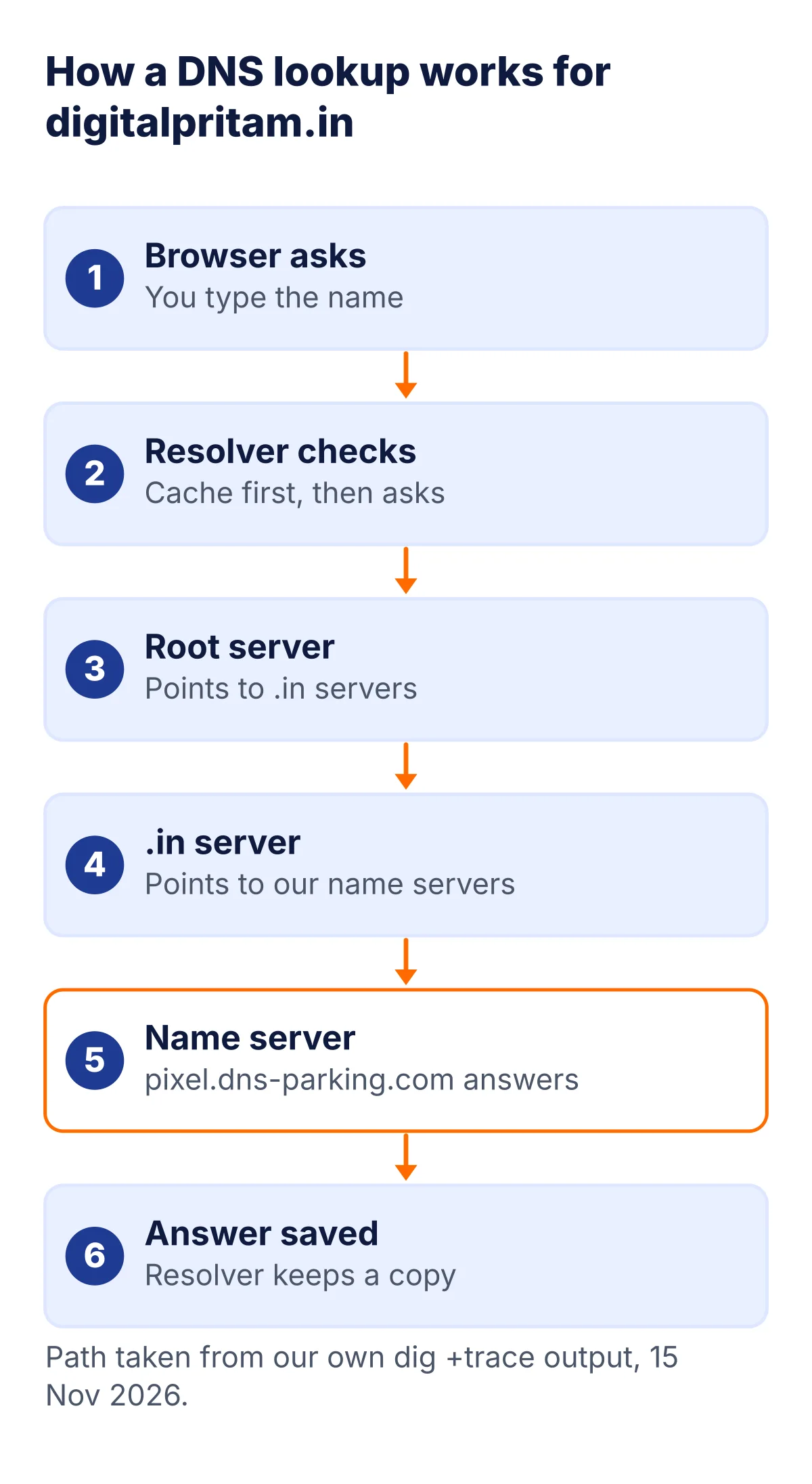
See a real lookup: dig +trace
The command dig +trace does the work of a resolver in the open. It starts at the root and follows each answer down. Here is the real output for our domain. Read it from the top.
$ dig digitalpritam.in +trace +nodnssec

.			600	IN	NS	j.root-servers.net.
.			600	IN	NS	b.root-servers.net.
.			600	IN	NS	a.root-servers.net.
.			600	IN	NS	f.root-servers.net.
.			600	IN	NS	l.root-servers.net.
.			600	IN	NS	h.root-servers.net.
.			600	IN	NS	e.root-servers.net.
.			600	IN	NS	k.root-servers.net.
.			600	IN	NS	d.root-servers.net.
.			600	IN	NS	c.root-servers.net.
.			600	IN	NS	m.root-servers.net.
.			600	IN	NS	i.root-servers.net.
.			600	IN	NS	g.root-servers.net.
;; Received 811 bytes from 192.168.0.1#53(192.168.0.1) in 11 ms

in.			172800	IN	NS	ns1.registry.in.
in.			172800	IN	NS	ns2.registry.in.
in.			172800	IN	NS	ns3.registry.in.
in.			172800	IN	NS	ns4.registry.in.
;; Received 302 bytes from 192.58.128.30#53(j.root-servers.net) in 12 ms

digitalpritam.in.	900	IN	NS	byte.dns-parking.com.
digitalpritam.in.	900	IN	NS	pixel.dns-parking.com.
;; Received 99 bytes from 64.78.205.1#53(ns4.registry.in) in 25 ms

digitalpritam.in.	60	IN	A	91.108.106.0
digitalpritam.in.	60	IN	A	88.222.243.249
;; Received 77 bytes from 172.64.52.230#53(pixel.dns-parking.com) in 163 ms
Real output from our Mac, Sunday 15 Nov 2026, about 16:52 IST. dig’s version line and option line were removed. The first server we asked, 192.168.0.1, is our home router.
- Top block: the 13 root servers. Any of them can start a lookup.
- Second block: the root pointed us to the servers for .in. India’s own domain ending has its own set of servers at registry.in.
- Third block: the .in servers named our domain’s nameservers: byte.dns-parking.com and pixel.dns-parking.com.
- Last block: pixel.dns-parking.com gave the final answer, two A records, with a time to live of 60 seconds.
Your own lookups are usually shorter. A resolver that already has a saved answer skips the root and the .in servers. That saved answer is the cache.
The four servers in a lookup
Cloudflare and Hostinger name four kinds of DNS server. Cloudflare uses a library as its example. The last column shows who played each part in our own lookup.
| Server | What it does | Library example | In our trace |
|---|---|---|---|
| Resolver | Goes to find the answer for you | The librarian | Our home router, then its upstream |
| Root nameserver | Points to the right ending | The library index | j.root-servers.net answered first |
| Top-level domain server | Handles one ending, like .com or .in | One rack of books | ns4.registry.in |
| Authoritative nameserver | Stores your domain’s records | The dictionary | pixel.dns-parking.com |
Prices from hostinger.com/in/domains, read 15 Nov 2026.
A recursive resolver searches for answers for you. An authoritative server stores the official records. Site owners manage the authoritative side.
What is DNS caching, and what is TTL?
Caching means keeping a copy of an answer for a while. Your browser, your computer and your internet provider’s resolver all keep copies. When a copy exists, steps are skipped, so the lookup is quicker.
Each copy has a time limit called TTL, short for time to live. It is counted in seconds. In Hostinger’s zone editor, the usual default is 14400 seconds, which is 4 hours. You can watch the countdown yourself. Here we asked our own name server, then Cloudflare’s public resolver at 1.1.1.1, and then Cloudflare again ten seconds later.
$ dig @pixel.dns-parking.com digitalpritam.in MX +noall +answer
digitalpritam.in.	14400	IN	MX	5 mx1.hostinger.com.
digitalpritam.in.	14400	IN	MX	10 mx2.hostinger.com.

$ dig @1.1.1.1 digitalpritam.in MX +noall +answer
digitalpritam.in.	14400	IN	MX	5 mx1.hostinger.com.
digitalpritam.in.	14400	IN	MX	10 mx2.hostinger.com.
# ten seconds later
$ dig @1.1.1.1 digitalpritam.in MX +noall +answer
digitalpritam.in.	14390	IN	MX	5 mx1.hostinger.com.
digitalpritam.in.	14390	IN	MX	10 mx2.hostinger.com.
Real output from our Mac, 15 Nov 2026, about 16:53 IST. Header lines removed.
Our name server says 14400. Cloudflare’s copy started at 14400, and ten seconds later it said 14390. The clock is counting down. When it reaches zero, the resolver must ask again. Not every resolver shows the same number. Earlier, our home router showed 600 for the same record. So the number you see depends on who you ask.
What are nameservers?
A nameserver stores the records for your domain. It answers when someone asks where to send them. Hosts usually give you two or more. You can ask for them with dig NS.
$ dig digitalpritam.in NS +noall +answer

digitalpritam.in.	600	IN	NS	pixel.dns-parking.com.
digitalpritam.in.	600	IN	NS	byte.dns-parking.com.
Real output from our Mac, 15 Nov 2026. Hostinger’s nameservers use the name dns-parking.com.
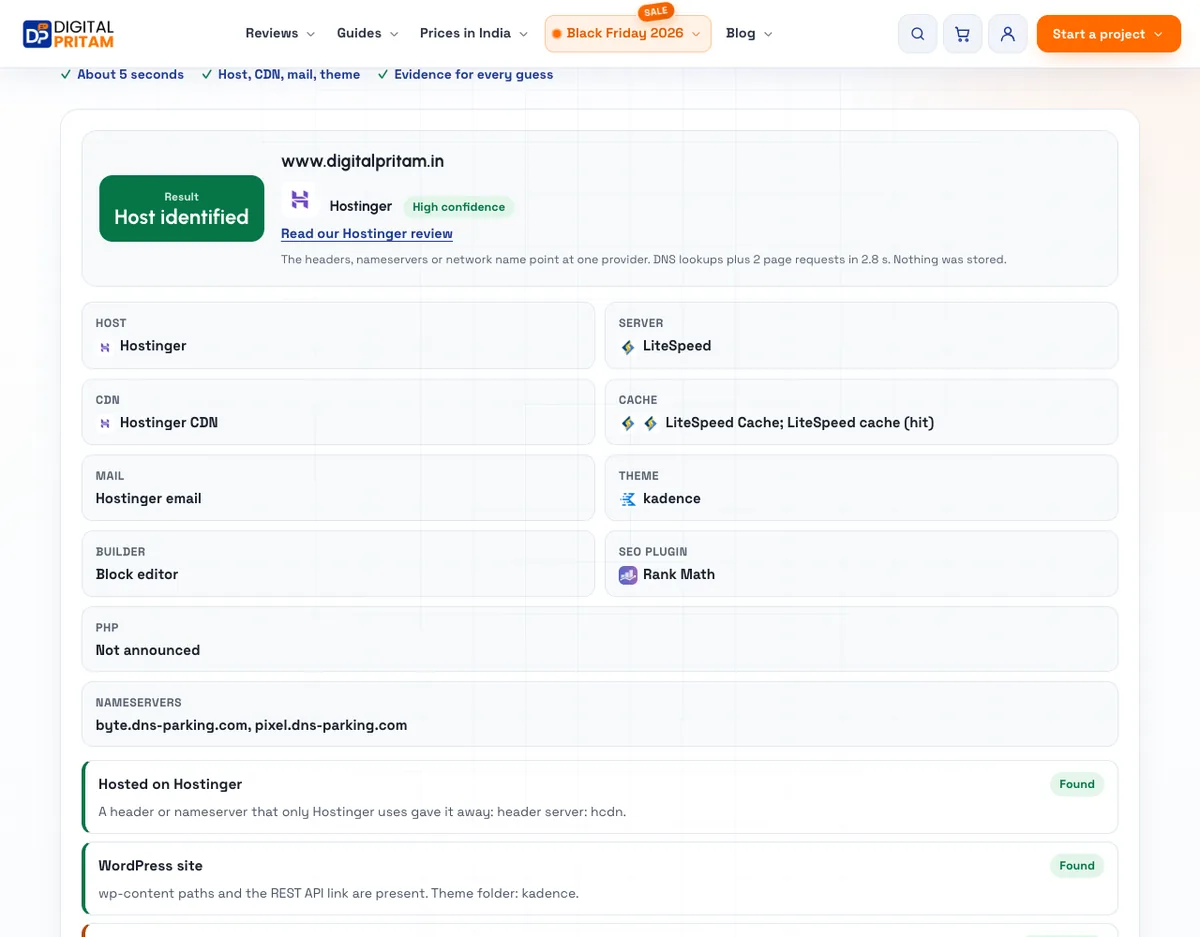
If your domain and hosting are at one company, this is set for you. If not, you point the domain to your host’s nameservers. You do this where the domain is registered. Our free website hosting checker reads the same nameservers and shows them in one place, as in the picture below.
The most common DNS records
A DNS zone is the set of records for one domain. Each record has a type. Here is the map, then the real records for our domain.
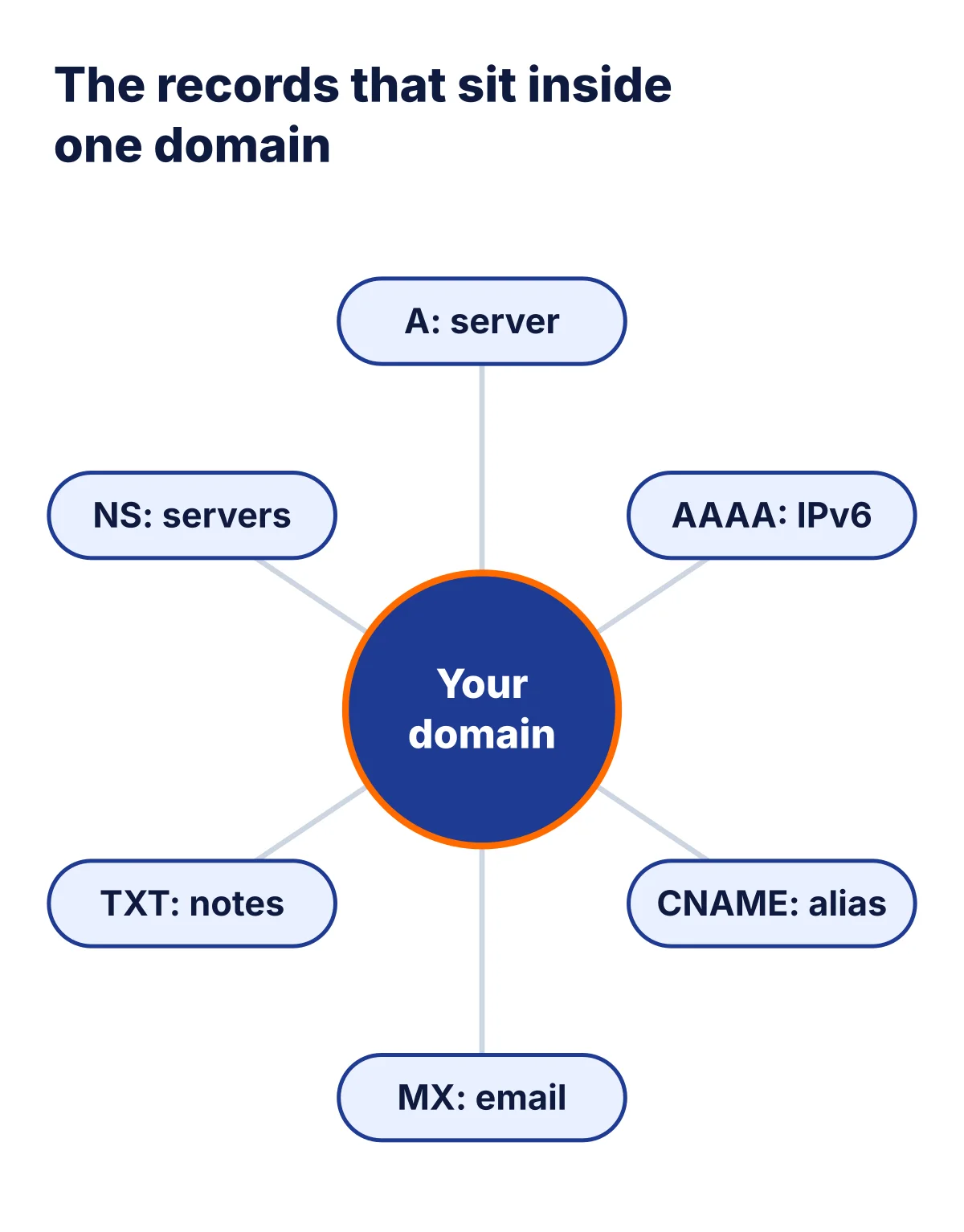
| Record | What it does | Plain example |
|---|---|---|
| A | Points a name to an IPv4 address | Your domain goes to your server |
| AAAA | Same, for an IPv6 address | A longer number |
| CNAME | Makes one name an alias of another | www.site.com follows another name |
| MX | Says where your email goes | Hostinger’s defaults: mx1.hostinger.com, mx2.hostinger.com |
| TXT | Holds notes for people and machines | An SPF record lists who may send your email |
| NS | Names the nameservers for the domain | pixel.dns-parking.com |
| SRV | Links a name to a service and port | Used by some chat tools |
Prices from hostinger.com/in/domains, read 15 Nov 2026.
A and AAAA records: the address of the server
$ dig digitalpritam.in A +noall +answer

digitalpritam.in.	60	IN	A	147.79.69.142
digitalpritam.in.	60	IN	A	93.127.173.55

$ dig digitalpritam.in AAAA +noall +answer

digitalpritam.in.	60	IN	AAAA	2a02:4780:1f:a341:9808:972f:ae38:96e0
digitalpritam.in.	60	IN	AAAA	2a02:4780:3c:ce02:1d39:86c6:c592:4041

$ dig @8.8.8.8 digitalpritam.in A

;; Got answer:
;; ->>HEADER<<- opcode: QUERY, status: NOERROR, id: 335
;; flags: qr rd ra; QUERY: 1, ANSWER: 2, AUTHORITY: 0, ADDITIONAL: 1

;; OPT PSEUDOSECTION:
; EDNS: version: 0, flags:; udp: 512
;; QUESTION SECTION:
;digitalpritam.in.		IN	A

;; ANSWER SECTION:
digitalpritam.in.	60	IN	A	147.79.69.50
digitalpritam.in.	60	IN	A	88.222.243.173

;; Query time: 20 msec
;; SERVER: 8.8.8.8#53(8.8.8.8)
;; WHEN: Sun Nov 15 16:52:05 IST 2026
;; MSG SIZE  rcvd: 77
Real output from our Mac, 15 Nov 2026, about 16:52 IST. The first two commands asked our home router. The last asked Google at 8.8.8.8.
Look at the numbers. Our home router gave 147.79.69.142 and 93.127.173.55. Google gave 147.79.69.50 and 88.222.243.173. The trace gave two more. The TTL is only 60 seconds, so these answers change often. This is normal for a site that sits behind a network of servers. Our hosting checker reads the site as hosted on Hostinger with the Hostinger CDN.
CNAME: an alias
$ dig www.digitalpritam.in CNAME +noall +answer

www.digitalpritam.in.	281	IN	CNAME	www.digitalpritam.in.cdn.hstgr.net.
Real output from our Mac, 15 Nov 2026.
The www name is not an address. It is an alias. It points to www.digitalpritam.in.cdn.hstgr.net, which is Hostinger’s content delivery network. Then DNS looks up that name to find the numbers.
MX and TXT: email
$ dig digitalpritam.in MX +noall +answer

digitalpritam.in.	600	IN	MX	5 mx1.hostinger.com.
digitalpritam.in.	600	IN	MX	10 mx2.hostinger.com.

$ dig digitalpritam.in TXT +noall +answer

digitalpritam.in.	600	IN	TXT	"v=spf1 include:_spf.mail.hostinger.com include:_spf.reach.hostinger.com include:sendersrv.com ~all"
Real output from our Mac, 15 Nov 2026. TXT records are public by design.
The two MX records send our email to Hostinger’s mail servers. The number before each name is the priority. The lower number, 5, is tried first. The TXT record is an SPF record. It lists who may send email for the domain, so other mail servers can spot fakes.
For email, MX is the one to watch. With a service like Google Workspace, you swap the default MX records for the ones it gives you. Our email hosting guide compares the options.
How to read one line of dig output
| Part | Example | What it means |
|---|---|---|
| Name | digitalpritam.in. | The name you asked about. The dot at the end is the root. |
| TTL | 60 | Seconds a resolver may keep this answer. |
| Class | IN | Internet. You will almost always see IN. |
| Type | A | The record type you asked for. |
| Value | 147.79.69.142 | The answer: here an IPv4 address. |
Prices from hostinger.com/in/domains, read 15 Nov 2026.
How to check DNS yourself
You do not need a login to read public DNS. Pick the way that suits you.
On a Mac or Linux computer: dig
dig yourdomain.com A
dig yourdomain.com MX +noall +answer
dig yourdomain.com NS +short
dig @1.1.1.1 yourdomain.com A
dig yourdomain.com +trace
Replace yourdomain.com with your own domain. The +noall +answer flags show only the answer lines. +short shows only the values. Adding @1.1.1.1 asks Cloudflare’s resolver instead of your own. That is a good way to see what the rest of the world sees.
On Windows: nslookup
nslookup yourdomain.com
nslookup -type=MX yourdomain.com
nslookup yourdomain.com 8.8.8.8
Here is real nslookup output for our domain, from the Mac, which has the same command.
$ nslookup digitalpritam.in
Server:		192.168.0.1
Address:	192.168.0.1#53

Non-authoritative answer:
Name:	digitalpritam.in
Address: 147.79.69.142
Name:	digitalpritam.in
Address: 93.127.173.55
Real output from our Mac, 15 Nov 2026. ‘Non-authoritative answer’ means the answer came from a resolver’s cache and not from the domain’s own nameserver.
In a browser: DNS Checker
Hostinger’s help pages point to DNS Checker for propagation. You enter a domain, choose a record type and press Search. Each row is a resolver in a different place. A green tick means it found the record. A red cross means it did not.
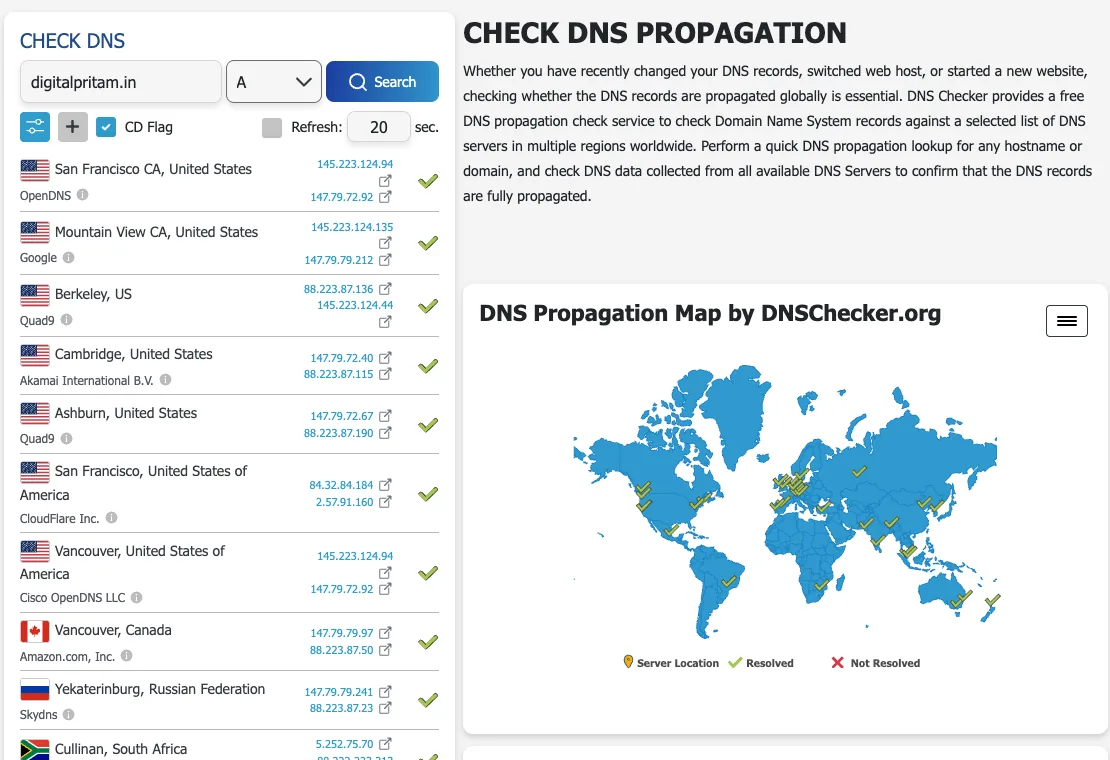
Hostinger’s guide reads the results like this. All ticks: propagation is done. A mix: it is still spreading. All crosses: it has not started, or the record does not exist.
How to check your DNS settings
Your device does not look up names alone. It asks a resolver, and the resolver is a setting. Usually your router hands it out, so you never chose it. Here is how to see yours.
| Device | Where to look | Tested by us? |
|---|---|---|
| Mac | Terminal: scutil --dns or networksetup -getdnsservers Wi-Fi. Menu: Apple menu > System Settings > Network > your network > Details > DNS. | Commands tested on our Mac, 15 Nov 2026 |
| Windows | Command window: ipconfig /all, then the DNS Servers line. To change: Control Panel > Network and Internet > Network and Sharing Center > Change adapter settings. | Read from Microsoft and Google pages. We have not tested this. |
| Android 9 or newer | Settings > Network & Internet > Advanced > Private DNS. Pick Private DNS provider hostname to use one, such as dns.google. | Read from Google’s page. We have not tested this. |
| iPhone | Settings > Wi-Fi, tap the i next to your network, scroll to DNS, tap Configure DNS. Automatic uses the network’s own DNS. | Read from Google’s page. We have not tested this. |
Prices from hostinger.com/in/domains, read 15 Nov 2026.
On a Mac: what we saw
$ networksetup -getdnsservers Wi-Fi
There aren't any DNS Servers set on Wi-Fi.

$ scutil --dns | grep nameserver
  nameserver[0] : 192.168.0.1
Real output from our Mac, 15 Nov 2026. Menu path from Apple’s help page on changing DNS settings on a Mac.
The first command says no DNS servers are set on Wi-Fi. So our Mac takes whatever the network gives it. The second command shows what it uses: 192.168.0.1, our home router. That matches the first line of our dig trace.
On Windows
ipconfig /all
ipconfig /displaydns
Microsoft’s page says /all shows the full network setup for every adapter. Look for the DNS Servers line. We have not run this on Windows for this page.
On Android and iPhone
Both phones use the network’s DNS unless you change it. Google’s guide says that on Android 9 or newer you can set Private DNS to a provider’s hostname, such as dns.google. On an iPhone, you open the Wi-Fi network details and choose Configure DNS. Setting it back to Automatic restores the DNS the Wi-Fi network gives out. On mobile data, your phone company’s DNS is used. We have not tested these steps on a phone.
DNS propagation: why changes take time
When you change a record or the nameservers, the news has to spread across DNS servers worldwide. This is called propagation. It is really caches running out, one by one, as each TTL ends.
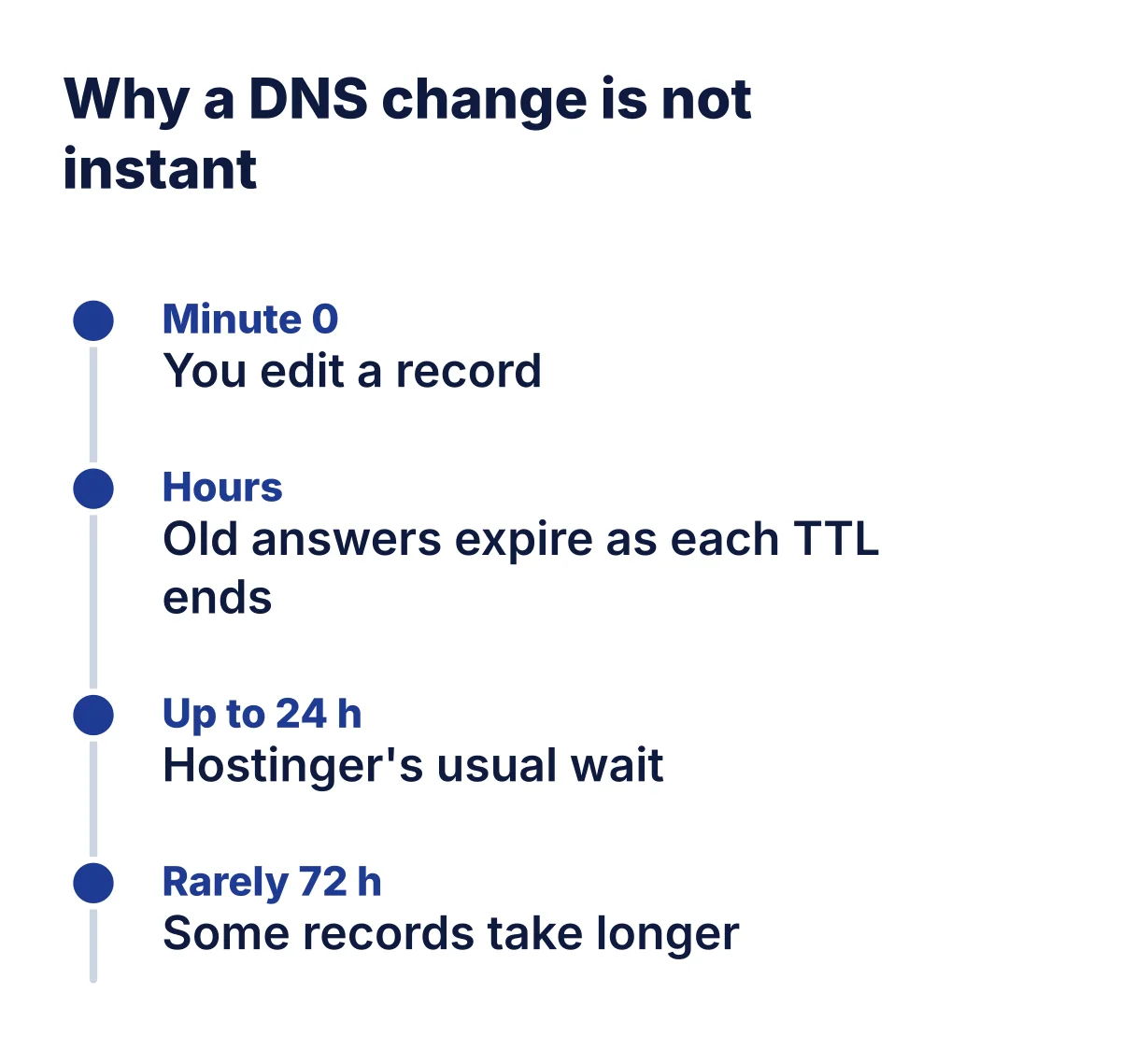
Hostinger says it can take from a few minutes to 24 hours. Some visitors may see the old site while others see the new one. A new domain can take up to 4 hours to become active. Rarely, changes take up to 72 hours. While you wait, Hostinger suggests working through a preview URL or your computer’s hosts file.
Point a domain to Hostinger
This is the most common job. You bought a domain in one place and a hosting plan in another. Now you must connect them. There are two ways: change the nameservers, or edit one A record. The diagram shows the difference.

These steps come from Hostinger's help pages, read on 15 Nov 2026. We have not tested them on a spare domain, and we did not touch our own DNS.
Option 1: change the nameservers

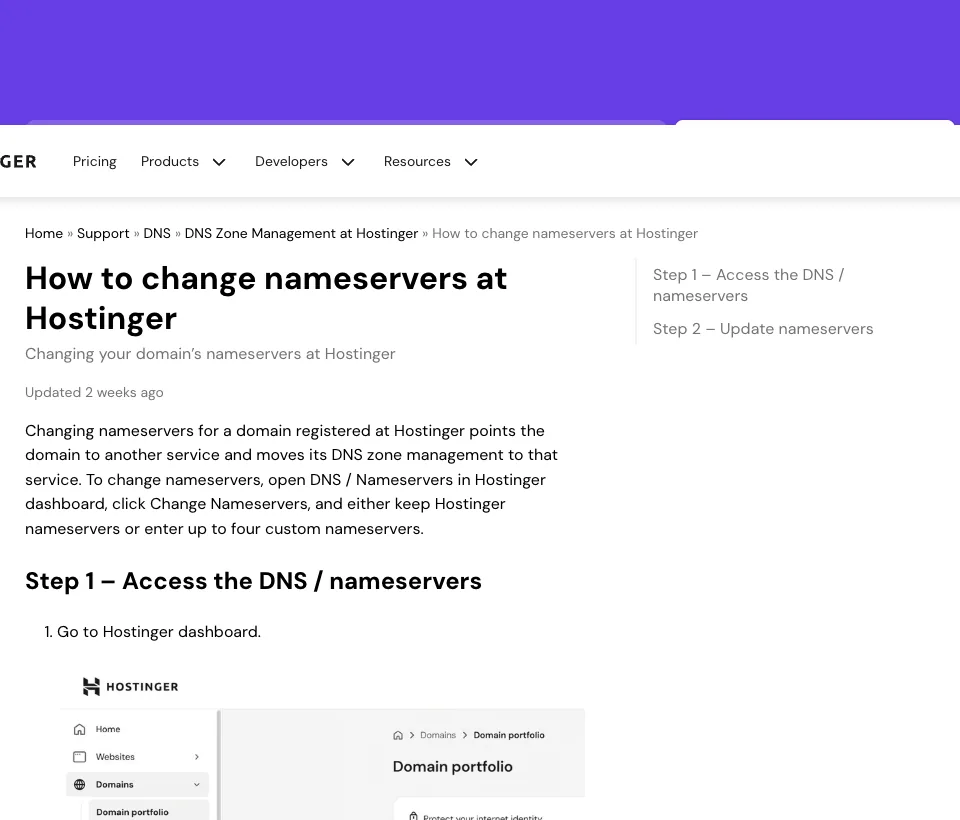
Point a domain with nameservers
- 1Add the domain to your hosting plan
In the Websites section of the Hostinger dashboard, add the domain. Hostinger then shows the nameservers for it.
- 2Copy the nameservers exactly
Hostinger says the values may differ by domain, so always use the ones the dashboard shows.
- 3Paste them where you bought the domain
Open your registrar, find the nameserver settings, remove the old ones and add the new ones. Save.
- 4Wait for the change to spread
Hostinger says custom nameservers may take up to 24 hours to finish validation. Its dashboard runs a live DNS checkup.
- 5Check the result
Run dig NS on your domain or use a DNS checker. You should see the new nameservers.
Pointing a domain to Hostinger nameservers also sets its email records to Hostinger Email. If you use another email service, update the MX records after the change has spread, and check your SPF, DKIM and DMARC records.
Option 2: edit one A record
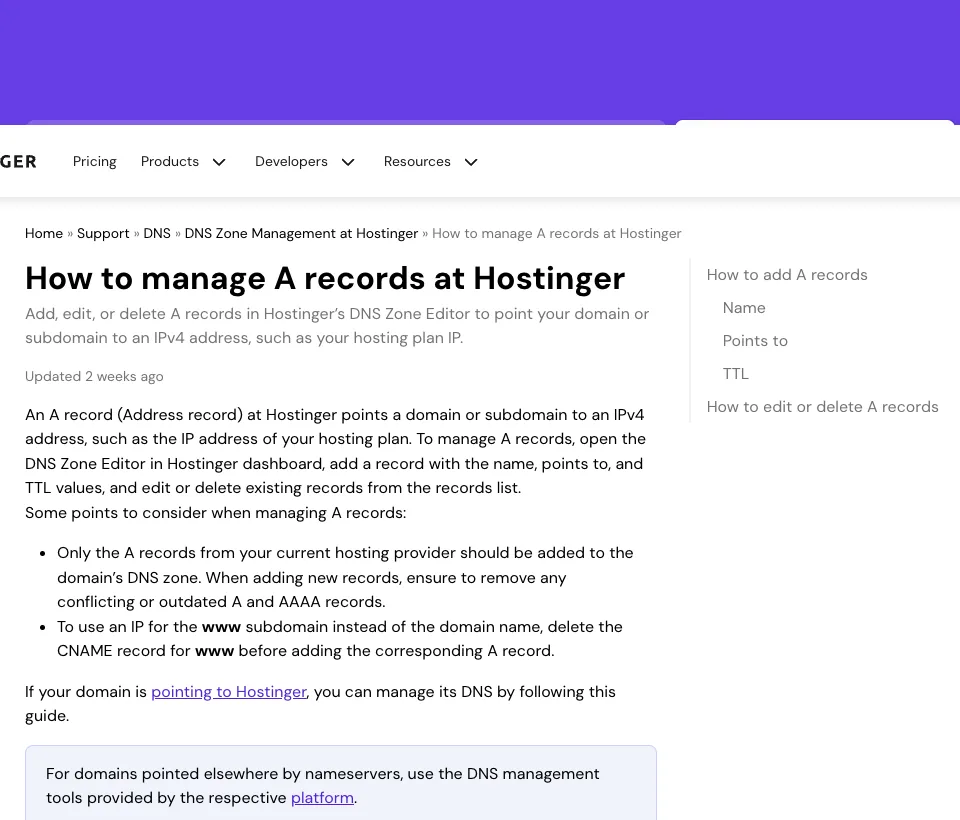
Use this when the domain stays with another DNS provider and you only want the website to point to Hostinger. In the DNS zone editor you add or edit an A record.
| Field | What to enter | Source note |
|---|---|---|
| Name | @ for the main domain, or the subdomain name only (blog, not blog.site.com) | Hostinger A record help |
| Points to | The IPv4 address of your hosting plan, written like 185.185.185.185 | Hostinger A record help |
| TTL | 14400 seconds (4 hours) unless you have a reason to change it | Hostinger A record help |
Prices from hostinger.com/in/domains, read 15 Nov 2026.
- Remove old records first. Hostinger says to add only the A records of your current host and to delete conflicting or outdated A and AAAA records.
- www is special. To give www an IP address instead of the domain name, delete the CNAME record for www before you add the A record.
- Turn the CDN off for the root domain. Before you add an A record for the root domain, Hostinger says the Hostinger CDN must be fully disabled.
- Wait. Allow up to 24 hours for the change to spread.
How DNS affects site speed
A lookup happens before a page begins to load. Google says complex pages often need several lookups. A slow one adds delay to the start.
- Caching helps. A saved answer skips steps.
- Fewer outside names help. Each extra service a page calls is another name to look up.
- Plan your TTL. A shorter one spreads a change faster.
We have not measured DNS speed, so we give no timings. To see who hosts a site, try our free website hosting checker.
Alternatives to your default DNS
Your device uses the resolver your network gives it. This is often your internet provider’s. You can switch to a public one. Two well known ones have their own pages.
| Option | Address | Notes |
|---|---|---|
| Your network’s default | Set by your network | Often run by your internet provider |
| Google Public DNS | 8.8.8.8 and 8.8.4.4 | Free. Also supports DNS over TLS and DNS over HTTPS |
| Cloudflare 1.1.1.1 | 1.1.1.1 | Free app for phones and computers, as its page shows |
Prices from hostinger.com/in/domains, read 15 Nov 2026.
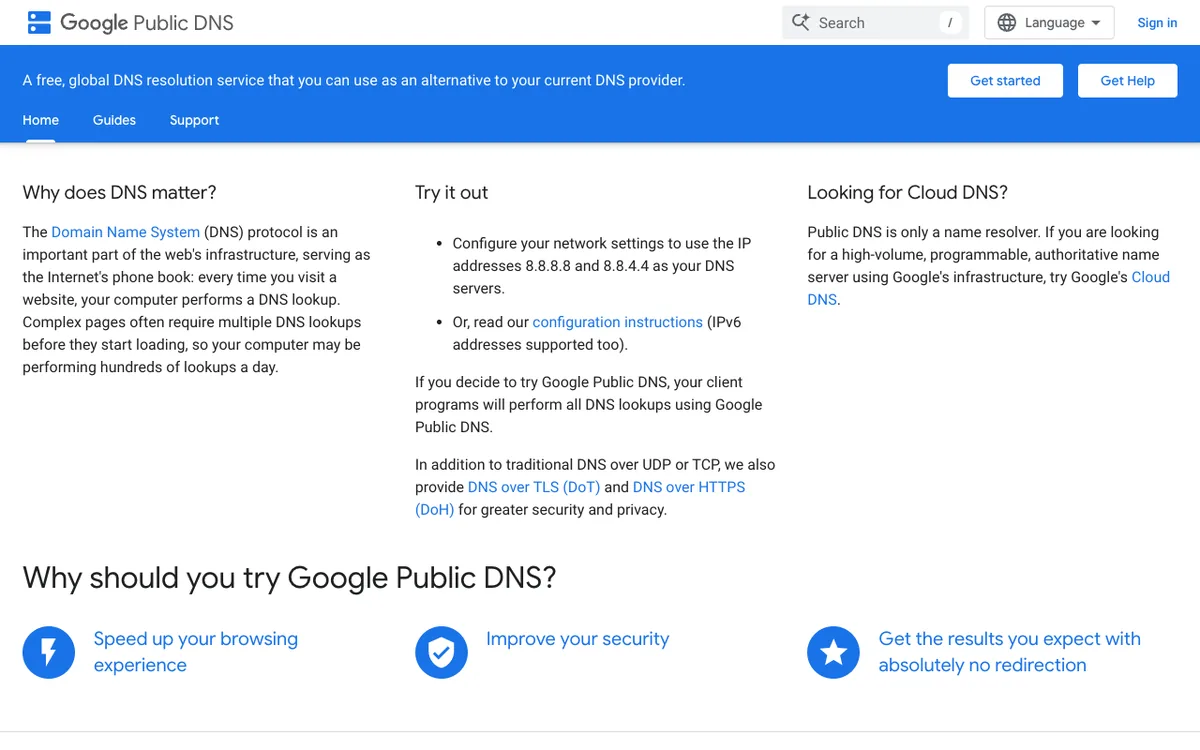

A resolver can see the sites you visit. Read the provider’s privacy page first. Switching changes only your own device or network, not your site’s DNS. We used 8.8.8.8 and 1.1.1.1 in our dig commands only to read answers. We did not change any settings.
DNS for Wi-Fi: router DNS settings
If you set 1.1.1.1 or 8.8.8.8 on your router, every device on that Wi-Fi uses it, unless a device has its own setting. If you set it on one phone, only that phone changes. A phone on mobile data uses its own network’s DNS.
We have not changed the DNS on our router or any device for this page. These steps come from Google's Public DNS guide, read on 15 Nov 2026. Every router looks different, so check your router's manual.
Change DNS on a router (generic steps)
- 1Write down the old values
Note the current DNS servers first, or take a screenshot. You may want them back.
- 2Open your router's page
Type the router's address in a browser. Google lists 192.168.0.1, 192.168.1.1, 192.168.2.1 and 192.168.1.100 as common ones. Sign in.
- 3Find the DNS settings
Look for DNS server fields in the internet or WAN settings. Menus differ for every router.
- 4Enter the new addresses
For Google: 8.8.8.8 and 8.8.4.4. For Cloudflare: 1.1.1.1. Save, then restart your browser.
- 5Check that it worked
On a computer, run dig or nslookup and see which server answered. Then load a few sites.
To switch back, Google says to choose the option that gets DNS addresses automatically, or delete the new addresses. If you had typed old ones by hand, enter those again.
What is DNSSEC?
Plain DNS answers are not signed. Someone on the way could, in theory, swap an answer for a fake one. DNSSEC fixes that by adding digital signatures to records. A resolver that checks signatures can tell if an answer was changed.
Two kinds of record show it. An RRSIG record is the signature itself. A DS record sits in the parent zone, such as .com, and holds a fingerprint of the domain’s key. If a domain has no DS record, it is not signed.
You can look yourself. Here we asked Cloudflare’s resolver about cloudflare.com, a public domain that is signed, and then about our own domain.
$ dig @1.1.1.1 cloudflare.com A +dnssec +noall +answer
cloudflare.com.		106	IN	A	104.16.133.229
cloudflare.com.		106	IN	A	104.16.132.229
cloudflare.com.		106	IN	RRSIG	A 13 2 300 20261116131559 20261114111559 34505 cloudflare.com. 4xTQrACMsSJQVaEDkTZpSOovYttJMfx9Pk6YkXvUHpgFo2UqbOfFkm0E mcj9bsorHK76dNrMEAFidVl0xiqK3Q==

$ dig @1.1.1.1 cloudflare.com DS +noall +answer
cloudflare.com.		86400	IN	DS	2371 13 2 32996839A6D808AFE3EB4A795A0E6A7A39A76FC52FF228B22B76F6D6 3826F2B9

$ dig @1.1.1.1 digitalpritam.in DS +noall +answer
(no lines printed: no DS record found)
Real output from our Mac, 15 Nov 2026, about 17:49 IST. The long signature and key text is Cloudflare’s, shown as returned. We removed dig’s header lines. The line in brackets is our own note: that last command printed nothing.
- cloudflare.com: the answer came with an RRSIG line, and a DS record exists. When we asked with the +dnssec flag, the reply flags included ad, which means the resolver checked the signatures and they passed.
- digitalpritam.in: no DS record came back, and the ad flag was missing. So DNSSEC is not switched on for our domain. Many small sites run without it.
To check any domain, run dig yourdomain.com DS +noall +answer. A line back means the domain is signed. Nothing back means it is not. Do not switch DNSSEC on or off casually. Hostinger says to check for DNSSEC that is still switched on if a domain stops working after a nameserver change. We have not tested turning DNSSEC on for this page.
DNS security basics
DNS was built in an open way, so people have tried to trick it. IBM names four risks: DNS spoofing, amplification attacks, tunneling and subdomain takeover. DNSSEC helps against fakes. Encrypted lookups, such as DNS over HTTPS and DNS over TLS, hide the question from people on the way. Google Public DNS says it supports both.
Keep the basics simple. Use a resolver you trust. Keep your domain account safe with a strong password and two-step sign in. Check your records now and then for lines you do not recognise.
DNS problems and quick fixes
| What you see | Likely cause | What to try |
|---|---|---|
| Old page still shows after a change | A cached answer has not expired yet | Wait for the TTL. Run dig @1.1.1.1 yourdomain.com A to see what others see. |
| Works on mobile data, not on Wi-Fi | Your router or device cache holds an old answer | Clear your DNS cache, or try another resolver. On Windows: ipconfig /flushdns. |
| Some places see the new site, some the old | The change is still spreading | Use a DNS checker. Mixed ticks and crosses mean it is in progress. |
| Domain not connected to the website | The A record points to the wrong server, or old A and AAAA records remain | Check records with dig A and dig AAAA. Remove conflicting records. |
| Only www or only the root works | One of the two names has no record | Add an A record for @ and a CNAME or A record for www, as Hostinger describes. |
| Email stopped after changing nameservers | The MX records were replaced by defaults | Check dig MX yourdomain.com and set your email provider’s records. |
| DNS server not responding | Your resolver or network has a problem | Try another network or a public resolver, then check again. |
Prices from hostinger.com/in/domains, read 15 Nov 2026.
A site will not load: what to try
- 1Try another network
Switch from Wi-Fi to mobile data.
- 2Clear your DNS cache
On Windows, the command ipconfig /flushdns clears saved answers. Hostinger has a tutorial for other systems.
- 3Check your records
Make sure the A record points to the right server and the nameservers are correct.
- 4Wait for propagation
Give a recent change time, then check with a DNS checker.
DNS server not responding
This message means your device asked a resolver and got no answer. The cause is usually the network, not your website. Try these in order.
- Open a site on another device or on mobile data. If it works there, the problem is your Wi-Fi or router.
- Restart the router, wait two minutes, and try again.
- Try a public resolver such as 1.1.1.1 or 8.8.8.8 on one device, using the steps above.
- Flush the DNS cache on your device, with the commands below.
- If only your own domain fails, check your records and nameservers with dig.
Flush the DNS cache
Flushing throws away the answers your device saved, so it asks again. Microsoft says ipconfig /flushdns clears the resolver cache on Windows. Hostinger lists the other commands. Browsers keep their own cache too.
# Windows
ipconfig /flushdns

# macOS Big Sur, Monterey, Ventura, Sonoma, Sequoia (Hostinger's list)
sudo dscacheutil -flushcache; sudo killall -HUP mDNSResponder

# Linux with systemd
sudo resolvectl flush-caches

# Chrome: open this address
chrome://net-internals/#dns

# Firefox: open this address
about:networking#dns
Commands from Microsoft Learn and Hostinger’s tutorial, read 15 Nov 2026. We have not run them: they need an administrator password, and Hostinger’s macOS list stops at Sequoia, while our Mac runs a newer system.
Common DNS mistakes
- Leaving old A or AAAA records behind. They send some visitors to the old server.
- Adding an A record for www while a CNAME for www still exists. Delete the CNAME first, as Hostinger says.
- Changing nameservers and forgetting email. Nameservers move the whole zone, so MX records change too.
- Typing the nameservers from memory. Copy the exact values the host shows.
- Testing too early. Check with a DNS checker, not only your own browser.
- Turning on the CDN and adding a root A record together. Hostinger says the CDN must be fully off before you add the root A record.
Checklist before you change DNS
- Write down your current records, or export the zone if your host allows it.
- Check the TTL. A shorter one spreads a change faster.
- Copy new values exactly from your host.
- Plan for email: note your MX and TXT records first.
- Make the change, then wait, then check with dig and a DNS checker.
Who should manage their own DNS?
Which setup is yours?
Hostinger says nameservers are set for you.
Nothing to changePoint the domain's nameservers to your host.
Change nameserversReplace the default MX records.
Edit MX recordsDNS tools at Hostinger
- DNS management in the dashboard. You change nameservers and edit records there.
- Free WHOIS privacy on supported extensions, and a transfer lock on by default.
- ICANN-accredited registrar. Hostinger lists its IANA ID as 1636.
| Extension | First year | Renews at | Transfer |
|---|---|---|---|
| .com | ₹1 with a 3-year term | ₹1,499 a year | ₹969 |
| .net | ₹999 with a 2-year term | ₹1,749 a year | ₹1,459 |
| .org | ₹1 with a 3-year term | ₹1,749 a year | ₹1,259 |
| .online | ₹99 | ₹3,489 a year | ₹3,009 |
Prices from hostinger.com/in/domains, read 15 Nov 2026.
As shown on hostinger.com/in/domains on 15 Nov 2026. First-year prices need the term shown. Check the page for GST.
Compare the renewal price, not only the first-year price. Our page on free domain names shows more ways to start.
Planning to host there too? Read our Hostinger review. Starting a site from zero? Our guide on how to start a blog walks through domain, hosting and WordPress. Weighing a server of your own? Read what VPS hosting is.
Who wrote this, and how you can check
I am Pritam Sonone. I run digitalpritam.in on Hostinger, and I built the free hosting checker that reads DNS and headers. Every command on this page ran on my own computer against my own domain. The links below go to pages that show my work, so you can check them yourself.
How we chose
Frequently asked questions
What does DNS stand for?
DNS stands for Domain Name System. It turns a website name like example.com into the number address a computer needs.
What is a DNS record?
A DNS record is one line of information about your domain. An A record points your domain to a server. An MX record says where your email goes.
What is the difference between a nameserver and a DNS record?
A nameserver is the server that holds all the records for your domain. A DNS record is one line inside that set. If you change your nameservers, you move the whole set. If you edit one record, you change one line.
How do I check the DNS records of a domain?
On a Mac or Linux computer, open a terminal and type dig yourdomain.com A. On Windows, type nslookup yourdomain.com in a command window. You can also use an online tool such as DNS Checker. We show real output for each way on this page.
How long does a DNS change take?
Hostinger says a change can take a few minutes to 24 hours. A new domain can take up to 4 hours to become active. Rarely, changes take up to 72 hours. Your site usually stays reachable meanwhile.
Why do I see different numbers for the same domain?
Some domains list more than one address, and different resolvers can show different ones. In our own check, three lookups a minute apart gave three different pairs of numbers for digitalpritam.in. That is normal when a site uses a network of servers.
Is DNS the same as hosting?
No. Hosting is where your website files live. DNS only tells people which server to ask. You can buy a domain in one place and host the site in another, then point the domain to the host.
Can DNS make my website slow?
DNS lookups happen before a page starts to load, so a slow lookup adds delay. Caching removes most repeat lookups. We have not measured DNS speed for this page, so we give no numbers.
Is it safe to change my DNS resolver?
Yes, if you pick a provider you trust. A resolver sees the names of the sites you visit, so read the provider’s privacy page first. Google Public DNS, for example, is free and says it supports DNS over TLS and DNS over HTTPS.
What should I do if a site still shows the old page after a DNS change?
Wait, then check with a DNS checker to see if all places show the new answer. Clear your own device’s DNS cache. Make sure the A record points to the right server and old A or AAAA records are gone. The troubleshooting table on this page lists the commands.
What is DNSSEC?
DNSSEC adds digital signatures to DNS records. A resolver can then check that an answer was not changed on the way. It is optional. Many domains, including ours, do not use it. You can check with dig yourdomain.com DS: if a DS line comes back, the domain is signed.
How do I flush the DNS cache?
On Windows, run ipconfig /flushdns in a command window. On a Mac with macOS Big Sur to Sequoia, Hostinger lists sudo dscacheutil -flushcache; sudo killall -HUP mDNSResponder. On Linux with systemd, try sudo resolvectl flush-caches. Browsers also keep their own cache.
How do I see which DNS server my device uses?
On Windows, run ipconfig /all and look for the DNS Servers line. On a Mac, run scutil –dns. On Android and iPhone, look in the Wi-Fi network details or the Private DNS setting. We show the steps in the guide above.
About this page

- WordPress developer and designer, builds sites for clients
- WordCamp Asia Communication Co-Lead
- 14K+ subscribers on the DigitalPritam YouTube channel
How we checked
Updated 2026-11-15Sources
- Cloudflare, What is DNS (cloudflare.com/learning/dns/what-is-dns), read 15 Nov 2026
- Hostinger Tutorials, What is DNS (hostinger.com/tutorials/what-is-dns), read 15 Nov 2026
- Hostinger Help, How to change nameservers at Hostinger (hostinger.com/support/1696789-how-to-change-nameservers-at-hostinger), read 15 Nov 2026
- Hostinger Help, How to manage A records at Hostinger (hostinger.com/support/4468886-how-to-manage-a-records-at-hostinger), read 15 Nov 2026
- Hostinger Help, How to point a domain to Hostinger (hostinger.com/support/1863967-how-to-point-a-domain-to-hostinger), read 15 Nov 2026
- Hostinger Help, What is DNS propagation at Hostinger (hostinger.com/support/4146975-what-is-dns-propagation-at-hostinger), read 15 Nov 2026
- Hostinger domains page (hostinger.com/in/domains), read 15 Nov 2026
- IBM, What is DNS (ibm.com/think/topics/dns), read 15 Nov 2026
- Google Public DNS (developers.google.com/speed/public-dns), read 15 Nov 2026
- Cloudflare 1.1.1.1 (one.one.one.one), read 15 Nov 2026
- Microsoft Learn, ipconfig (learn.microsoft.com/en-us/windows-server/administration/windows-commands/ipconfig), read 15 Nov 2026
- Google Public DNS, Get Started (developers.google.com/speed/public-dns/docs/using), read 15 Nov 2026
- Apple Support, Change DNS settings on Mac (support.apple.com/en-in/guide/mac-help/mh14127/mac), read 15 Nov 2026
- Hostinger Tutorials, How to flush DNS cache (hostinger.com/tutorials/how-to-flush-dns), read 15 Nov 2026
- Our own dig, nslookup, scutil and networksetup output for digitalpritam.in, run 15 Nov 2026
Keep reading
 How to start a blog
 What is VPS hosting?
 Website hosting checker
 Best email hosting
 Free domain name
 Hostinger review
Check the first-year and renewal price on the day you buy.
 FREE PDF
Get the Hostinger setup checklist, plus every sale alert
The exact steps we use on our lab sites, and an email when each big hosting sale opens.
Sent instantly. Deal alerts until 1 Dec. Unsubscribe in one click.


 Pritam Sonone